
HP Laserjet M607 M608 M609 Paper Jam: Every 13.XX Code, What It Means, and How We Fix It
An HP Laserjet M607 M608 M609 Paper Jam never announces itself politely — it shows up as a cryptic 13.XX code in the middle of payroll checks or a client proposal. Each code points to a specific sensor along the paper path, so the code itself tells us where to look before we open a door. This page decodes all 32 jam codes from HP’s own service documentation, with the remedies our technicians apply in the field every week.

Quick Preview:
- The meaning of every 13.XX jam code on the M607, M608, and M609, grouped by paper-path location
- Customer-level remedies you can try safely before calling anyone
- Technician-level diagnostics, sensor tests, and the HP part numbers we actually replace
- Why worn feed rollers and overdue maintenance kits cause most repeat jams
- When a jam code signals a fuser problem instead of a paper problem
- How Onsite Printer Repair with a 6-month warranty keeps your fleet running
Why the HP Laserjet M607 M608 M609 Paper Jam Deserves a Real Diagnosis
When a busy accounting office loses its main printer at month-end close, every jammed page costs real productivity. We see this constantly: staff clear the sheet, the code returns two prints later, and the machine gets a reputation it doesn’t deserve. The HP Laserjet M607 M608 M609 Paper Jam family of codes exists precisely so nobody has to guess — HP mapped each code to a sensor and a cause.
Printer Repair Experts routinely diagnoses these codes during HP Laserjet Printer Repair visits across Orange County offices. The pattern we find most often is simple mechanical wear. Feed rollers harden and glaze with age, separation rollers lose grip, and sensors get blocked by torn scraps from a jam someone cleared in a hurry.
Whether the control panel reports an HP Laserjet M607 Paper Jam, an HP Laserjet M608 Paper Jam, or an HP Laserjet M609 Paper Jam, the paper path and sensor layout are essentially the same. That’s good news for a fleet manager: one documented fix usually applies across all three models in your inventory.
How the M607, M608, and M609 Report Jams: Reading the 13.XX Codes
Every 13.XX code follows a logic. The middle pair identifies the paper-path zone — A1 for Tray 1, A3 and A4 for optional feeders, B2 for the registration and rear-door area, B9 for the fuser. The final pair describes the failure type: a “stay” jam means paper sat on a sensor too long, a “delay” jam means paper never arrived on time, and FF means residual paper was detected at power-on.
Delay jams usually trace back to pickup and feed problems — the printer tried to grab a sheet and failed. Stay jams point downstream: something stopped the sheet after it was already moving. That single distinction saves an enormous amount of troubleshooting time, and it’s the first thing our technicians read off the event log during an HP LaserJet M607 M608 M609 Printer Repair call.
One field note worth sharing: self-sealing and adhesive media are a known trigger for 13.B2 and 13.B9 codes on these models, and HP documents this behavior specifically. If your office prints pressure-seal forms, mention it when you call — it changes the diagnosis.
General Jam Codes: 13.00.0E, 13.00.EE, and 13.00.FF
| Code | Documented Meaning |
|---|---|
| 13.00.0E | A jam occurred while feeding envelopes from the envelope feeder cassette |
| 13.00.EE | Unknown door open — a door or cover opened and the printer cannot identify which |
| 13.00.FF | Residual jam with no specific sensor designated; paper may remain anywhere in the path |
Remedies. For 13.00.0E, use high-quality envelopes only, verify orientation, then lift the tray holding the envelope feeder cassette out, remove any partially fed or damaged envelopes, and reseat the tray. For 13.00.EE, close every door and cover firmly. For 13.00.FF, check the entire paper path and remove any paper or obstruction; because no sensor is designated, the required jam access point simply hasn’t been opened yet.
At the technician level, a persistent 13.00.FF gets the manual sensor test. We review the event log for companion jam codes, then run the input tray, output bin, and engine sensor tests to isolate a faulty door switch or sensor before replacing anything. That test-first discipline is why we rarely swap parts that didn’t fail.
Tray 1 Jam Codes: 13.A1.A1, 13.A1.D1, and 13.A1.FF
| Code | Documented Meaning |
|---|---|
| 13.A1.A1 | Stay jam — paper did not leave the Tray 1 feed sensor (PS4750) in the designated time |
| 13.A1.D1 | Delay jam — paper did not reach the Tray 1 feed sensor (PS4750) in the designated time |
| 13.A1.FF | Power-on jam — residual media detected at the Tray 1 feed sensor in the feed guide assembly |
Customer remedies. Remove jammed paper from Tray 1, then pull Tray 2 and press the green jam access button so the Tray 1 jam access door drops down. Clear anything you find, reinstall Tray 2, and close the doors so the printer can clear the message. Inspect the Tray 1 pickup, feed, and separation rollers for dirt or glazing and wipe them with a damp, lint-free cloth.
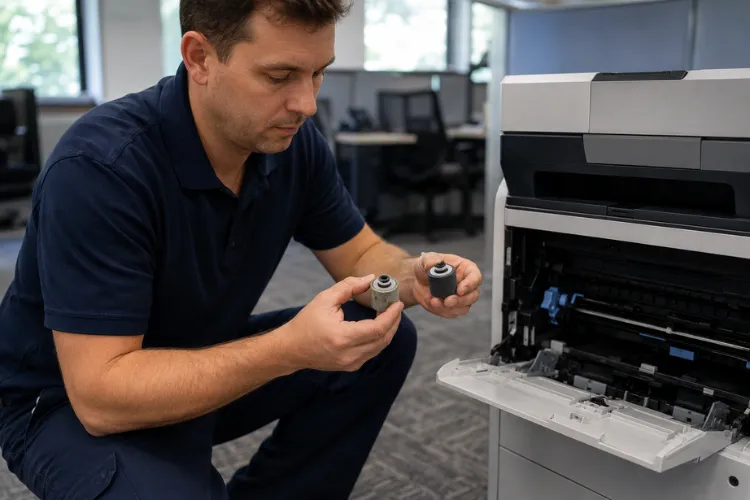
A delay code here is the classic complaint behind “my HP Laserjet M607 won’t pick paper” service calls. When rollers are worn past cleaning, HP feed roller replacement is the fix, not another cleaning. Our vans stock the common roller kits, so this is usually a same-day repair.
Technician diagnostics. We run the manual sensor test on PS4750 (replacement sensor WG8-5935-000CN if it fails), inspect the lower paper feed guide assembly (RM2-6748-000CN), and component-test the Tray 1 pickup solenoid SL1 and feed clutch CL1 — checking DC controller connectors J11 and J202 before condemning parts. A failed clutch is RM2-9456-000CN; a failed solenoid means the front door assembly, RM2-6745-000CN.
Optional Feeder Jam Codes: The 13.A3 and 13.A4 Series
| Code | Documented Meaning |
|---|---|
| 13.A3.D3 | Paper did not reach the Tray 3 feed sensor in time when printing from Tray 3 |
| 13.A3.D4 | Paper did not reach the Tray 3 feed sensor in time when printing from Tray 4 |
| 13.A3.D5 | Paper did not reach the Tray 3 feed sensor in time when printing from Tray 5 |
| 13.A3.FF | Residual paper detected at the tray feed sensor at power-on |
| 13.A4.D4 | Paper did not reach the Tray 4 feed sensor in time when printing from Tray 4 |
| 13.A4.D5 | Paper did not reach the Tray 4 feed sensor in time when printing from Tray 5 |
These codes belong to the stackable 550-sheet and 2,100-sheet feeders, which share the same sensors and connectors from tray to tray. Complaints like “HP laserjet M608 won’t pick paper from the bottom tray” or “HP laserjet M609 won’t pick paper after we added a feeder” almost always land in this series.
Customer remedies. Open the affected tray and remove jammed sheets, then check the front and rear doors for obstructions. Confirm the width and length guides match the loaded paper and that the stack sits below the fill mark — overfilled trays are the most common self-inflicted cause we encounter. Verify the paper meets HP specifications and that the pickup, feed, and separation rollers are seated, clean, and unworn.
Technician diagnostics. We roller-swap or replace with the J8J70-67904 kit, run a Tray 2 print test to confirm the main motor and gear drive, inspect the feeder entrance behind the rear door, and check the feeder controller connectors. Escalation parts, per HP’s documentation, are the tray pickup assembly (RM2-0878-000CN for 550-sheet units, RM2-1169-000CN for the 2,100-sheet feeder) and the feeder drive assembly (RM2-0875-000CN). With multiple 550-sheet feeders, rearranging their stack order is a quick isolation test HP specifically recommends.
Door Interlock Jams: 13.AA.EE and 13.AB.EE
| Code | Documented Meaning |
|---|---|
| 13.AA.EE | The front door was opened during printing |
| 13.AB.EE | The rear door was opened during printing |
The customer fix is refreshingly simple: close the door and let the printer clear the jam. If these codes appear when nobody touched the printer, the interlock hardware is the suspect. Each door has a small projection tab that presses the interlock switch, and a broken tab reports a phantom open door on every job.
Our technicians check that projection first — a broken one means replacing the front door assembly (RM2-6745-000CN) or rear door assembly (RM2-6746-000CN). If the tabs are intact, we run the manual sensor test on the interlock switches, verify the DC controller connectors (J308 front, J321 rear), and replace the laser shutter assembly (RM2-6755-000CN) if the switch test fails. Fifteen minutes of testing beats an afternoon of guessing.
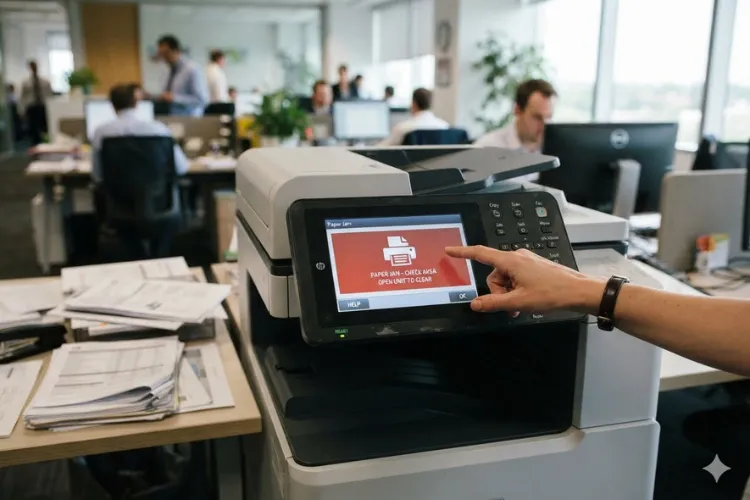
Registration and Rear Door Jams: The 13.B2 and 13.B4 Series
This is the zone where HP printer jams at registration — the registration sensor PS4550 sits just inside the rear door at the image area, and it generates more codes than any other sensor on these machines.
| Code | Documented Meaning |
|---|---|
| 13.B2.A1 | Stay jam — PS4550 detected paper longer than expected for the paper size, printing from Tray 1 |
| 13.B2.A2 | Same stay jam condition, printing from Tray 2 |
| 13.B2.A3 | Same stay jam condition, printing from Tray 3 |
| 13.B2.AD | Same stay jam condition, printing from the duplexer |
| 13.B2.D1 | Delay jam — paper passed the Tray 1 feed sensor but never reached PS4550, from Tray 1 |
| 13.B2.D2 | Delay jam — paper did not reach PS4550 in time, printing from Tray 2 |
| 13.B2.D3 | Jam when printing from Tray 3 (paper failed to reach registration in time) |
| 13.B2.D4 | Jam when printing from Tray 4 |
| 13.B2.D5 | Jam when printing from Tray 5 |
| 13.B2.D6 | Jam when printing from Tray 6 |
| 13.B2.FF | Residual jam — paper present at PS4550 at power-on or after clearing a jam |
| 13.B4.FF | Residual jam — paper present at the fuser loop sensor PS4500 at power-on or after clearing |
Customer remedies. Open the rear door and clear paper behind the primary transfer assembly and the lower jam access cover, then close the door so the printer can clear the message. For tray-specific delay codes, pull the tray fully out, remove any orange shipping locks, clear damaged sheets, verify the guides and fill level, and confirm the paper meets HP specifications.
On 13.B2.D2 specifically, HP notes a tell-tale detail: if the blue roller tab’s flap is down, the Tray 2 rollers are installed wrong and will keep throwing this code.
Technician diagnostics. We toggle PS4550 for free movement, run the paper path sensor test, and check connector J15 on the DC controller before replacing the registration assembly (RM2-6774-000CN). HP’s docs also tie recurring 13.B2.D2 events to 53.B0.0z entries in the event log — a documented sign the tray’s rollers have reached end of life.
For 13.B4.FF, we pull the fuser (carefully — it runs hot) and verify the PS4500 sensor’s movement, replacing it with WG8-5935-000CN if it fails the test.
Fuser Jam Codes: The 13.B9 Series
| Code | Documented Meaning |
|---|---|
| 13.B9.A1 | Fuser stay jam — paper present at PS4650 past the time limit, printing from Tray 1 |
| 13.B9.A2 | Fuser stay jam detected when printing from Tray 2 |
| 13.B9.A3 | Fuser stay jam detected when printing from Tray 3 |
| 13.B9.A4 | Fuser stay jam detected when printing from Tray 4 |
| 13.B9.A5 | Fuser stay jam detected when printing from Tray 5 |
| 13.B9.AD | Fuser stay jam detected when printing from the duplexer |
HP documents several distinct causes for this series: an accordion jam at the fuser exit, a blockage before the output rollers, output bin rollers that aren’t turning, a sticky or delayed fuser exit flag, and self-sealing or adhesive media. Because the distance from fuser exit to output bin is short, HP printer jams in output tray territory and fuser jams overlap — paper stopped at the bin rollers registers as a fuser jam.
An HP Laserjet M607 fuser paper jam that repeats after clearing usually means the fuser itself is due. The same is true when an HP Laserjet M608 fuser paper jam or HP Laserjet M609 fuser paper jam shows up alongside toner smearing or wrinkled exits — classic end-of-life fuser symptoms we confirm before replacing anything. It’s also why a recurring 13.B9 code and an HP Laserjet M607 M608 M609 Fuser Error often share one root cause.
Technician diagnostics. We check the fuser delivery sensor’s movement, verify connectors J401 and J402 on the DC controller, confirm the output bin rollers turn, inspect the transfer roller and transfer area for damage (transfer roller RM2-6800-000CN), and component-test the fuser motor — a failed test points to the fuser drive assembly (RM2-6763-000CN). Replacement fusers are RM2-1256-000CN (110V) or RM2-1257-000CN (220V). Because many of these fusers are stocked on our vehicles, same-day replacement is realistic for most Orange County offices.
Prevention, Repair-or-Replace, and Getting Help Fast
Most repeat jams on these models are maintenance debt. The pickup, feed, separation, and fuser components are all consumables, and HP bundles them for a reason. When the control panel starts showing the HP Laserjet M608 Perform Maintenance message, installing the HP Laserjet Printer Maintenance Kit proactively costs far less than the downtime of jam-clear-jam cycles during your busiest week.
Two more habits pay off across a fleet. First, keep firmware current — an HP Laserjet Firmware Upgrade is part of our standard service visit, and HP recommends current firmware as baseline maintenance. Second, standardize on paper that meets HP specifications and keep pressure-seal or adhesive media jobs on machines configured for them.
Is a jamming M607, M608, or M609 worth repairing? Almost always, yes. These are workhorse machines with long service lives, and a roller kit, maintenance kit, or fuser — installed with HP Parts, Premium Parts, or High Quality Parts and backed by our 6-month warranty — is a fraction of replacement cost.
Before recommending expensive components, we complete a full diagnosis to verify the actual cause of the failure. We’ll also tell you honestly when a chassis has reached the point where replacement makes better business sense. Reliable third-party toner with a 1-year warranty rounds out the operating-cost picture.
If you’ve been searching Printer Repair Near Me or HP Laserjet Printer Repair Near Me and getting parts-swappers instead of diagnosticians, we’d like to change your expectations. Printer Repair Experts provides HP Laserjet Printer Repair Orange County businesses rely on — including HP Printer Repair Anaheim, Irvine, Santa Ana, Fullerton, and surrounding cities, plus nearby Los Angeles County communities like Whittier and Long Beach.
We also handle HP Color Laserjet Printer Repair for mixed fleets, so one call covers the whole inventory. The next time a 13.XX jam code interrupts your day, you’ll know exactly what it means — and exactly who to call.
FAQ's - Frequently Asked Questons - HP Laserjet M607 M608 M609 Paper Jam
The 13 family covers paper jams, and the remaining digits identify the location and failure type. Codes ending in A-series digits are “stay” jams where paper lingered on a sensor, D-series codes are “delay” jams where paper never arrived on time, and FF codes mean residual paper was detected — often at power-on. The code narrows the search to one zone of the paper path before anyone opens a door.
Repeat jams after clearing usually mean the underlying cause is still there: a torn scrap on a sensor, worn feed or separation rollers, an overfilled tray, or a sensor flag that no longer moves freely. Codes like 13.00.FF and 13.B2.FF specifically indicate the printer still detects paper somewhere. If clearing visible sheets doesn’t stop the cycle, the machine needs diagnostics rather than another paper pull.
Yes, for the basic clear. Open the rear door, look behind the primary transfer assembly and the lower jam access cover, remove any paper by pulling it straight out, and close the door so the printer can reset the message. What we don’t recommend is probing around the fuser while it’s hot or forcing paper at an angle, which can dislodge rollers and create the next jam.
Follow the printer’s own prompt — these models track usage and display a maintenance message when the kit is due. Waiting past that point is the most common reason we see chronic multi-tray jamming. In high-volume offices, we often schedule kit installation proactively so it never lands during a deadline week.
n most cases these machines are absolutely worth repairing — the usual culprits are consumable rollers, the maintenance kit, or the fuser, all of which cost far less than a comparable new unit. We complete a full diagnosis first, and if the chassis or drive train genuinely justifies replacement, we’ll say so plainly. You get a repair-versus-replace recommendation based on the actual failure, not a sales quota.
Same-day onsite service is available for many HP LaserJet issues throughout our service area, and many fusers and maintenance kits are stocked for immediate installation. All service and installed parts carry a 6-month (180-day) warranty. New customers may also qualify for our $69.99 flat labor rate promotion on one qualifying HP LaserJet or HP Color LaserJet repair visit; the promotion is subject to limitations.