
HP LaserJet M610 M611 M612 Paper Jam Onsite Service and Repair
If your printer experiences a recurring HP LaserJet M610 M611 M612 Paper Jam, your daily operations can come to a sudden standstill. We understand that printer downtime directly impacts your productivity and overall workflow efficiency. Our expert technicians specialize in resolving complex paper feed problems and error codes on these high-volume machines quickly.
When an HP LaserJet M610 M611 M612 Paper Jam occurs, daily print queues suffer from immediate bottlenecks. Relying on makeshift fixes or worn-out components often exacerbates internal hardware damage. Our professional onsite technicians possess the field experience necessary to diagnose and repair these popular units correctly.
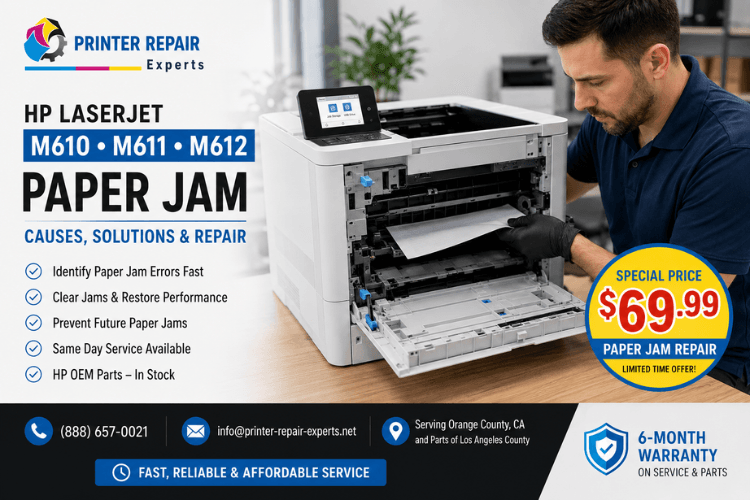
Service Snapshot: Fast Printer Diagnostics
Expert Onsite Response: Experienced field technicians dispatched directly to your location.
Firmware Updates & Device Optimization: Installation of the latest manufacturer firmware (when appropriate) to improve performance, reliability, security, and compatibility while addressing firmware-related issues.
Genuine & High-Quality Parts: We utilize premium rollers, fusers, and structural components for lasting reliability
Comprehensive Diagnostics: We resolve exact numeric error codes from Tray 1 up through the fuser delivery assembly.
Warranty Protection: Every repair is backed by our robust 6-month (180-day) parts and labor warranty.
Reliable Maintenance: Complete multi-point inspections to optimize your broader printer inventory.
Understanding Your HP LaserJet M610 M611 M612 Paper Jam
When your printer halts mid-job, the control panel displays specific numerical strings indicating where the paper path has failed. An HP LaserJet M610 M611 M612 Paper Jam is rarely a random event; it usually signals component wear. Worn pickup rollers or contaminated separation pads cannot maintain the precise timing required for fast printing.
Our field experience shows that ignoring early symptoms leads to complete multi-sheet pulling and physical blockages. When your daily routine relies on steady output, a persistent HP LaserJet M610 paper jam requires immediate attention. We ensure that your internal paper path is cleaned, aligned, and fully restored to factory specifications so you do not suffer from a chronic HP LaserJet M610 M611 M612 Paper Jam.
Analysis of Tray 1 and Tray 2 Feed Mechanism Failures
Tray 1 and Tray 2 serve as the primary paper sources for most high-volume printing environments. When you experience an HP LaserJet M611 paper jam, the issue often stems from bald or glazed pickup rollers. These rollers lose their physical traction, causing the paper to slip before reaching the registration assembly.
If your HP printer won’t feed paper or displays an HP printer not picking up paper alert, the separation roller may be failing. This component prevents multiple pages from entering the print path simultaneously. Our technicians carry specialized replacement rollers to address these exact wear patterns during our initial service visit to clear your HP LaserJet M610 M611 M612 Paper Jam bugs. We make sure both trays are fully calibrated to prevent any immediate HP LaserJet M610 M611 M612 Paper Jam recurrences.
Troubleshooting Structural Tray 3, 4, and 5 Paper Delay Errors
High-capacity lower feed trays are essential for handling extensive print queues without constant reloading. A recurring HP LaserJet M612 paper jam in these lower modules often points to communication or timing delays. If the paper fails to reach the upper sensors within milliseconds, an HP LaserJet M610 M611 M612 Paper Jam protective shutdown triggers.
When your HP printer keeps jamming paper from lower decks, feed rollers or internal lifter motors are frequently worn out. Our team systematically inspects each additional paper deck to isolate worn drive gears and faulty torque limiters. This detailed approach ensures long-term reliability and prevents repetitive HP LaserJet M610 M611 M612 Paper Jam hardware events. Resolving these lower deck issues keeps an unexpected HP LaserJet M610 M611 M612 Paper Jam from interrupting your major printing projects.
Resolving Critical Rear Door and Registration Path Jams
The registration assembly aligns the leading edge of the paper precisely before it meets the image transfer area. An HP M610 paper jam error in this zone often means the paper is hitting a physical obstruction. Accumulated paper dust, loose labels, or tiny scraps from previous jams can block delicate flag sensors.
If your team is constantly battling an HP M611 paper jam error, the registration rollers might be out of synchronization. We carefully clean the optical sensors and evaluate the registration clutch performance. This meticulous service returns your printing equipment to its peak operational rhythm without triggering another HP LaserJet M610 M611 M612 Paper Jam. Cleaning this specific area is a critical step in our complete HP LaserJet M610 M611 M612 Paper Jam repair strategy.
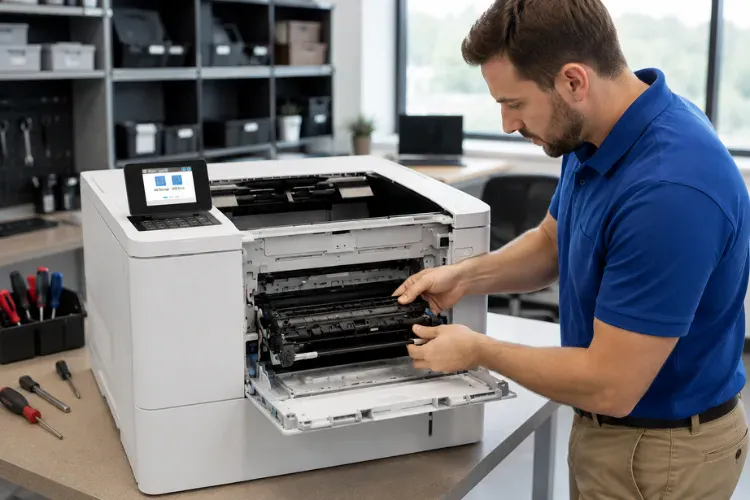
Addressing High-Temperature Fuser and Delivery Area Jams
The fuser assembly uses intense heat and high pressure to permanently bond toner to the paper fibers. A persistent HP LaserJet M610 M611 M612 Fuser Error inside the fuser section usually indicates a failing hot roller or pressure sleeve. When fuser bearings wear down, paper can wrap around the roller instead of exiting the machine properly.
For reliable print quality, scheduling professional HP LaserJet Printer Repair is the most effective way to address fuser failures. Our technicians assess the fuser sleeve condition and structural exit rollers to ensure clean delivery. Replacing a failing fuser protects your print quality and eliminates a severe HP LaserJet M610 M611 M612 Paper Jam issue. Our team can quickly isolate these thermal defects to secure your machine against a persistent fuser-based HP Laserjet M610 Paper Jam
Comprehensive Diagnostic Error Codes and Onsite Technical Remedies
When digital errors appear on your console, they pinpoint the exact location of hardware timing failures. Our onsite team uses these diagnostics to locate the problem immediately without guessing or wasting your valuable time. We resolve the root mechanical causes behind every numeric code to ensure permanent operation and eliminate your HP LaserJet M610 M611 M612 Paper Jam headaches.
13.00.0E (Envelope feeder jam): Clean and inspect the envelope feeder pickup roller and separation pad. Replace the envelope feeder assembly if the drive gears fail to engage.
13.00.EE (Unknown door open): Inspect the front, rear, and top door micro-switches and interlock continuity. Replace broken structural plastic latches preventing complete switch closure.
13.00.FF (Residual paper jam detected): Power down the machine and check all internal optical flags. Use compressed air to clear hidden paper scraps or dust blocking the sensor pathways.
13.A1.A1 (Tray 1 paper stay jam): Clean the Tray 1 pickup roller with a lint-free cloth. Replace the roller if the rubber skin is smooth, glazed, or has exceeded its duty cycle.
13.A1.D1 (Tray 1 paper delay jam): Replace the Tray 1 separation pad. Verify the paper lift plate mechanism moves freely and that paper guides match the media size perfectly.
13.A1.FF (Tray 1 residual paper jam): Check the pre-registration sensor flag near Tray 1. Manually clear any jammed paper fragments from the manual feed throat.
13.A3.D3 (Tray 3 paper delay jam): Install a fresh roller tire kit on the Tray 3 pickup and separation assembly. Verify that the Tray 3 feed clutch engages properly via diagnostic mode.
13.A3.D4 (Tray 4 paper delay jam): Inspect the intermediate paper feed rollers between Tray 3 and Tray 4. Clean any accumulated paper dust on the lower guide paths.
13.A3.D5 (Tray 5 paper delay jam): Check the vertical pass-through path alignment and electronic connector seating between the lower tray modules.
13.A3.FF (Tray 3 residual paper jam): Drop Tray 3 completely out of the machine frame, inspect the upper feed ceiling, and remove hidden torn paper edges blocking the registration entry.
13.A4.D4 (Tray 4 paper delay jam): Replace the pickup and feed rollers inside Tray 4. Run a component test on the lifter motor to ensure paper stacks are raising to the feed level.
13.A4.D5 (Tray 5 paper delay jam): Replace the Tray 5 roller assembly. Inspect the internal torque limiter on the separation roller shaft to ensure proper reverse resistance.
13.AA.EE (Front door opened during printing): Readjust the front door structural hinges and inspect the door sensing flag. Replace the low-voltage power supply interlock switch if it intermittently drops current.
13.AB.EE (Rear door opened during printing): Replace the rear door rear sensor switch or repair the broken plastic retainer tabs on the rear access panel assembly.
13.B2.A1 (Rear door registration stay jam from Tray 1): Clean the main registration roller and test the registration sensor flag spring tension. Replace the flag if it fails to snap back into its default unblocked position.
13.B2.A2 (Rear door registration stay jam from Tray 2): Clear accumulated toner crust from the registration optical sensor window and inspect the registration clutch timing.
13.B2.A3 (Rear door registration stay jam from Tray 3): Check the feed rollers directly beneath the registration assembly for wear or flattening that delays paper hand-off.
13.B2.AD (Rear door registration stay jam from Duplexer): Access the rear duplex path, wipe down the reversing rollers, and ensure the duplex diverter gate moves smoothly without binding.
13.B2.D1 (Rear door registration delay jam from Tray 1): Readjust Tray 1 paper dampeners. Check if paper media weights exceed standard printer specifications (60 to 120 g/m²).
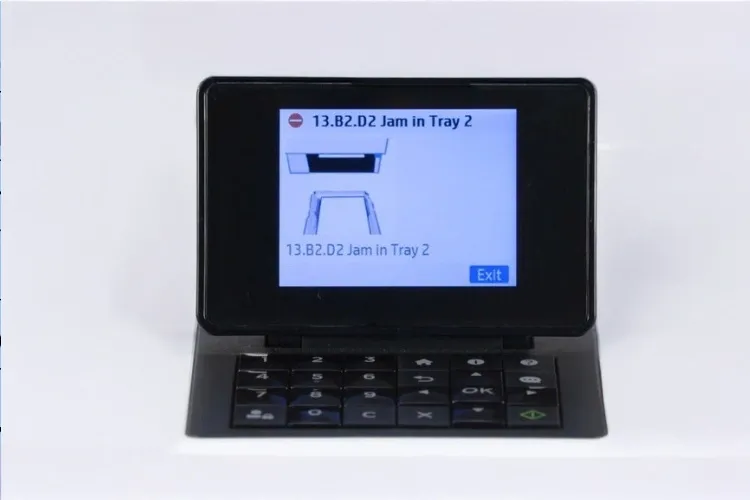
13.B2.D2 (Rear door registration delay jam from Tray 2): Install a new HP LaserJet Printer Maintenance Kit to refresh the primary feed components and correct registration arrival timing.
13.B2.D3 (Rear door registration delay jam from Tray 3): Inspect the main drive gear assembly on the side of the printer chassis for missing teeth or lack of lubrication affecting Tray 3 throughput.
13.B2.D4 (Rear door registration delay jam from Tray 4): Verify the continuity of the lower paper deck cable harness. Clean the lower feed path sensors with an anti-static brush.
13.B2.D5 (Rear door registration delay jam from Tray 5): Clean and test the pass-through rollers directly above Tray 5 to prevent delayed arrivals into the upper engine loops.
13.B2.D6 (Rear door registration delay jam from Tray 6): Inspect the high-capacity input deck feed belt and separation mechanics. Replace any glazed rubber components.
13.B2.FF (Rear door residual paper jam): Gently clear any accordion-folded paper caught right before the transfer roller area. Clean the paper path guide plates of residual adhesive residue.
13.B4.FF (Fuser loop residual jam): Inspect the fuser entrance guide plate for scoring or melted toner. Check that the print engine speed matches the exact paper configuration selected in settings.
13.B9.A1 (Fuser stay jam from Tray 1): Replace the fuser assembly. The internal pressure roller or fixing sleeve has lost its thermal integrity, causing media to stick during the melting process.
13.B9.A2 (Fuser stay jam from Tray 2): Check the fuser exit delivery rollers for flat spots. Replace the fuser assembly to address worn output gear train slippage.
13.B9.A3 (Fuser stay jam from Tray 3): Test the fuser output delivery sensor flag. Replace the fuser or the delivery assembly if the optical flag is cracked or sticking.
13.B9.A4 (Fuser stay jam from Tray 4): Inspect the delivery gear drive system. If the fuser film is torn or grease has dried up, replace the full fuser unit immediately.
13.B9.A5 (Fuser stay jam from Tray 5): Verify the printer’s internal operating temperature. Replace the fuser assembly if the internal thermistors are providing erratic voltage values to the DC controller.
13.B9.AD (Fuser stay jam from Duplexer): Clean the entry guides of the duplex turnaround path located directly above the fuser output area to ensure smooth tracking.
Onsite Technician Protocols for Reliable HP Repair
When our field service technician arrives at your location, we follow strict structural inspection protocols. We begin by reviewing the error log history to see how frequently the jams have occurred. Next, we check the condition of all active feed paths, rollers, and electronic sensors causing your HP LaserJet M610 M611 M612 Paper Jam.
We use clean, professional service methods to protect your working environment during our technical diagnostics. For individuals or organizations needing a proactive overhaul, scheduling an HP LaserJet Printer Repair Orange County visit resolves underlying path degradation before total failures hit. Dealing with an unresolved HP LaserJet M610 M611 M612 Paper Jam early protects your machine’s critical tracking systems over time. Our goal is to leave your machine running perfectly so that an unexpected HP LaserJet M610 M611 M612 Paper Jam won’t pop up tomorrow.
Preventative Maintenance and High-Quality Parts Strategy
Using cheap, low-grade replacement parts often results in repeated hardware failures and poor printing performance. We utilize high-quality components designed to withstand the physical workloads of modern printing setups. Proper regular maintenance significantly reduces the risk of a sudden, catastrophic HP LaserJet M610 M611 M612 Paper Jam.
Investing in consistent preventative care saves you money by avoiding premature hardware replacement expenses. When you use high-quality third-party toner or premium rollers, your print quality stays consistently sharp and reliable. Our preventative strategies are engineered to extend the total service life of your valuable printer assets and stop any future HP LaserJet M610 M611 M612 fuser error patterns before they start.
Reliable Printer Service Solutions
Our technical team is dedicated to keeping your printing setup running smoothly and efficiently. We provide comprehensive HP LaserJet Repair services tailored to minimize your downtime and protect your daily workflow. For local users seeking targeted service dispatch to check on an HP LaserJet M610 M611 M612 Paper Jam, an engine check via HP Printer Repair Anaheim ensures technical coverage on demand.
If you are searching for Printer Repair Near Me, we offer local expertise right to your doorstep to end your HP LaserJet M610 M611 M612 Paper Jam issues permanently. We service a wide range of models, including specialized HP Color LaserJet Printer Repair systems. Contact us today to restore your printer infrastructure to perfect operating condition and ensure an active HP LaserJet M610 M611 M612 Paper Jam won’t slow you down again.
If you are searching for Printer Repair Near Me, we offer local expertise right to your doorstep. We service a wide range of models, including specialized HP Color LaserJet Printer Repair systems. Contact us today to restore your printer infrastructure to perfect operating condition.
Get Your Printer Moving Again
Don’t let a stubborn HP LaserJet M610 M611 M612 Paper Jam disrupt your workflow and lower your daily productivity. Printer Repair Experts is ready to resolve your equipment challenges with our fast, reliable onsite repair options. Take advantage of our new customer special: a $69.99 flat labor rate for one qualifying HP LaserJet or HP Color LaserJet printer repair visit (subject to limitations, new customers only, consumer inkjet models excluded). Every repair we perform includes our comprehensive 6-month (180-day) warranty on all parts and service labor to keep your machine free from an HP LaserJet M610 M611 M612 Paper Jam. Contact us at (888) 657-0021 or email us at info@printer-repair-experts.net to book your local onsite service appointment today.
FAQ's - Frequently Asked Questons -
Repetitive paper jams are typically caused by worn rubber pickup and separation rollers that have lost their grip. Over time, paper dust coats the rollers, or the rubber becomes glazed and smooth, preventing the paper from feeding at the correct millisecond intervals.
While some external paper trays allow basic roller replacement, internal jams like fuser stay errors or registration path issues require precise mechanical disassembly. Our experienced technicians ensure that all parts are installed correctly, to prevent recurring paper jams.
A standard maintenance kit includes a brand-new fuser assembly, pickup rollers, and separation rollers. These kits are recommended every 100,000 to 200,000 pages, or when you notice consistent paper feed problems and repetitive print defects.
Yes, we provide a 6-month (180-day) warranty on all service labor and replaced components. If the exact same issue reoccurs within that window, we will return to fix it, ensuring your equipment investment stays safe.
We offer same-day onsite printer repair service for many printer issues throughout our local coverage zones. We stock a wide selection of fusers and maintenance rollers in our service vehicles to resolve your downtime on the very first visit.