
HP LaserJet 4240 4250 4350 Paper Jam:
Error Code Guide With Step-by-Step Fixes
An HP LaserJet 4240 4250 4350 Paper Jam almost always announces itself as a 13.XX error code on the control panel, and that code tells you exactly where the sheet stopped. This guide decodes every jam message these printers display and walks through the clearing steps for each one. It also explains why some machines jam once a month while identical units down the hall jam every hour.
Printer Repair Experts has serviced these three models in Orange County and Los Angeles County offices for more than twenty years. The procedures below reflect what actually works on high-mileage units, not just what the quick-reference card inside the top cover says.
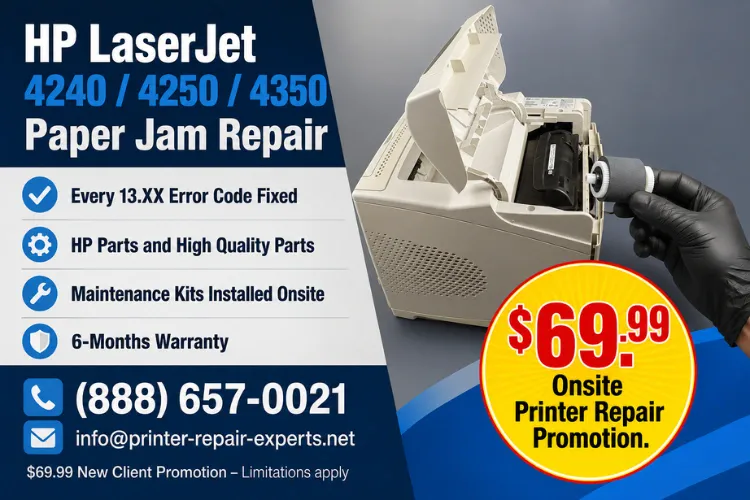
Preview Snapshot — What This HP LaserJet 4240 4250 4350 Paper Jam Guide Covers:
- The meaning of every 13.XX code, from 13.01.00 through 13.98.00
- Step-by-step clearing procedures for tray, top cover, rear door, duplexer, fuser, stapler, and output device jams
- The roller and fuser wear patterns behind machines that jam over and over
- When a maintenance kit ends the problem for another 225,000 pages
- How onsite service fits in when a code will not stay cleared
Stop Fighting HP LaserJet Paper Jams
What Causes an HP LaserJet 4240 4250 4350 Paper Jam?
Most jams on these printers trace back to rubber, not electronics. Pickup, feed, and separation rollers harden and glaze with age, the fuser wears, and the paper path collects dust, toner, and label adhesive. Because the newest of these machines shipped in the mid-2000s, nearly every unit still in service is running on borrowed roller life.
Media plays a role too. Damp paper from an unsealed ream, mixed weights loaded into one tray, and loose or over-tight guides all produce intermittent misfeeds. Whether the display announces an HP LaserJet 4240 Paper Jam, an HP LaserJet 4250 Paper Jam, or an HP LaserJet 4350 Paper Jam, the paper path is nearly identical across the family, so the fixes below apply to all three models.
How Do You Read the 13.XX Jam Codes on These Printers?
Every HP LaserJet 4240 4250 4350 paper jam message begins with 13, which is why technicians shorthand the whole family as an HP LaserJet 13 Paper Jam. The digits after the 13 identify the location or the sensor involved, so the code works like a map rather than a simple alarm. Match your display to the table below, then jump to the matching section of this guide.
| Error Code | What It Means |
|---|---|
| 13.01.00 / 13.03.00 | Jam in Tray X (the tray number shown on the display) |
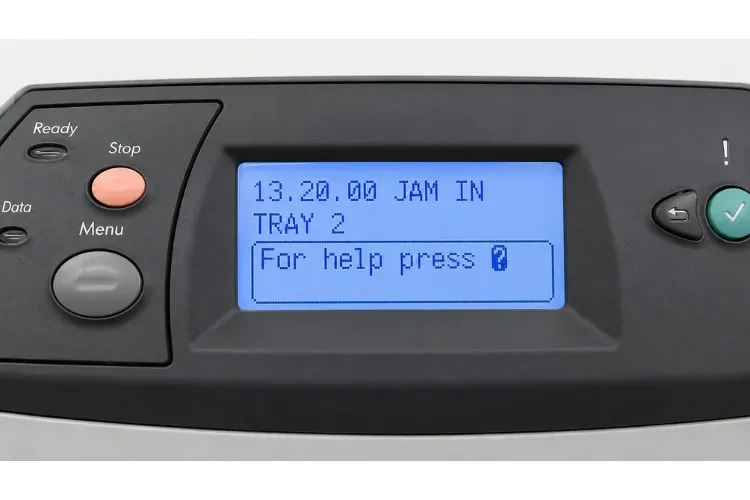
| 13.02.00 / 13.05.00 / 13.20.00 / 13.21.00 | Jam in the top cover area |
| 13.06.00 / 13.12.00 | Jam inside the rear door |
| 13.12.07 | Jam in the stapler |
| 13.12.08 / 13.12.09 / 13.12.10 / 13.12.11 | Jam in the output device |
| 13.13.00 | Jam inside the duplexer |
| 13.1C.00 | Fuser jam |
| 13.98.00 | Open input trays, then open and close the top cover |
One field note before you start pulling paper: the display reports where a sensor timed out, which is usually — but not always — where the sheet actually sits. Check the entire path any time a code appears, because a missed scrap of torn paper guarantees the next jam. HP Customer Support
How Do You Clear a 13.01.00 or 13.03.00 Jam in Tray X?
These codes mean a sheet misfed at the tray shown on the display. Either the page never left the cassette, or it stalled before reaching the registration area deeper in the printer.
- Pull the indicated tray completely out of the printer and remove any partially fed sheet, pulling in the direction of paper travel.
- Remove the stack, fan it, square it up, and confirm it sits below the fill marks with both guides snug against the paper.
- Look up into the tray cavity with a flashlight, rotate the rollers by hand, and remove any torn fragments hiding above the cassette.
- Reseat the tray firmly, then press the checkmark (Select) button to resume the job.
If the code returns and the sheet never leaves the cassette, the tray rollers or the printer-side feed rollers are almost always glazed. Searches like “HP Printer Won’t Feed Paper” nearly always end at this exact failure on these models, and Section 8 covers the permanent fix.
What Does a Jam in the Top Cover Area Mean (13.02.00, 13.05.00, 13.20.00, 13.21.00)?
These codes indicate a sheet stopped under the print cartridge, in the registration area, or at the fuser inlet. A 13.20.00 at power-up usually means the printer booted with paper already in the path — or that a jam sensor is stuck reporting paper that is not really there.
- Open the top cover and lift the print cartridge straight out; set it aside away from direct light.
- Using both hands, slowly pull any visible sheet toward the front of the printer to avoid tearing it.
- Inspect the registration area under the cartridge for scraps, labels, or paper clips.
- Reinstall the cartridge, close the cover, and allow the printer to run its jam-recovery cycle.
When a 13.20.00 or 13.21.00 repeats with a verifiably empty path, our technicians test the jam sensors from the printer’s Diagnostics menu rather than guessing. A worn fuser drive can also stall pages right at the fuser entrance and mimic a top-cover jam, and that repair belongs to a technician, not an end user.
Get Your HP LaserJet Back to Work
How Do You Fix 13.06.00 and 13.12.00 Jams Inside the Rear Door?
Both codes point to paper stalled at the rear of the printer, in or just past the fuser exit. Heat is the hazard here, because the fuser runs hot enough to burn skin during a normal print run.
- If a duplexer is installed, slide it out of the back of the printer and set it aside.
- Open the rear output door and lower it fully so the path is visible.
- Grip the sheet and pull it out slowly and evenly; if the paper feels hot, give the printer a few minutes to cool first.
- Close the door, reinstall the duplexer, and print a configuration page as a test.
Recurring rear-door jams usually mean the fuser exit area or delivery rollers are worn. If pages consistently accordion at the same spot, stop running the machine and have the fuser inspected before torn fragments migrate deeper into the printer.
. What Should You Do About Stapler and Output Device Jams (13.12.07 Through 13.12.11)?
These five codes appear only when an optional stacker or stapler/stacker accessory is installed on the 4250 or 4350. A 13.12.07 is a jam in the stapler unit itself, while 13.12.08, 13.12.09, 13.12.10, and 13.12.11 each report paper jammed at a different point inside the output device.
- Remove any pages sitting in the output bin, then open the accessory’s jam-access door.
- Pull stalled sheets out along their direction of travel and inspect the accessory’s entry rollers for debris.
- For a 13.12.07, open the stapler unit, remove the staple cartridge, and clear any bent or jammed staples before reseating the cartridge.
- Close everything, confirm the accessory is fully latched to the printer, and resume printing.
Here is an observation from years of service calls: an accessory bumped out of alignment by a cleaning crew causes more of these codes than genuine mechanical failure. We always verify the mounting and latch before condemning any parts.
How Do You Resolve Duplexer Jams (13.13.00), Fuser Jams (13.1C.00), and the 13.98.00 Message?
A 13.13.00 means paper stalled inside the duplexer during a two-sided job. Slide the duplexer out of the rear of the printer, remove the sheet, check both leading corners for tears, and reseat the unit firmly until it clicks.
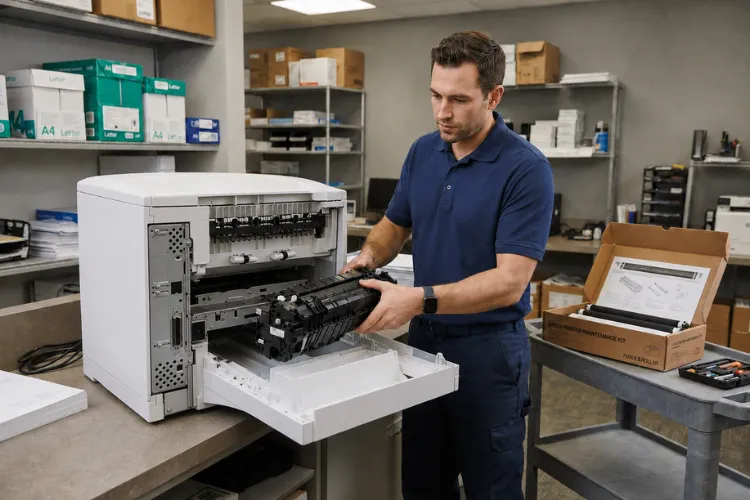
A 13.1C.00 is more serious, because paper has wrapped around the fuser itself. Power the printer off, wait about 30 minutes for the fuser to cool, remove the duplexer and rear door, then release the fuser’s blue levers and slide the fuser out. Rotate the fuser gears to walk the sheet free instead of ripping it out, since fused paper tears easily. In our field experience, a fuser that wraps paper is usually a fuser at the end of its life.
The 13.98.00 message is an instruction rather than a location: open the input trays, then open and close the top cover so the printer can recheck its sensors and flush the path. We also see this message when the rear face-up bin is opened in the middle of a duplex job. If the sequence does not clear it, treat the message like a stuck sensor and schedule service.
Don't Let Paper Jams Disrupt Your Business
Why Does the Printer Keep Jamming After Every Clearing?
Because the consumable rubber inside it is worn out. Searches such as “HP Printer Keeps Jamming” and “HP Paper Feed Problem” spike on fleets running these models past 200,000 pages, and the cure is mechanical rather than procedural. Once a roller glazes over, no amount of careful paper loading restores its grip.
An HP Pickup Roller Replacement restores the friction that lifts the sheet, an HP Feed Roller Replacement keeps it moving into the path, and an HP Separation Roller Replacement stops double-feeds from the same tray. On the 4240, 4250, and 4350, these wear parts ship together with a new fuser in the Q5421A HP Maintenance Kit. HP’s service interval for the kit is 225,000 pages, and the printer posts PERFORM PRINTER MAINTENANCE on the display when the counter comes due.
Professional HP Maintenance Kit Installation matters as much as the parts themselves. Every old roller has to actually come out, the fuser must seat squarely, and the maintenance count must be reset afterward so the reminder clears. Printer Repair Experts stocks maintenance kits for these models and typically completes the swap onsite in under an hour, using HP Parts and High Quality Parts rather than bargain rubber.
Most repeat HP LaserJet 4240 4250 4350 paper jam tickets we run end with a kit, and the repair-versus-replace math usually favors the kit. A maintained 4250 or 4350 still beats many newer devices on cost per page, and a kit costs far less than a replacement printer plus fleet reconfiguration and driver rollout. Toner quality counts here too, because soft or leaking cartridges create their own feed problems — the high-quality toner we supply is backed by a 1-year warranty.
When Should You Call Printer Repair Experts for Onsite Service?
Call when a code returns after a correct clearing, when the jam involves the fuser or a sensor, or when downtime costs more than the visit. A workgroup printer that feeds invoices, shipping labels, or patient paperwork cannot sit half-disassembled while somebody experiments — that is exactly the situation Onsite HP Printer Repair exists for. Across most of our service area, Same Day HP Printer Repair is available for jam and fuser calls, and our vans carry rollers, fusers, and maintenance kits for this series.
Our work goes well beyond jams. We provide complete HP LaserJet Printer Repair covering fuser errors, all numerical error codes, software and firmware upgrades, network connectivity, and print-quality faults such as splotchy pages, streaks, faded output, and lines in scanned pages. The same technicians handle HP Color Laserjet Printer Repair for color fleets, and we service HP LaserJet M601, M602, and M603 printers along with the rest of the current monochrome lineup.
If newer machines share the copy room with your 4350, the same code-first approach in this guide carries over. Our companion references on the HP Laserjet M601 M602 M603 Paper Jam, the HP Laserjet M604 M605 M606 Paper Jam, the HP Laserjet M607 M608 M609 Paper Jam, and the HP LaserJet M610 M611 M612 Paper Jam follow the identical error-code structure.
Office managers typing HP Printer Repair Near Me into a search bar — or scanning listings for Commercial Printer Repair and Office Printer Repair — usually just want a technician who shows up once, with the right part on the truck. That standard is what our HP Laserjet Printer Repair dispatch is built around. Requests for Printer Repair Anaheim CA, Printer Repair Commerce CA, and Printer Repair City of Industry CA land on our board daily, alongside calls from the rest of Orange County and southeastern Los Angeles County.
Every repair we perform is backed by a 180-day warranty on labor and installed parts. New customers also qualify for our $69.99 flat-rate onsite labor promotion on qualifying HP LaserJet and HP Color LaserJet repairs; the promotion is subject to limitations, and OfficeJet, DeskJet, Envy, Smart Tank, DesignJet, and non-HP LaserJet models are excluded. Call (888) 657-0021 or email info@printer-repair-experts.net to schedule a visit.
Conclusion: The Code Tells You Where — the Counter Tells You Why
Every HP LaserJet 4240 4250 4350 Paper Jam starts with a code, and the code tells you where to look first. Clear the sheet properly, check the whole path for fragments, and most machines go straight back to work. When the same code keeps returning, the message has changed: the printer is asking for rollers, a fuser, or a complete maintenance kit rather than another clearing. Respect what the page counter is telling you — or have our technicians do it onsite — and these printers will keep earning their keep for years to come.
FAQ's - Frequently Asked Questions -
Most jam calls on this series are finished in under an hour once we are in front of the machine, because we arrive with rollers, fusers, and maintenance kits already stocked. Complex sensor or feed-drive diagnostics can run longer, and we tell you before the work begins if that is the case.
Usually, yes — these are among the most durable monochrome printers HP ever built, and a maintained unit still delivers a low cost per page. If the frame, gears, and electronics are sound, a maintenance kit is far cheaper than buying, configuring, and rolling out a replacement across your office.
The Q5421A kit for the 4240, 4250, and 4350 includes a new fuser plus the tray roller set that causes most feed problems. HP’s service interval is 225,000 pages, and the maintenance counter must be reset after installation so the reminder message clears properly.
The promotion covers the flat onsite labor rate for one qualifying HP LaserJet or HP Color LaserJet repair visit; any parts required are quoted separately before installation. The offer is limited to new customers, is subject to limitations, and excludes OfficeJet, DeskJet, Envy, Smart Tank, DesignJet, and non-HP LaserJet models.
Yes. A cartridge with a worn drum, leaking toner, or a damaged shutter can stall pages under the top cover and contaminate the paper path. The high-quality toner we supply carries a 1-year warranty precisely because cartridge quality affects both feeding and print quality.
Our 180-day warranty covers both the labor and the parts we installed. If the same fault returns within that window because of our part or workmanship, we come back and make it right — a different, unrelated failure on a high-mileage machine is diagnosed as a new issue, and we tell you which is which honestly.