
HP Laserjet M601 M602 M603 Paper Jam:
Error Codes, Causes, and Repairs
An HP Laserjet M601 M602 M603 Paper Jam is rarely a random event. Every 13.XX code on the control panel points to a specific sensor, door, tray, or roller inside the paper path. This guide decodes each jam event these printers report, explains what the code means, and covers the remedies our technicians apply in commercial offices every week.

Here is a quick preview of this HP Laserjet M601 M602 M603 Paper Jam guide:
- A complete reference table for every 13.XX jam code on the M601, M602, and M603
- What each code means and the recommended remedy for it
- How to tell a simple misfeed from a failing fuser, roller, or sensor
- Preventative maintenance that keeps high-volume trays feeding cleanly
- Repair-vs-replace guidance for aging LaserJet Enterprise 600 printers
- Same-day onsite service options backed by a 6-month warranty
Still Fighting an HP LaserJet M601, M602, or M603 Paper Jam?
What Does an HP Laserjet M601 M602 M603 Paper Jam Code Actually Tell You?
The code identifies where the paper stopped and which sensor reported the problem. The HP LaserJet Enterprise 600 series tracks every sheet with sensors positioned at the tray feed points, the registration area, the fuser, and the output path. When a sheet arrives late, leaves early, or never moves at all, the formatter logs a 13.XX event tied to that exact location.
That structure matters because pulling out the visible sheet only addresses the symptom. If the same code returns within a few hundred pages, the printer is telling you that a specific component along that stretch of the paper path is wearing out. Reading the code correctly is the difference between a five-minute fix and a month of intermittent frustration.
Our technicians pull the event log first on nearly every HP Laserjet Printer Repair call involving jams. The log preserves the true W and X values that the display sometimes masks, and the code history usually reveals the failing part before the covers ever come off. That habit alone prevents a lot of unnecessary parts swapping.
Which 13.XX Jam Codes Do These Printers Display, and What Do They Mean?
These printers report thirteen primary jam events, several of which carry sub-codes that narrow the location further. The table below lists each code, its meaning, and the recommended remedy.
| Error Code | Meaning | Recommended Remedy |
|---|---|---|
| 13.00.00 | Generic jam event code. | Check the printer for a jam and clear the entire paper path following the clear jams procedure in the service manual. |
| 13.00.EE | Unknown door open. | Make sure all of the doors and covers are fully closed and latched. |
| 13.A3.FF | Power-on jam at the Tray 3 feed sensor. | Check the printer for a jam; inspect Tray 3 and its feed area for residual paper scraps. |
| 13.D3.DZ (13.D3.D1 through 13.D3.D6, 13.D3.DD, 13.D3.DE) | Late to duplex re-feed jam; the page failed to re-feed on time during two-sided printing. | Check the duplex path for a jam and clear it per the service manual. |
| 13.E5.FF | A power-on jam has occurred. | Check the printer for a jam and clear the paper path before resuming. |
| 13.EA.EE | A door jam has occurred. | Clear the jam; use the component test to isolate a faulty door switch or sensor if the code persists. |
| 13.EE.FF | A power-on jam has occurred. | Check the printer for a jam and clear the paper path. |
| 13.FF.EE | A door jam has occurred. | Clear the jam; run the Manual sensors test or Tray/Bin manual sensors test to isolate a faulty door switch or sensor. |
| 13.FF.FF | Power-on residual paper jam detected by a sensor. | Clear the jam; use the Manual sensors test or Tray/Bin manual sensors test to check for a stuck flag or failed sensor. |
| 13.WX.EE | A door was opened during printing. | Make sure all doors are fully closed before restarting the job. |
| 13.WX.FF | Power-on residual paper jam; paper is present at a paper-path sensor at power-on or door close. Due to firmware timing, the display always shows 13.FF.FF while only the event log records 13.WX.FF. | Clear the jam, then review the event log to identify the exact sensor location. |
| 13.WX.YZ fuser area jam | A jam in the fuser area has occurred. | Clear the jam; confirm the media is within specification, check the fuser for obstructions, and verify the T2 roller is installed properly. |
| 13.WX.YZ fuser wrap jam | Paper has wrapped around the fuser roller. | Clear the jam carefully per the service manual; repeated wrap jams indicate the fuser should be inspected or replaced. |
| 13.WX.YZ jam below control panel (13.B2.9Z) | Page at duplex switchback jam; Z equals the source tray number. | Check the switchback area beneath the control panel and top cover for jammed paper. |
| 13.WX.YZ jam in Tray 1 (13.B2.D1) | Late to registration jam from Tray 1; the paper did not reach the TOP sensor within the designated time after pickup during Tray 1 or duplex printing. | Clear the jam and inspect the Tray 1 pickup and separation rollers. |
| 13.WX.YZ jam in Tray X | A misfeed jam has occurred at the indicated tray. | Clear the jam and check that tray’s rollers, guides, and paper condition. |
| 13.WX.YZ jam inside envelope feeder | A jam exists inside the optional envelope feeder. | Remove the envelopes, clear the feeder, and reload stock within specification. |
| 13.WX.YZ jam inside top cover | A jam exists inside the top cover. | Open the top cover, remove the toner cartridge, and clear the registration and transfer area. |
Notice how many of these codes end in FF at power-on. Those events almost always trace back to a torn scrap left behind from an earlier jam or a sensor flag that is sticking. Fuser wrap jams deserve the fastest response, because every additional wrap grinds away at the fuser sleeve.
Why Does the Jam Message Come Back After You Clear the Paper?
Because the printer still believes paper is in the path. A residual scrap the size of a postage stamp lodged near a sensor will trigger 13.FF.FF at every power-on until someone finds it. A sensor flag gummed up with paper dust behaves exactly the same way, even with no paper present anywhere in the machine.
Worn rubber is the other repeat offender. The M601, M602, and M603 rely on pickup, feed, and separation rollers that glaze over with age, and glazed rollers feed late. The printer logs a late feed as a jam even when the sheet eventually arrives at the sensor.
If tray misfeeds return within days of being cleared, the rollers in that tray are due for replacement. A fresh HP Laserjet Printer Maintenance Kit typically resolves the pattern across the entire machine, because the kit renews the fuser, transfer roller, and tray rollers in one service.
.
How Do You Safely Clear a Jam Without Causing More Damage?
Pull the paper slowly, in the direction of travel, using both hands whenever possible. Yanking a sheet backward through the fuser tears it, and torn scraps become the next jam. Sheets dragged against roller rotation can also snap the small plastic sensor flags, turning a two-minute fix into a parts replacement.
Follow the control panel animation to the reported location first, then check the adjacent areas before closing up. Power the printer off before reaching into the fuser zone, because fuser assemblies on these models run hot enough to burn skin. Give the unit ten minutes to cool if it was printing heavily.
If a sheet is wrapped around the fuser roller and refuses to release, stop pulling. Forcing a wrap jam usually gouges the sleeve, and at that point the fuser needs professional attention regardless. We see more fusers destroyed by aggressive jam clearing than by ordinary wear. HP’s official jam locations guide for the LaserJet Enterprise 600 series HP Customer Support
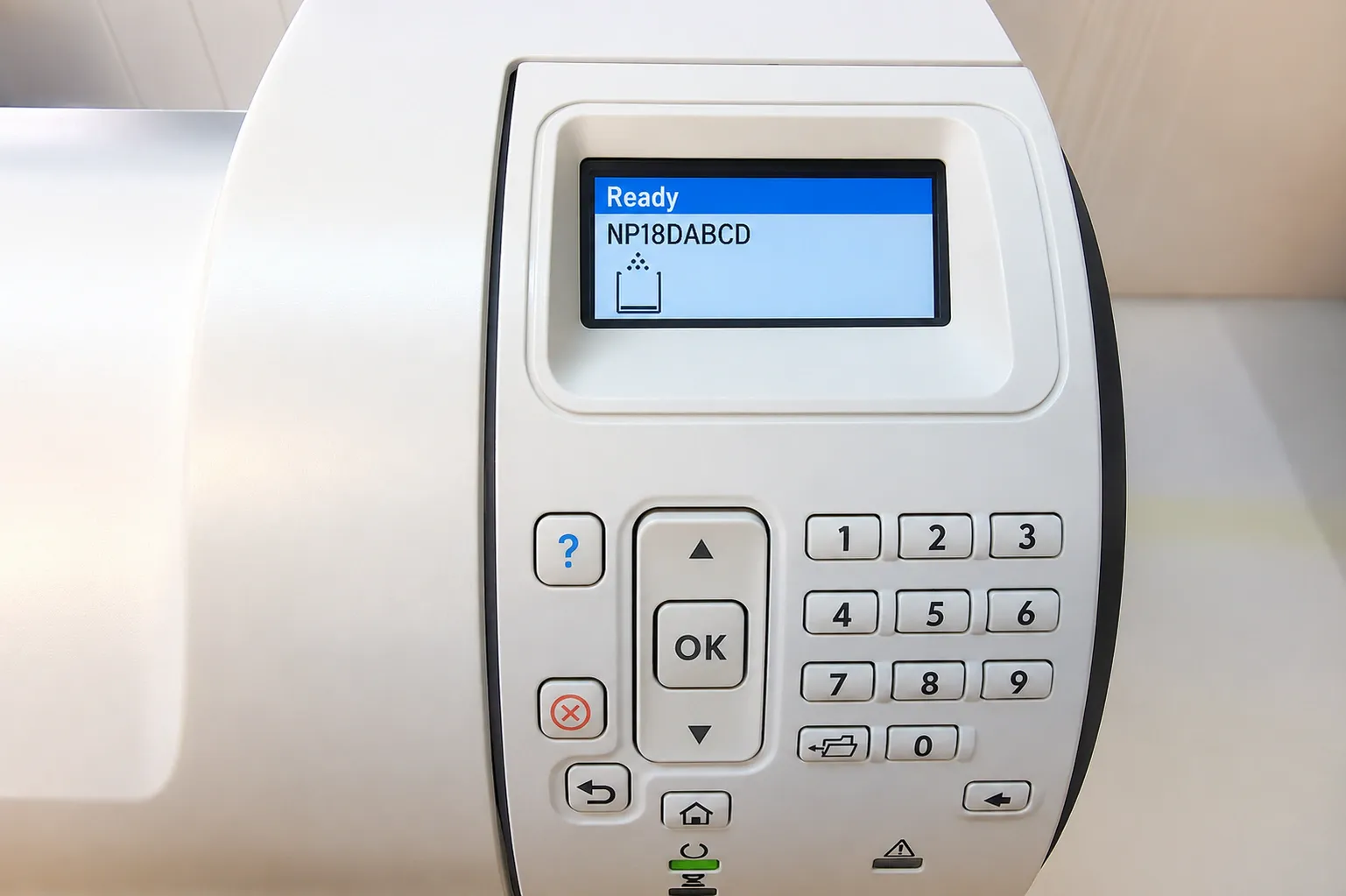
Eliminate HP LaserJet M601 M602 M603 Paper Jams for Good
When Is a Recurring Jam Really a Fuser or Feed Roller Problem?
When the code keeps pointing to the same location, the component at that location is the problem. Repeated 13.WX.YZ fuser area events, accordion-folded pages, or output arriving with a wrinkled trailing edge are classic symptoms of a fuser at the end of its service life. Tray-specific misfeed codes that survive fresh paper and correct guide settings point to worn pickup and separation rollers.
The built-in diagnostics remove the guesswork. The Manual sensors test confirms whether each flag toggles cleanly, and the component test cycles individual motors, clutches, and switches so a technician can isolate a failed door switch or feed clutch without disassembling the printer on a hunch. We run these tests routinely during onsite diagnosis.
Printer Repair Experts stocks fusers and maintenance kits for the LaserJet Enterprise 600 series, so most of these repairs are finished in a single visit. We install HP Parts, Premium Parts, or High Quality Parts depending on availability and customer preference, and every repair carries our 6-month warranty covering labor and installed components.
How Much Is a Jamming Printer Costing Your Office?
Usually more than the repair itself. A workgroup printer that jams every twenty pages quietly consumes staff time, reroutes jobs to slower devices, and stalls invoice runs, shipping labels, and client paperwork. We regularly walk into offices where employees have been babysitting a jamming M602 for months before anyone finally called for service.
Fleet reliability suffers too. When one high-volume unit goes down, its print traffic lands on neighboring printers that were never sized for the load, accelerating wear across the whole fleet. IT teams managing dozens of LaserJet devices feel this domino effect fastest.
There is also a supplies cost. Every jam wastes the sheet, and jams through the fuser can smear toner across the pages that follow, forcing reprints. Low-grade cartridges with soft drums shed debris into the paper path as well, which is why toner reliability belongs in any jam conversation; our high-quality toner carries a 1-year warranty for exactly that reason.
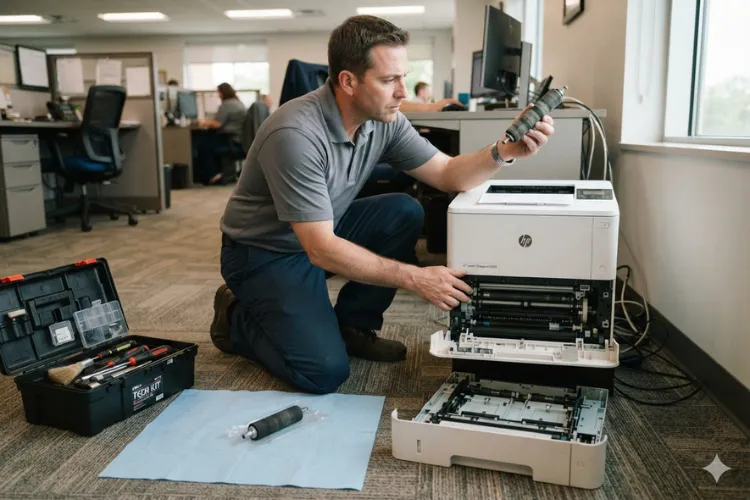
Should You Repair the M601, M602, or M603, or Replace It?
Repair usually wins when the frame, laser scanner, and formatter are healthy. These are 45 to 62 page-per-minute workhorses built on a durable chassis, and a fuser plus a maintenance kit costs a fraction of a comparable new LaserJet Enterprise device. Monthly volume, parts availability, and how many other components are approaching their maintenance interval all factor into our recommendation.
Replacement makes sense when several major assemblies fail together or when the fleet is standardizing on newer hardware. Offices moving up often ask us about HP LaserJet M604 M605 M606 Printer Repair, HP LaserJet M607 M608 M609 Printer Repair, and HP Laserjet M610 M611 M612 Printer Repair, because we support those successor models with the same stocked-parts, same-day approach.
Before recommending new equipment, Printer Repair Experts performs a complete diagnosis to verify the actual cause of the failure. Plenty of printers written off as worn out simply needed a maintenance kit and a thorough path cleaning. An honest assessment costs far less than a premature fleet refresh.
Same-Day HP LaserJet M601 M602 M603 Paper Jam Repair
What Preventative Maintenance Actually Stops Paper Jams?
Scheduled maintenance kit installation at the recommended interval prevents the majority of jam calls we see. HP designed these printers around a kit cycle covering the fuser, transfer roller, and tray rollers, and machines that receive kits on schedule keep feeding reliably deep into six-figure page counts. Waiting for the maintenance message to appear, then waiting several more months, is how chronic jamming starts.
Paper handling matters just as much. Store reams flat and dry, fan the paper before loading, set the tray guides snugly without pinching, and make sure the tray’s configured size and type match what is actually loaded. Humidity-curled paper is one of the most common jam causes we find in Southern California offices, especially in trays that sit loaded for weeks.
Firmware deserves a periodic check as well. HP refined jam detection timing and duplex re-feed behavior across firmware releases for this series, so a printer running very old firmware can report jams more aggressively than necessary. Updating to the final released firmware is a low-cost step we recommend during scheduled service.
When Should You Call Printer Repair Experts for Onsite Service?
Call when a jam code repeats, when paper is stuck somewhere you cannot reach, or when the printer reports jams with no paper visible anywhere. Those three situations almost always involve a worn component or a failed sensor, and continuing to run the printer risks damaging the fuser or tearing more scraps into the path.
Printer Repair Experts provides Onsite Printer Repair throughout Orange County and much of Los Angeles County, with same-day service available for many LaserJet Enterprise 600 issues. Businesses searching for HP Laserjet Printer Repair Orange County or HP Laserjet Printer Repair Near Me reach our dispatch team directly at (888) 657-0021, and our technicians arrive with common fusers, maintenance kits, and rollers already on the truck.
Our coverage includes Printer Repair Anaheim CA and Printer Repair Commerce CA, along with the surrounding cities in between. We also handle HP Color Laserjet Printer Repair for offices running mixed mono and color fleets, so one service visit can cover the entire printer inventory. New customers qualify for our $69.99 flat-rate labor promotion on a qualifying repair visit; the promotion is subject to limitations.
Expect a working diagnosis before any parts are quoted. A typical visit includes the event log review, sensor and component tests where warranted, a full paper path inspection, and a clear explanation of what failed and why. You approve the repair before we proceed.
Final Thoughts
Jam codes on the LaserJet Enterprise 600 series are a diagnostic gift. They tell you where to look, and when they repeat, they tell you what to replace. Clear jams carefully, keep maintenance kits on schedule, and treat recurring codes as component warnings rather than bad luck.
When a jam outlasts your patience or your reach, we are ready to help. Contact Printer Repair Experts at (888) 657-0021 or info@printer-repair-experts.net for same-day onsite diagnosis, repairs backed by a 6-month warranty, and a straight answer about whether your M601, M602, or M603 is worth fixing. In our field experience, it usually is.
FAQ's - Frequently Asked Questions -
It means a paper path sensor reported paper present at power-on. Usually a small torn scrap is hiding near a sensor, or a sensor flag is stuck from paper dust. If a careful path inspection finds nothing, the sensor itself may have failed and should be tested with the printer’s built-in sensor diagnostics.
You can, but occasional jams tend to become frequent ones. Each jam through the fuser risks leaving scraps behind and accelerates wear on the sleeve. Scheduling service while jams are still occasional is almost always cheaper than waiting for a fuser failure.
Most single-component repairs — a fuser, a roller set, or a maintenance kit — are completed in one visit, often within an hour or two once diagnosis is done. We stock common LaserJet Enterprise 600 fusers and kits, so same-day completion is realistic for many calls.
The warranty covers our labor and the parts we installed for 180 days. It does not extend to unrelated components that were not part of the repair, which is one reason we review the full event log and flag anything else approaching failure during the visit.
Poor-quality cartridges can. Soft drums and loose seals shed toner and debris into the paper path, which contaminates sensors and rollers. High-quality third-party toner that meets specification runs cleanly — ours is backed by a 1-year warranty.
That pattern points to the duplex path, matching the 13.D3.DZ late-to-duplex-re-feed family of codes. Worn duplex feed components or curled, heavy, or out-of-spec paper are the usual causes. Try fresh standard-weight paper first; if the code persists, the duplex feed assembly needs inspection.