
HP Laserjet MFP M634 M635 M636 Paper Jam:
Error Codes, Real Causes, and Field-Tested Fixes
An HP Laserjet MFP M634 M635 M636 Paper Jam is rarely random. The control panel hands you a 13.xx code, and that code points at one specific sensor on one specific stretch of the paper path. Read it correctly and you walk straight to the failure.
Ignore the code and you lose a morning pulling trays apart for nothing. This guide covers every jam code HP documents for these three MFPs, what actually causes each one in the field, and the step-by-step recovery that resolves it. Where a fix crosses into component replacement, we say so plainly.

Preview Snapshot
- Every 13.xx and 31.13.yz jam code HP documents for the M634, M635, and M636, with its meaning
- Why these MFPs report tray 1 and tray 2 jams as 13.B2.D1 and 13.B2.D2 rather than 13.A1 and 13.A2
- Step-by-step clearing procedures for trays, right door, fuser, duplexer, output bin, and document feeder
- Which rollers wear first, and the maintenance kits that end repeat jams for good
- The point where continued troubleshooting costs more than a service call
$69.99 Onsite Printer Repair for HP Laserjet MFP M634 M635 M636 Paper Jam
What Does an HP Laserjet MFP M634 M635 M636 Paper Jam Code Actually Tell You?
A 13.xx code identifies the last sensor the sheet reached, or the sensor it failed to reach in time. It is a location report, not a diagnosis. The printer is telling you where the sheet stopped being where it should be.
That distinction matters. A 13.B9 does not mean the fuser is bad. It means a sheet arrived at or left the fuser sensor outside its expected timing window, which could be a torn fragment, a stuck sensor flag, worn upstream rollers, or the fuser itself.
The two digits after the location tell you the failure mode. Codes ending in .FF generally indicate residual paper or a sensor that is reporting media when the path is empty. Codes ending in .Dx typically indicate a delay jam, meaning the sheet never arrived on schedule.
Sound HP LaserJet Troubleshooting starts here rather than with the toolbox. Note the full code before you clear anything, because the panel discards it once the doors cycle. Photograph it if the machine is shared.
Which Jam Error Codes Appear on the M634, M635, and M636?
HP’s troubleshooting documentation for this family lists the following. The right door is the primary service access on these MFPs, which is why several codes resolve there rather than at a rear door.
| Code | HP-Documented Location | Most Common Field Cause |
|---|---|---|
| 31.13.yz | Document feeder | Worn ADF pick or separation roller, stapled or creased originals |
| 13.B2.D1 | Tray 1 (multipurpose tray) | Overloaded tray, curled or heavy media, worn tray 1 pick roller |
| 13.B2.D2 | Tray 2 | Worn pickup and separation rollers, guides not set to stack width |
| 13.A3 | Tray 3 | Feeder roller wear, tray overfilled past the fill line |
| 13.A4 | Tray 4, and high-capacity input (HCI) | Roller wear, misseated tray, mixed media weights |
| 13.A5 | Tray 5 | Roller wear, tray not fully engaged with the feeder |
| 13.B2 | Right door | Registration assembly sensor flags, debris, transfer area obstruction |
| 13.B9 | Right door, fuser area | Torn paper in the fuser, stuck or missing fuser sensor flag |
| 13.D3 | Right door, duplexer | Duplex guide flag stuck, curl from heavy or damp stock |
| 13.FF | Right door and fuser area, residual paper | Fragment left behind after a prior jam clear |
| 13.E1 | Output bin | Full bin, curl, output sensor obstruction |
| 13.60 | Stapler/stacker accessory | Misfeed into the mailbox or stacker bin |
| 13.83 | Stapler/stacker, staple jam | Staple cartridge misfeed |
One note on the code table supplied for this project. It lists 13.A1.XX for tray 1 and 13.A2.XX for tray 2, which is the convention on several other HP LaserJet lines. On the M634, M635, and M636 specifically, HP documents those two as 13.B2.D1 and 13.B2.D2.
It also describes 13.B2 as a rear paper path. On these MFPs the equivalent access is the right door. We have kept the supplied table intact above and added HP’s documented wording alongside it, so both conventions are searchable.
How Do You Clear a Tray 1 or Tray 2 Jam (13.B2.D1, 13.B2.D2)?
Work from the tray outward, never from the middle of the path. Pulling a sheet backward against the feed direction is the fastest way to tear it and convert a two-minute clear into a 13.FF residual paper fault.
Tray 1 (13.B2.D1)
- Remove the media from tray 1 and check for a sheet partially drawn into the pickup area.
- Pull any visible sheet straight out in the direction of travel, slowly and with even pressure on both corners.
- Open the right door and inspect the registration area for a second sheet.
- Close the right door, reload no more than the marked capacity, and confirm the side guides touch the stack without compressing it.
Tray 2 (13.B2.D2)
- Pull tray 2 fully out of the chassis and set it aside.
- Inspect the tray cavity and the feed rollers above it for a lodged sheet or fragment.
- Open the right door and check the registration assembly, then close it.
- Reseat tray 2 firmly until it latches, and verify the rear and side guides match the paper size loaded.
A recurring HP LaserJet M634 Paper Feed Problem at tray 2 is usually not a clearing technique issue. It is roller wear, and the tell is a misfeed rate that climbs steadily over weeks rather than appearing overnight.
Watch for a second pattern. If the tray feeds fine when half full and misfeeds when loaded to capacity, the separation roller is losing its ability to strip the second sheet.
What Causes Repeat Jams in Trays 3, 4, 5, and the High-Capacity Input?
Optional feeders carry their own roller sets, their own sensors, and their own wear curve. A machine that feeds perfectly from tray 2 can jam constantly from tray 4 for reasons that have nothing to do with the print engine.
Start with seating. A feeder tray that is not fully engaged will report 13.A3, 13.A4, or 13.A5 intermittently, and the fault often follows whoever loaded it last.
- Remove the affected tray completely and clear any sheet or fragment in the cavity.
- Check that the paper is below the fill line and that all four guides contact the stack.
- Reinstall the tray with firm, straight pressure until it seats fully.
- Print a short test job from that tray specifically, not from the default tray.
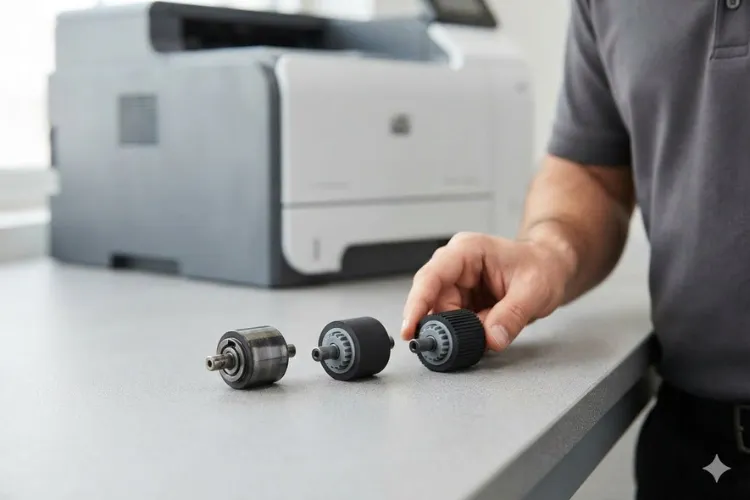
Mixed media weights inside one tray are a frequent cause of an HP LaserJet M635 Paper Feed Problem in high-volume offices. Someone tops off a partly used stack of 20 lb bond with 28 lb stock, and the separation roller can no longer strip cleanly.
A recurring HP LaserJet M635 Paper Jam confined to the high-capacity input usually means roller wear, since the HCI sees far more sheets per year than any other input. The same logic explains an HP LaserJet M636 Paper Feed Problem that appears only on the 3×550-sheet feeder.
Printer Repair Experts routinely finds that two feeders on the same machine are in completely different condition. Fleet-wide roller replacement schedules that ignore per-tray volume tend to replace the wrong parts.
Same-Day HP Laserjet MFP M634 M635 M636 Paper Jam Repair
How Do You Clear a Right Door, Fuser, or Duplexer Jam (13.B2, 13.B9, 13.D3)?
These three share one access point and one common failure mode, which is a fragment left behind from an earlier clear. Give the fuser several minutes to cool before reaching into it.
Right door and registration (13.B2)
- Open the right door fully.
- Remove any visible sheet, pulling in the direction of paper travel.
- Inspect the registration area and transfer roller surface for torn edges and paper dust.
- Confirm nothing remains before closing the door.
Fuser area (13.B9)
- Open the right door and allow the fuser to cool.
- Release the fuser and draw it straight out by its handles.
- Open the upper guide on the fuser and remove any sheet or fragment.
- Verify the sensor flag on the fuser moves freely and returns to rest, then reinstall until it seats.
Duplexer (13.D3)
- Open the right door and lift the duplex guide.
- Remove any sheet in the duplex path, working with the feed direction.
- Check that the duplex sensor flag toggles and springs back.
- Lower the guide and close the door.
A 13.B9.FF or 13.D3.FF that persists on an empty, clean path points at the sensor flag rather than the media. A flag that is missing, cracked, or stuck reports paper that is not there, and no amount of clearing will change that.
This is the crossover point where a jam becomes a parts job. A repeating HP LaserJet M636 Paper Jam at the fuser sensor, with a verified clear path, generally resolves with fuser replacement. Related symptoms show up on our page covering HP Laserjet MFP M636 Fuser Error.
Why Does the Document Feeder Keep Jamming (31.13.yz)?
The document feeder is the single highest-wear assembly on an MFP that scans heavily. Its rollers handle mixed originals of unknown condition, which is far harder duty than a print tray sees.
- Open the document feeder cover.
- Remove the jammed original and any fragment, working in the feed direction.
- Lift the input tray and check underneath for a sheet that has fallen through.
- Close the cover firmly until it latches, then rescan the job from page one.
Originals cause more ADF jams than the machine does. Staples, folded corners, sticky notes, thermal receipts, and sheets that have been through a laser fuser twice all misfeed at higher rates.
The diagnostic that settles it is simple. If clean, flat, single-weight originals feed reliably and everything else jams, the rollers are worn and the ADF roller kit is due. HP rates that kit at roughly 150,000 pages, which many busy offices reach faster than they expect.
Printer Repair Experts replaces ADF rollers more often than any other single part on this family. It is inexpensive, it is fast, and it is routinely deferred until scanning has become the office’s daily complaint.
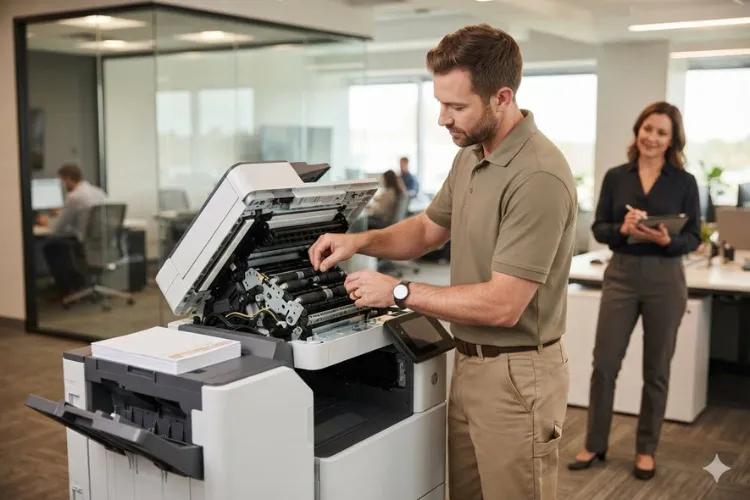
Which Rollers and Kits Fix a Recurring HP LaserJet M634 Paper Jam?
Clearing a jam addresses the symptom. Roller replacement addresses the cause. When jam frequency climbs across weeks, the machine is telling you a consumable has reached end of life, not that it has a defect.
Three rollers do the work at each input. The HP Pickup Roller draws the top sheet from the stack. The HP Feed Roller carries it forward into the path. The HP Separation Roller applies counter-torque to strip any sheet riding underneath.
| Symptom | Likely Worn Component | Typical Remedy |
|---|---|---|
| Sheet never leaves the tray | Pickup roller glazed or flattened | HP Pickup Roller Replacement |
| Sheet starts, then stalls short of registration | Feed roller worn | HP Feed Roller Replacement |
| Two or more sheets pulled together | Separation roller worn | HP Separation Roller Replacement |
| Jams across every tray plus print defects | Fuser kit interval reached | HP Maintenance Kit Installation |
| ADF misfeeds on ordinary originals | ADF pick and separation rollers | ADF roller kit replacement |
The fuser maintenance kit for this family is rated at roughly 225,000 pages and bundles the fuser with transfer and roller components. Kit part numbers vary by model and by voltage, so confirm the exact number against HP’s parts catalog for your specific unit before ordering. We verify this at the machine rather than assuming, because the M634 through M636 share parts with several adjacent LaserJet lines but not universally.
An HP LaserJet Maintenance Kit installed on schedule prevents the compound failure most offices actually experience, where jams, streaking, and fuser errors arrive together. Waiting until all three appear turns one planned visit into an emergency.
Persistent trouble after fresh rollers points upstream. A verified HP LaserJet M634 Paper Jam that survives a full roller replacement usually involves the registration assembly, a failed sensor, or in uncommon cases the DC controller. Those are diagnostic calls, not parts-swap guesses.
Schedule Professional HP Laserjet MFP M634 M635 M636 Paper Jam Repair
When Is a Jam Really a Media, Environment, or Firmware Problem?
Not every jam is mechanical. We regularly find machines with perfect rollers jamming daily because of conditions around the printer rather than inside it.
Media is the first suspect. Paper stored against an exterior wall, in an unconditioned room, or in an opened ream left out over a humid weekend absorbs moisture, curls, and feeds unpredictably. The same ream feeds flawlessly after a day in a climate-controlled space.
Loading habits matter as much as paper quality. Fanning a stack before loading, keeping guides snug without pinching, and refusing to top off a partial stack with a different weight eliminate a surprising share of calls.
Firmware is worth checking on any machine that started jamming after an update or a configuration change. HP publishes FutureSmart firmware for this family, and jam recovery and tray handling behavior have been adjusted across releases. Confirm the installed version before assuming hardware.
Good Printer Diagnostics means ruling these out in order rather than replacing parts hopefully. Paper first, environment second, firmware third, mechanics last. That sequence saves more money than any single part ever will. HP Customer Support Latest Firmware
When Should You Stop Troubleshooting and Call for Onsite Service?
There is a clear line. Clearing a jam is a user task. Replacing a registration assembly, a fuser, or a sensor is not, and attempting it without documentation risks turning a repairable machine into a parts donor.
Call when you see any of these:
- The same code returns within a day of a verified clear path
- Paper tears every time, leaving fragments deep in the path
- Jam frequency is rising across multiple trays at once
- A sensor flag is visibly cracked, missing, or stuck
- The machine is out of service and the office has no backup
Printer Repair Experts provides Onsite Printer Repair throughout Orange County and parts of Los Angeles County, and we stock many fusers and maintenance kits for Same Day Printer Repair on qualifying calls. Our technicians carry the roller and kit inventory this family uses, so most jam-related visits finish in one trip.
Every visit is backed by our 6-month, 180-day warranty on service and installed parts, and we use HP Parts for repairs. New customers can take advantage of our $69.99 flat labor rate for one qualifying HP LaserJet or HP Color LaserJet repair visit, which is subject to limitations and applies to qualifying HP LaserJet and HP Color LaserJet models only.
We support the wider LaserJet fleet, not just this family. Offices running older units often need HP Laserjet P3015 Printer Repair, HP Laserjet 4240 Printer Repair, or HP Laserjet M601 Printer Repair, while newer mixed fleets bring us HP LaserJet M604 Printer Repair, HP LaserJet M607 Printer Repair, and HP Laserjet M610 Printer Repair requests alongside their MFPs.
Our service area coverage includes Printer Repair Anaheim CA, Printer Repair Brea CA, Printer Repair Commerce CA, and Printer Repair City of Industry CA, along with the surrounding Orange County and Los Angeles County cities we serve daily. Businesses searching for Commercial Printer Repair or Office Printer Repair find that model-specific experience is what actually shortens downtime.
To schedule HP LaserJet MFP Printer Repair, call us at (888) 657-0021 or email info@printer-repair-experts.net. We handle HP Printer Repair across the HP LaserJet and HP Color LaserJet families, including MFP and Color MFP models.
Conclusion
The M634, M635, and M636 are durable machines. A recurring HP Laserjet MFP M634 M635 M636 Paper Jam is almost always the machine reporting a worn consumable or a compromised sensor, and both are fixable without replacing the printer.
Read the code before you clear it. Clear in the direction of paper travel. Track how often it returns, because frequency is the real diagnostic signal.
When the pattern points at rollers, kits, or sensors, address it on a schedule rather than in a crisis. Reach us at (888) 657-0021 or info@printer-repair-experts.net when you want it handled onsite.
FAQ's - Frequently Asked Questions -
It is safe, but it is not economical. A machine jamming daily is consuming staff time and will usually escalate into torn-paper faults that take longer to clear. Roller replacement at that stage costs far less than the productivity already being lost.
That is typically a residual paper fault, often ending in .FF. Either a fragment remains somewhere along the path, or a sensor flag is stuck or damaged and is reporting media that is not present. Both require inspection at the machine.
For this family it is generally under an hour once the technician is at the machine, assuming the correct kit is on hand. We stock many fusers and kits specifically so this can be completed on the first visit.
Usually not. Heavier media requires the correct tray configuration and often benefits from feeding through tray 1, and worn separation rollers show their age on heavy stock long before they fail on standard bond. It is worth verifying tray media settings before assuming a hardware fault.
Sometimes. Jam recovery and tray handling behavior have changed across FutureSmart releases, so a machine that began jamming right after an update or configuration change is worth checking. It will not fix worn rollers.
Diagnostic terms depend on the visit and the machine, so we confirm this when the call is booked rather than surprising anyone onsite. New customers may qualify for our $69.99 flat labor promotion, which is subject to limitations and applies to qualifying HP LaserJet and HP Color LaserJet models.
HP rates the ADF roller kit for this family at roughly 150,000 pages. Offices that scan heavily reach that faster than expected, and the practical trigger is when clean, flat originals start misfeeding.