
HP Laserjet MFP M631 M632 M633 Printer Repair:
Paper Jam and Fuser Error Diagnostic Guide
HP Laserjet MFP M631 M632 M633 Printer Repair calls almost always trace back to two failure families: 13.XX paper jam errors and 50.XX fuser errors. This guide walks through every documented jam code and fuser code for the series, explains why each one appears, and lays out the diagnostic path our technicians follow before any part gets replaced.
You will also find maintenance kit guidance, print quality troubleshooting, diagnostic tests, Preboot Menu functions, reset procedures, and firmware update steps for all three models.

What this guide covers:
- Every documented 13.XX jam code, from Tray 1 through the stapler/stacker
- All 50.X fuser error codes, including 50.AX.YZ and 50.BX.YZ formats
- Maintenance kit timing, part numbers, and the counter reset that follows installation
- Print quality defects: lines, streaks, fading, smearing, and repetitive marks
- Diagnostic Tests, Preboot diagnostics, reset procedures, and firmware recovery
- When repair beats replacement, and when it doesn’t
$69.99 Onsite Printer Repair Promotion
Why Do Paper Jams Keep Happening in the Trays?
Recurring tray jams on this series are usually mechanical, not bad luck. Worn pickup and separation rollers, misadjusted tray guides, and out-of-spec paper cause the overwhelming majority of HP LaserJet M631 Paper Jam, HP LaserJet M632 Paper Jam, and HP LaserJet M633 Paper Jam reports we investigate onsite.
HP assigns each tray its own jam code, which tells you exactly where the sheet stalled:
| Error Code | Documented Location |
|---|---|
| 13.A1.XX | Jam in Tray 1 (multipurpose tray) |
| 13.A2.XX | Jam in Tray 2 |
| 13.A3.XX | Jam in Tray 3 |
| 13.A4.XX | Jam in Tray 4 |
| 13.A5.XX | Jam in Tray 5 (if installed) |
| 13.AY.XX | Jam in the high-capacity input (HCI) tray |
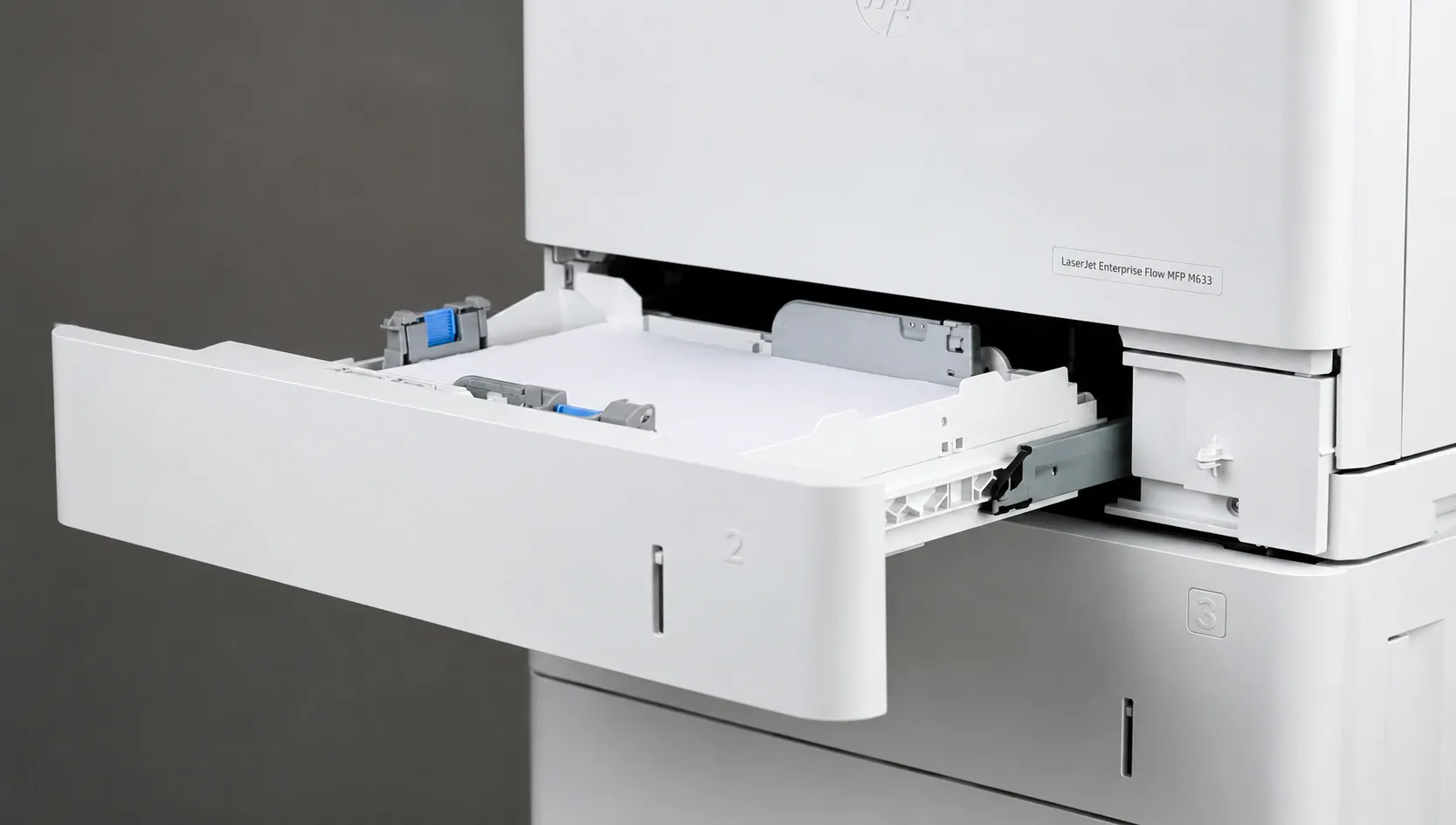
HP’s documented clearing procedure is consistent across trays. Open the tray, remove the jammed sheet by pulling in the direction of the paper path, check for torn fragments, and verify the guides sit snug against the stack without bowing it.
The control panel’s auto-navigation feature animates each step on screen, which helps office staff clear a one-off jam without a service call.
When the same tray jams repeatedly, the code points to hardware. A glazed HP LaserJet M631 Pickup Roller, HP LaserJet M632 Pickup Roller, or HP LaserJet M633 Pickup Roller loses the friction needed to grab the top sheet cleanly. Multipick jams, where two sheets feed together, point instead at a worn separation pad or HP LaserJet M631 Feed Roller, HP LaserJet M632 Feed Roller, or HP LaserJet M633 Feed Roller set.
Roller wear is a consumable issue, not a defect. We measure roller condition on every service visit because catching glazing early prevents the mid-quarter jam storms that stall accounting departments at the worst possible time.
What Do the Right Door, Fuser, and Finisher Jam Codes Mean?
Codes outside the 13.A range mean the sheet made it out of the tray and stalled deeper in the paper path. The first digit pair after “13.” identifies the zone:
| Error Code | Documented Location |
|---|---|
| 13.B2.XX | Jam in the right door / cover paper path |
| 13.B9.XX | Jam in the fuser |
| 13.CX.XX | Jam in the duplexer |
| 13.DX.XX | Jam in the duplexer (second duplex paper path) |
| 13.E1.XX | Jam at the standard output bin |
| 13.70.XX | Mailbox (MBM) jam |
| 13.8X.XX | Stapler/stacker jam |
For 13.B2 and 13.B9 codes, HP’s procedure is to open the right door, remove visible paper, then pull the fuser out by its handles and check underneath it. The fuser runs hot, so let it cool before handling.
A critical field note: a 13.B9 jam that returns immediately after clearing often means a torn scrap is still tripping the fuser exit sensor flag. If the flag itself is broken or missing, the fuser assembly must be replaced, because the flag is not sold separately.
Duplexer codes (13.CX and 13.DX) are cleared by removing the duplexer path covers behind the right door and checking both duplex feed paths. Output bin jams (13.E1) usually involve curled or lightweight stock; pull the sheet toward the front of the printer to avoid tearing.
Mailbox and stapler/stacker codes (13.70 and 13.8X) belong to the finishing accessories on M632 and M633 configurations. Clear the accessory’s own access door first, then check the bridge path where the engine hands the sheet to the finisher. Jammed staples in the cartridge carriage are a separate, documented clearing step.
If jams persist across multiple zones at once, stop replacing parts and run the paper path sensor test described in Section 7. Chasing individual codes without checking sensors wastes both parts and downtime.
What Does Each 50.X Fuser Error Code Actually Mean?
A 50.X code means the printer detected a fuser fault, either electrical or thermal, and shut the engine down to protect itself. Office managers searching for HP LaserJet M631 Fuser Error, HP LaserJet M632 Fuser Error, or HP LaserJet M633 Fuser Error answers usually see one of these documented codes:
| Error Code | Documented Meaning |
|---|---|
| 50.0 | Low fuser temperature during operation |
| 50.1 | Low fuser temperature at startup (main thermistor) |
| 50.2 | Fuser warm-up failure |
| 50.3 | High fuser temperature |
| 50.4 | Fuser drive circuit or line voltage fault |
| 50.6 | Open fuser heater circuit |
| 50.7 | Fuser pressure-release mechanism failure |
| 50.8 | Low fuser temperature (sub-thermistor) |
| 50.9 | High fuser temperature (sub-thermistor) |
| 50.AX.YZ | Fuser temperature fault, FutureSmart extended format |
| 50.BX.YZ | Fuser temperature fault, FutureSmart extended format |
The extended 50.AX.YZ and 50.BX.YZ formats report the same thermal fault families with additional zone and sensor detail. Record the full code, including the suffix digits, before power-cycling, because the suffix narrows the diagnosis considerably.
Not every 50.X code means a dead fuser. Warm-up failures (50.2) and voltage faults (50.4) frequently trace to the power source rather than the printer. A fuser draws a heavy startup load, and shared power strips, surge protectors, and UPS units can starve it.
How Do You Diagnose and Repair a Fuser Error Step by Step?
Follow HP’s documented sequence in order, and stop as soon as the error clears. Based on our field experience, roughly a third of fuser error calls resolve without a new fuser.
- Power the printer off at the front power button, wait, and power it back on. A one-time thermal fault will clear.
- Confirm the power cord runs directly to a wall outlet, not a power strip, surge protector, or UPS. HP documents this explicitly for the 50.7F.00 error on this series.
- Check the environment. HP notes that a drafty location, such as in front of an HVAC vent or window, can prevent the fuser from reaching temperature.
- Open the right door, let the fuser cool, then remove and firmly reseat it. A fuser that is not fully latched throws connection-related faults.
- Inspect the fuser connectors for bent pins or toner contamination while it is out.
- If the code returns after all of the above, the fuser assembly has failed and needs replacement.
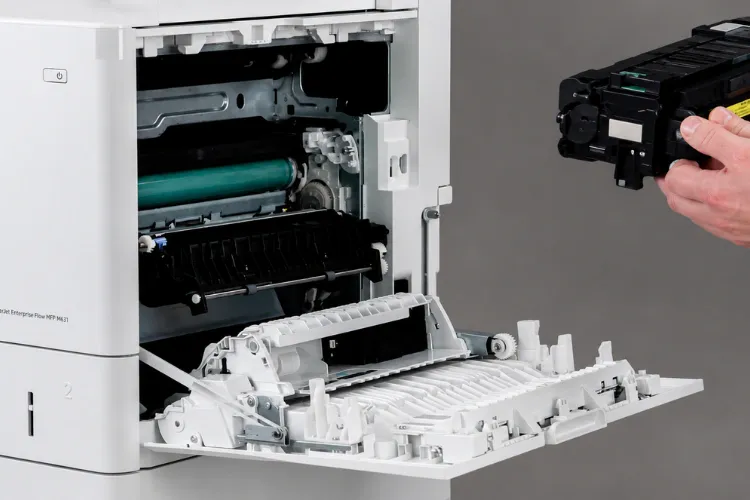
The documented replacement fuser for the M631, M632, and M633 (110V) is part RM2-1256, the same assembly used across the M607 through M612 family. It installs without tools through the right door.
One caution from the field: repeated 50.3 or 50.9 overtemperature codes after a fuser swap can indicate a DC controller or power supply fault feeding the fuser bad signals. Before replacing expensive components twice, Printer Repair Experts performs a complete diagnosis to verify the actual cause of the failure.
Teams comparing HP LaserJet M631 Printer Repair, HP LaserJet M632 Printer Repair, and HP LaserJet M633 Printer Repair options should ask whether the technician stocks this fuser on the truck. Same-day resolution depends on the part being physically present, not ordered.
Get Your HP LaserJet MFP Back to Work
When Should You Install a Maintenance Kit?
Install the kit when the control panel posts the maintenance prompt, or earlier if jam frequency and print defects climb together. The documented HP LaserJet M631 Maintenance Kit, HP LaserJet M632 Maintenance Kit, and HP LaserJet M633 Maintenance Kit for 110V machines is HP part L0H24A, which bundles the RM2-1256 fuser with a fresh roller set.
Waiting past the prompt is a false economy. A worn kit produces exactly the symptoms covered in Sections 1 through 3: tray jams from glazed rollers, fuser jams from degraded fuser film, and smearing from a fuser that no longer bonds toner fully.
HP publishes a documented procedure for checking remaining kit life from the supplies status report, so IT teams can budget the kit before the printer forces the issue. Checking your fleet’s status quarterly turns an emergency into a scheduled visit.
After installation, the maintenance count must be reset using HP’s documented reset procedure so the printer tracks the new kit’s life correctly. Skipping the reset leaves the replacement prompt on screen and corrupts future service planning.
For document feeder jams and streaks on copies, note that the ADF has its own documented roller kit (J8J95A) separate from the engine maintenance kit. An HP Laserjet Maintenance Kit refresh on the engine will not fix pickup problems in the scanner’s feeder.
The same maintenance logic applies across the newer generation, so fleets running mixed hardware can standardize the schedule alongside their HP LaserJet MFP M634 M635 M636 Printer Repair planning.
Why Is Print Quality Failing, and Which Part Is Responsible?
Each print defect maps to a specific component, which is why guessing at cartridges rarely fixes anything. The HP LaserJet M631 Print Quality Problems, HP LaserJet M632 Print Quality Problems, and HP LaserJet M633 Print Quality Problems we diagnose most often break down like this:
- Vertical lines or streaks: toner cartridge drum damage or debris in the laser path
- Toner smearing that rubs off: fuser not reaching bonding temperature, an early warning before a hard 50.X code
- Faded or light print: cartridge near end of life, or transfer roller wear
- Repetitive defects at fixed intervals: a damaged roller; the repeat distance identifies which roller by circumference
- Splotches or scatter: contaminated paper path or out-of-spec media
Start with HP’s built-in Print Quality Troubleshooting Pages under the Support Tools menu. They isolate whether a defect originates in the cartridge, transfer, or fusing stage before any part is ordered.
Toner quality matters here. Genuine HP cartridges are the baseline; where budgets demand alternatives, only properly formulated third-party toner should be considered, and it should carry a real warranty. We back the third-party toner we supply for a full year for exactly that reason.
Repetitive defect diagnosis is where technician experience pays off. Our technicians frequently encounter this issue during onsite service calls, and measuring the defect interval with a ruler identifies the failed roller in minutes instead of a parts-swapping afternoon.
Which Diagnostic Tests and Preboot Functions Should You Run?
Run the built-in diagnostics before replacing anything, because they isolate faults that guesswork cannot. The HP LaserJet M631 Printer Diagnostics, HP LaserJet M632 Printer Diagnostics, and HP LaserJet M633 Printer Diagnostics toolset lives in the Support Tools area of the FutureSmart control panel and includes:
- Paper path test: feeds a sheet from any selected tray through any output, isolating which zone drops it
- Paper path sensor test: displays live sensor states so a stuck flag reveals itself the moment paper passes
- Manual sensor and component tests: exercise individual motors, solenoids, and clutches
- Event log: timestamps every error code, exposing patterns like jams that only occur on duplex jobs
The Preboot menu is the deeper layer. HP documents it for situations where the printer cannot fully boot: it is opened during startup, before the firmware loads, following HP’s documented access step for FutureSmart models.
From Preboot, an administrator can view error logs, run service diagnostics, manage the internal disk, and recover or reload firmware from a USB drive. It is the documented recovery path for a printer stuck in a boot loop after a failed update.
Preboot diagnostics also matter for intermittent faults. An error that never reproduces during business hours often shows a clean pattern in the Preboot and event logs, which is where our diagnosis usually starts on fleet machines.
Same-Day HP LaserJet MFP M631 M632 M633 Service Available
How Do You Reset the Printer or Update Its Firmware Safely?
Use the least destructive reset first, and escalate only if the fault survives. The documented HP LaserJet M631 Printer Reset, HP LaserJet M632 Printer Reset, and HP LaserJet M633 Printer Reset options, in order of severity:
- Restart: power off at the button, wait 30 seconds, power on. Clears memory faults and one-time errors.
- Reset Factory Settings: in the Settings menu, restores configuration defaults. Note your network settings first.
- Preboot-level recovery: the documented last resort when the printer will not boot, performed from the Preboot menu described above.
Firmware deserves the same discipline. HP periodically resolves jam-detection, scanning, and security issues in FutureSmart releases, so a documented HP LaserJet M631 Firmware Update, HP LaserJet M632 Firmware Update, or HP LaserJet M633 Firmware Update is a legitimate repair step, not just an IT chore.
HP’s documented update paths for this series: download the correct .bdl firmware bundle from hp.com, then install it either from a USB flash drive at the control panel, through the Embedded Web Server, or from the Preboot menu when recovering a failed installation.
Two field cautions. Never power the printer off mid-update, because an interrupted flash is the most common cause of the boot loops we get called for. And update one fleet machine first, confirm stable behavior for a few days, then roll the release out to the rest.
Where Can You Get HP Laserjet MFP M631 M632 M633 Printer Repair Onsite?
Printer Repair Experts provides onsite HP Laserjet MFP M631 M632 M633 Printer Repair throughout Orange County and much of Los Angeles County, with same-day service available for many of the failures covered in this guide. We stock fusers and maintenance kits for this series so a 50.X code diagnosed in the morning can be printing again the same afternoon.
That stocking policy is the practical difference between Onsite Printer Repair and a mail-in depot. When a shared MFP goes down, scanning, copying, and faxing stop along with printing, and every workflow that touches paper backs up behind it.
Downtime math favors fast repair. A department losing even an hour of combined productivity to a dead MFP has already outspent a service visit, which is why Same Day Printer Repair exists as a category at all. Our new-customer special of $69.99 flat-rate onsite labor, subject to limitations, keeps the decision simple.
The repair-versus-replace question has a clear answer for this series. These machines are built for high monthly volumes, parts remain plentiful, and a fuser or maintenance kit costs a small fraction of a replacement MFP, so HP LaserJet Printer Repair nearly always wins the math until the frame or formatter fails.
Fleet reliability follows the same logic. Standardized HP LaserJet MFP Printer Repair and preventative maintenance across a building of identical machines means shared parts stock, predictable budgets, and no single point of failure, which is the argument for maintaining rather than piecemeal replacing.
We serve organizations searching for Office Printer Repair, Commercial Printer Repair, Business Printer Repair, and Enterprise Printer Repair across our coverage area, including teams looking for Printer Repair Anaheim CA, Printer Repair Brea CA, and Printer Repair Commerce CA. Every repair carries our 6-month warranty on service and installed parts.
Because we support the whole family, the diagnostic playbook above carries directly into related calls, whether that is an HP Laserjet MFP M634 Fuser Error or an HP Laserjet MFP M635 Paper Jam on a newer machine in the same fleet. One provider, one process, one HP Printer Repair standard across your inventory.
Conclusion
Every 13.XX jam code and 50.X fuser code on this series points somewhere specific, and the documented procedures above resolve most of them in a defined order: clear the path, check the sensors, verify power, and only then replace the fuser or maintenance kit. Diagnostics, resets, and firmware are the supporting cast that keeps repairs from becoming guesswork.
When the fix needs parts, tools, or a second opinion, professional HP Laserjet MFP M631 M632 M633 Printer Repair is a phone call away. Reach Printer Repair Experts at (888) 657-0021 or info@printer-repair-experts.net, and keep this guide bookmarked for the next code your fleet throws.
FAQ's - Frequently Asked Questions - HP Laserjet MFP M631 M632 M633 Printer Repair
Cost depends on whether the fuser actually failed. Many 50.X codes clear after correcting the power source or reseating the fuser, which is labor only. If the fuser needs replacement, the assembly plus labor still runs a small fraction of replacing the MFP. New customers qualify for our $69.99 flat-rate onsite labor special, subject to limitations.
The fuser slides out through the right door without tools, so a confident IT person can swap it. The risk is misdiagnosis: if the real fault is line voltage, a sensor, or the DC controller, a new fuser changes nothing. A technician verifies the cause first, and professional installation is covered by a 6-month warranty on service and parts.
A jam that repeats in one tray almost always means worn pickup or separation rollers, a torn paper fragment still in the path, or a sensor flag that no longer moves freely. Clearing the sheet treats the symptom; replacing the rollers or freeing the sensor treats the cause.
These are high-duty-cycle enterprise machines with plentiful parts availability. Unless the frame, formatter, or multiple major assemblies have failed, repair and a fresh maintenance kit typically restore years of service for far less than replacement hardware, supplies transition, and driver redeployment across the office.
The 110V kit (HP part L0H24A) includes the fuser and replacement rollers. Installing it addresses wear-related jams, feed failures, and fusing defects, but the maintenance count must also be reset using HP’s documented procedure or the replacement prompt will remain on screen.
Sometimes, yes. HP’s FutureSmart releases have historically addressed jam-detection behavior, scanning issues, and stability problems. If your fleet jams in patterns that hardware inspection can’t explain, checking the installed firmware against HP’s current release is a documented and legitimate diagnostic step.
Same-day onsite service is available for many M631, M632, and M633 issues across Orange County and much of Los Angeles County. Because we stock fusers and maintenance kits for this series, most fuser and jam-related failures are diagnosed and repaired in a single visit.