
HP Laserjet M527MFP M528MFP Paper Jam: Find the Code, Open the Right Door, Stop the Repeats
Clearing an HP Laserjet M527MFP M528MFP Paper Jam in the print path almost always comes down to three places HP sends you: a paper tray, the front door with the jam-access cover under the toner cartridge, or the rear door beside the fuser. The code on the control panel tells you which one to open, and on a printer that was just running, the order you open them in matters.
This guide is for the office managers, administrative staff, and IT teams who need an HP LaserJet Enterprise MFP M527 or M528 printing again in the next few minutes, and for anyone weighing whether a jam that keeps returning needs a technician. Each HP LaserJet M527MFP M528MFP paper jam procedure below follows HP’s published steps for the exact model family, and anything that requires disassembly stays in the technician section.
Preview Snapshot
- Write down the full code, such as 13.A2.D2 or 13.B9.Dz, and the location text of any HP LaserJet M527MFP M528MFP paper jam before touching a door. That pair decides which clearing route applies.
- Tray jams on both families are finished at the front door: HP has you remove the toner cartridge and lift the jam-access cover to catch paper that already left the tray.
- Rear-door and fuser-area jams wait until the fuser cools. HP warns that the fuser is hot while the printer is in use.
- A 31.13 message involves originals in the document feeder during scanning or copying, which is a separate path from the print engine.
- When an HP LaserJet M527MFP M528MFP paper jam returns to the same location after the tray setup checks out, a written jam record lets a technician go straight to the parts involved.
HP LaserJet M527MFP M528MFP Paper Jam Lookup by Model, Code, and Location
Start with the label on the printer. The M527 family includes the MFP M527dn, MFP M527f, Flow MFP M527c, and Flow MFP M527z. The M528 family includes the MFP M528dn, MFP M528f, MFP M528c, and Flow MFP M528z. Both use a 100-sheet Tray 1, a 550-sheet Tray 2, and up to three optional 550-sheet trays, so the tray number in an HP LaserJet M527MFP M528MFP paper jam message depends on what is installed.
For service and print problems beyond jams, our HP LaserJet M527 and M528 printer repair page covers both families. The table lists each HP LaserJet M527MFP M528MFP paper jam code we verified in HP documentation for that model, with the access point it sends you to.
| Model family | Code shown | Jam location | Where HP has you clear it |
|---|---|---|---|
| M527 | 13.A2.D2 | Tray 2 | Tray 2 drawer, then front door and jam-access cover |
| M527 | 13.A3.D3, 13.A4.D4, 13.A5.D5 | Optional 550-sheet Tray 3, 4, or 5 | That tray, then front door and jam-access cover |
| M528 | 13.A2.D2, 13.A3.Dz, 13.A4.Dz, 13.A5.Dz | Tray 2 and optional 550-sheet trays | That tray, then front door and jam-access cover |
| M528 | 13.B2.A1, 13.B2.D1 | Tray 1 | Tray 1 opening, then front door and jam-access cover if needed |
| M528 | 13.B9.Az, 13.B9.Cz, 13.B9.Dz, 13.B9.FF | Rear door and fuser area | Rear door, after the fuser cools |
| M528 | 13.CX.XX, 13.DX.XX | Duplexer | Output bin, duplex pan behind Tray 2, rear door, front door |
| M528 | 13.E1 | Output bin | Output bin |
| M527 and M528 | 31.13.00, 31.13.01, 31.13.02, 31.13.13 | Document feeder (originals) | Document-feeder cover and input tray |
Two cautions keep this table honest. HP’s M528 support article lists Tray 1 as 13.B2.A1 and 13.B2.D1, while the M528 user guide labels the same location 13.A1, so match the location text on your panel rather than the digits alone. And a code verified for one family should not be assumed for the other. When an M527 shows an HP LaserJet M527MFP M528MFP paper jam code not listed here, follow the displayed location and the on-screen animation.
Safe Operator Checks Before the Next HP LaserJet M527MFP M528MFP Paper Jam
Most of what an office can safely fix sits in the tray and the paper itself. HP’s user guide for the M528 lists the same causes we check first on any HP LaserJet M527MFP M528MFP paper jam that starts at a tray, and none of them require tools.
- Rear paper guide. In Tray 2 and the 550-sheet trays, the rear guide must sit in the indentation for the loaded size. Pinch the release, move it, and listen for the click.
- Side guides. They should touch the stack without bending it.
- Stack height. Keep the top of the stack below the maximum-height indicators and under the tabs near them. HP lists an overfilled tray among the causes of recurring jams.
- Paper condition. Load a flat stack, square at all four corners. Discard curled, wrinkled, folded, or damaged sheets, and avoid paper that has already been printed or copied on.
- Settings match. Open the Trays menu on the control panel and confirm that the configured size and type match what is actually loaded.
- Tray seating. Push the tray fully into the printer until it stops.
- Heavy or special media. For heavy, embossed, or perforated paper, HP recommends manual feed through Tray 1, one sheet at a time.
If every item checks out and a fresh ream still stops at the same spot, the cause of the HP LaserJet M527MFP M528MFP paper jam has likely moved beyond loading. Building these checks into a routine is the simplest prevention plan, and our guide to Regular HP printer maintenance explains how to schedule that care across a fleet.
Front-Door Jams: Tray 1, Tray 2, Optional Trays, and the Toner-Cartridge Area
On these MFPs, paper that leaves a tray travels past the toner cartridge before it reaches the fuser. That is why HP’s tray procedures end at the front door. An HP LaserJet M527MFP M528MFP paper jam can read as a tray location on the panel while the leading edge is already under the jam-access cover.
HP LaserJet M528 Tray 1 Paper Jam (13.B2.A1, 13.B2.D1)
For an HP LaserJet M528 Tray 1 paper jam, HP’s procedure depends on how much of the sheet you can see. If most of it is still in the tray, pull it out slowly and confirm the whole sheet came free. If it tears, or if most of the sheet was already pulled inside, continue through the front door.
- Press the top-cover-release button on the left side of the printer.
- Open the front door and remove the toner cartridge.
- Lift the jam-access cover and slowly remove any jammed paper without tearing it.
- Reinsert the toner cartridge and close the front door.
HP LaserJet M527 Tray 2 Paper Jam and the 550-Sheet Trays
An HP LaserJet M527 Tray 2 paper jam (13.A2.D2) and its optional-tray versions (13.A3.D3, 13.A4.D4, 13.A5.D5) use one sequence, which HP also publishes for the M528. You can follow HP’s M527 jam procedure for Tray 2 and the 550-sheet trays on HP’s support site with its figures.
- Remove the tray, take out the paper, and discard damaged sheets.
- Set the rear paper guide to the indentation for the correct size until it clicks.
- Reload a flat stack below the maximum-height indicators, then reinsert and close the tray.
- Press the top-cover-release button on the left side and open the front door.
- Remove the toner cartridge, lift the jam-access cover, and slowly remove any paper.
- Reinsert the toner cartridge and close the front door.
Paper Hidden Under the Toner Cartridge
HP also lists the toner-cartridge area as its own HP LaserJet M527MFP M528MFP paper jam location. The route is the second half of the tray procedure: release the top cover, open the front door, remove the cartridge, lift the jam-access cover, and ease the paper out. Pull slowly and evenly, because a torn corner left behind can stop the next sheet at the same point.
One Jamming M527 or M528, One Promotional Visit
The $69.99 Onsite Printer Repair Promotion covers a technician’s visit to diagnose one HP LaserJet M527 or M528 that keeps stopping paper, with any parts quoted separately. Call (888) 657-0021 or email info@printer-repair-experts.net. Limitations may apply.
Rear-Door and Fuser-Area Jams on the M527 and M528
An HP M527 M528 rear-door and fuser-area paper jam is the one place where waiting is part of the procedure. HP’s M528 article for 13.B9 warns that the fuser is hot while the printer is in use and says to let it cool before clearing. HP documents 13.B9.Az, 13.B9.Cz, 13.B9.Dz, and 13.B9.FF for this location on the M528, and the M528 user guide groups 13.B9, 13.B2, and 13.FF under its fuser procedure.
- Allow the fuser to cool.
- Open the rear door.
- Remove any jammed paper from inside the rear door.
- Close the rear door.
HP’s companion video for this procedure is titled for the MFP and Flow M52x models, so the rear-door route applies to the M527 as well. On an M527, rely on the location text the panel displays for the exact code.
Symptom and cause. In this HP LaserJet M527MFP M528MFP paper jam, paper stops at the rear of the printer, sometimes wrinkled. A single event can come from a damaged or curled sheet. Repeats at the same location suggest something in the rear paper path or fuser area is not releasing paper cleanly.
Diagnosis. A technician confirms whether paper condition, an obstruction, or the fuser assembly is involved before deciding on a part. An HP LaserJet M527MFP M528MFP paper jam at the fuser is a stalled sheet, a different fault path from a 50-series code, and our guide to HP LaserJet M527 and M528 fuser errors explains that separate condition.
Remedy and component. When diagnosis points to the fuser assembly, we replace the assembly, because Printer Repair Experts does not rebuild fusers onsite.
Why an HP LaserJet M527MFP M528MFP Paper Jam Shows Up Only on Two-Sided Jobs
When single-sided pages print cleanly and the HP M527 M528 paper jam when printing double-sided keeps returning, the duplex path is the likely location. A sheet printed on side one travels back through the printer for side two, so it crosses areas that a simplex job never reaches.
The M528 user guide lists a duplexer HP LaserJet M527MFP M528MFP paper jam as 13.CX.XX or 13.DX.XX. Its clearing sequence works from the outside in:
- If paper is visible in the output bin, grasp the leading edge and remove it.
- Remove Tray 2, pull forward on the green tab inside the tray cavity to release the duplex pan, remove any paper, and close the pan.
- Reinsert Tray 2, then open the rear door, remove any paper, and close it.
- Press the top-cover-release button, open the front door, remove the toner cartridge, check under the jam-access cover, then reinsert the cartridge and close the door.
An HP LaserJet M527MFP M528MFP paper jam at the output bin carries its own code, 13.E1, on the M528. For that location, grasp the leading edge of the visible sheet and pull it straight out.
To isolate the fault, print the same job single-sided from the same tray. If simplex runs clean and duplex stops at the same place, the HP LaserJet M527MFP M528MFP paper jam lives in the duplex return path rather than at pickup. Note that result before calling, because it saves a diagnostic step.
Originals Jamming in the Document Feeder
A 31.13 code is not an HP LaserJet M527MFP M528MFP paper jam in the print path. It means an original stopped in the automatic document feeder during scanning or copying. HP documents 31.13.00, 31.13.01, 31.13.02, and 31.13.13 for the M527 and M528.
- Lift the latch, open the document-feeder cover, and remove any jammed paper.
- Lift the document-feeder input tray, remove any paper, and lower the tray.
- Close the cover until the latch on top is fully closed.
HP adds that originals should be free of staples and paper clips, guides should touch the stack without bending it, and narrow originals belong on the flatbed. Heavy, glossy originals jam more often than plain paper. A future guide on HP LaserJet M527 M528 Document Feeder Jam During Scanning or Copying will cover repeated feeder misfeeds and the feeder’s own rollers in more depth.
Same Tray, Same Code, Every Week?
A code that repeats at one location is evidence our technicians use to inspect the pickup, separation, and paper-path parts that location involves before recommending any part. Send your jam record to info@printer-repair-experts.net or call (888) 657-0021.
Turning HP M527 M528 Recurring Paper-Feed Jams Into a Useful Record
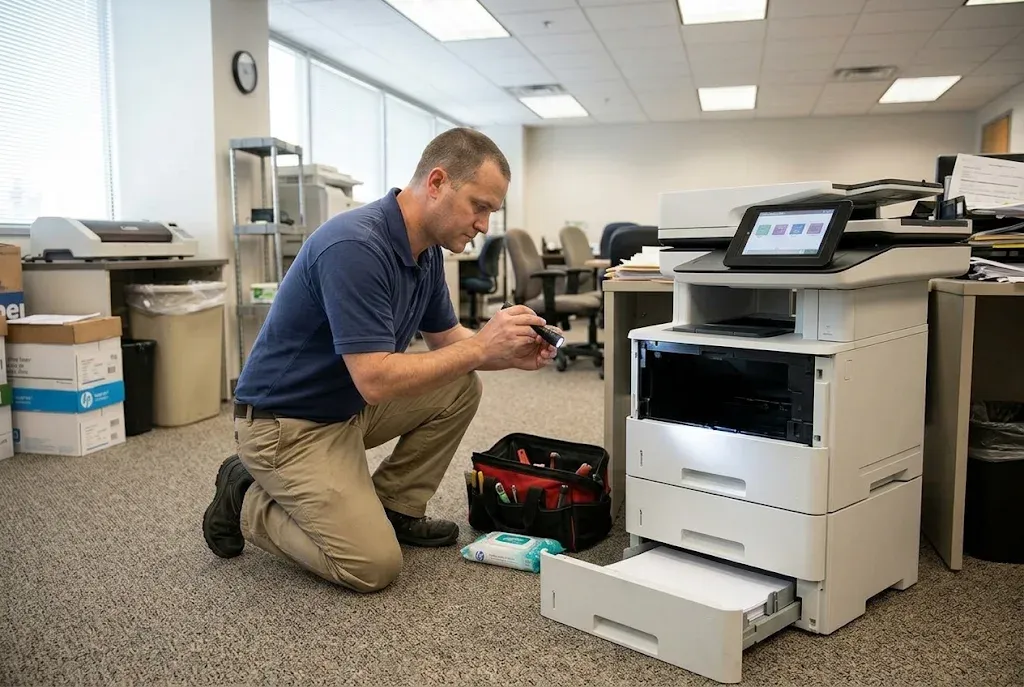
An HP LaserJet M527MFP M528MFP paper jam you clear once is an event. HP M527 M528 recurring paper-feed jams are a pattern, and the details of that pattern tell a technician where to start. Before calling, have someone keep a short log for the next few occurrences.
- Exact model. Read it from the label, including Flow or dn/f/c/z designations.
- Full code and location text, including the suffix, such as 13.A2.D2 rather than 13.A2.
- Source tray and whether optional trays are installed.
- Paper brand, weight, and type as configured in the Trays menu.
- Simplex or duplex for the job that stopped.
- Where the sheet stopped: still in the tray, under the jam-access cover, at the rear door, or in the output bin.
Each entry narrows the search for the HP LaserJet M527MFP M528MFP paper jam cause. A sheet that never leaves the tray points toward pickup and separation. A sheet that leaves the tray but stops under the toner cartridge points further along the feed path. Stops only on duplex jobs point to the return path, and repeats at the rear door point to the fuser area.
For a broader look at paper condition, loading habits, and feed problems that affect any HP LaserJet, see Why printers keep jamming. The record above applies that thinking to each HP LaserJet M527MFP M528MFP paper jam on these two families.
What Our Technicians Inspect Behind a Repeating Code
An HP LaserJet M527MFP M528MFP paper jam code describes where a sheet stopped, not which part failed. We treat it as a diagnostic clue and confirm the cause by inspection before recommending parts, so an office does not pay for a roller it did not need.
HP M527 M528 Paper Pickup and Separation Roller Diagnosis
Tray 2 and the 550-sheet trays rely on pickup and separation rollers to grab one sheet at a time. HP M527 M528 paper pickup and separation roller diagnosis starts with the jam record, then a physical inspection of the rollers for the tray that keeps stopping. Glazed or worn rollers lose grip, which can show up as late pickup or multiple sheets feeding together.
HP publishes a Tray 2 roller kit, J8H60-67903, with parts for one tray, and a pick-up roller assembly, RM2-5752-000CN, with rollers for Tray 2 and a Tray 3 or optional 550-sheet feeder. Both are listed for the M527 and M528. A dedicated guide on HP LaserJet M527 M528 Tray 2 Pickup and Separation Roller Replacement is in development.
Feed Path, Sensors, and the Rear Paper Path
When the tray rollers check out, the inspection moves along the path the record indicates: registration and feed-path obstructions, sensors and flags that report paper position, and the rear paper path toward the fuser. A torn fragment or a sticking flag can make the printer report an HP LaserJet M527MFP M528MFP paper jam at a location where the paper itself looks fine.
Wear-related jams can overlap with scheduled maintenance. Our page on HP LaserJet maintenance kits covers those kits, but compatibility and replacement timing depend on the exact model, so we confirm both on the printer.
Repair usually makes sense when diagnosis of an HP LaserJet M527MFP M528MFP paper jam isolates a roller, a fragment, or a single assembly on an otherwise sound MFP. When several paper-path parts are worn at once, we lay out the parts involved so the office can weigh repair against replacement with real numbers.
Different HP LaserJet Enterprise MFP on the Desk?
If the label shows a different model, the codes and access doors change. HP LaserJet Enterprise MFP paper jam troubleshooting for those models is covered in our HP LaserJet M631, M632, and M633 paper jam troubleshooting guide and our HP LaserJet M634, M635, and M636 paper jam troubleshooting guide.
Feed-Path Repairs Backed for 180 Days
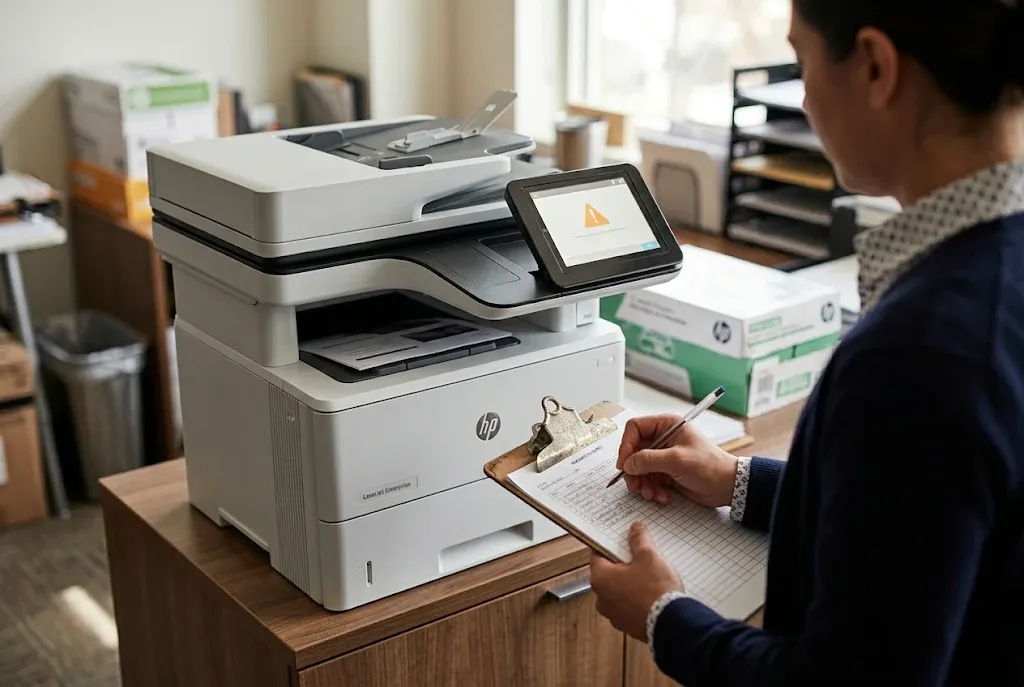
When diagnosis confirms a worn roller or damaged paper-path part, we install HP Parts or High Quality Parts at your M527 or M528, and service and installed parts carry a 6-month / 180-day warranty. We bring more than 20 years in the office equipment industry to offices across Orange County and approved areas of Los Angeles County. Same-day service may be available.
When Onsite HP M527 M528 Paper Jam Repair Is the Next Step
Onsite HP M527 M528 paper jam repair is the right call when an HP LaserJet M527MFP M528MFP paper jam returns to the same location after tray setup, paper, and settings are confirmed. It is also the next step when fragments cannot be reached through HP’s access points, or when paper resists removal at the rear door after the fuser has cooled. Those cases need component testing, which belongs with a technician.
Our Onsite printer repair service brings the diagnosis to the printer. For each HP LaserJet M527MFP M528MFP paper jam on the record, the technician reviews the log, reproduces the stop when possible, and inspects the pickup, separation, feed-path, and rear paper-path parts involved. Repairs use HP Parts, High Quality Parts, or Premium Parts, and service and installed parts carry a 6-month / 180-day warranty.
We serve offices throughout Orange County, including Irvine, Santa Ana, Anaheim, Fullerton, Huntington Beach, and Tustin, along with approved portions of Los Angeles County. Check local details on our HP LaserJet printer repair in Orange County page, or confirm coverage for your address on our HP LaserJet printer repair in Los Angeles page. Same-day service may be available.
To close out the lookup: read the code and location, open only the door HP names, let the fuser cool before the rear door, and keep a record when an HP LaserJet M527MFP M528MFP paper jam repeats. If the record shows the same stop week after week, call (888) 657-0021 or email info@printer-repair-experts.net with the model and full code, and we will plan the visit around what your M527 or M528 is telling us.
FAQ's - Frequently Asked Questions - HP Laserjet M527MFP M528MFP Paper Jam
No for the print path. HP’s tray, rear-door, and fuser-area videos are titled for the MFP and Flow M52x models together. Flow models add a pull-out keyboard and workflow features, so follow the same tray, front-door, and rear-door steps.
HP’s documents use both forms. HP’s M528 support article lists Tray 1 as 13.B2.A1 and 13.B2.D1, while the user guide labels the location 13.A1. The procedure is the same, so go by the location text on the panel.
Long enough for the fuser to cool. HP warns that the fuser is hot while the printer is in use. Clear front and tray locations first, then open the rear door once the area is no longer hot to the touch.
Work through every access point HP names for that HP LaserJet M527MFP M528MFP paper jam code, including the jam-access cover under the toner cartridge. If the fragment still is not visible, stop there. Fragments outside HP’s access points need a technician rather than further reaching inside.
Sometimes. HP recommends switching packages when paper is wrinkled, folded, or damaged, and feeding heavy, embossed, or perforated stock one sheet at a time through Tray 1. If a fresh ream of supported paper still produces an HP LaserJet M527MFP M528MFP paper jam at the same spot, the cause is likely mechanical.
No. The $69.99 Onsite Printer Repair Promotion applies to one printer per onsite visit and does not include parts. When two or more printers need service during the same visit, pricing reverts to our Standard Flat Labor Rate.
No. HP lists the Tray 2 roller kit, J8H60-67903, as its own part for the M527 and M528 trays. A maintenance kit is a separate HP part, and we confirm which one the printer needs after diagnosis.
Call us with the new HP LaserJet M527MFP M528MFP paper jam record. Service and installed parts carry a 6-month / 180-day warranty. We do not install customer-supplied parts, so the warranty covers the HP Parts or High Quality Parts we install.