
HP LaserJet E60155 E60165 E60175 Printer Repair for Managed Print Fleets
HP LaserJet E60155 E60165 E60175 Printer Repair covers three HP LaserJet Managed monochrome models built on one shared print engine: the E60155dn, the E60165dn, and the E60175dn. A fault on one of them is isolated almost identically on the other two, so we treat the group as a single service platform rather than three unrelated machines.
What actually separates them is throughput. HP rates the E60155dn at 55 pages per minute on letter-size paper, the E60165dn at 65 ppm, and the E60175dn at 75 ppm. At the same monthly volume, the faster unit simply arrives at the end of its feed and fusing component life sooner.
That one difference shapes most of what follows. This page walks through how we approach HP LaserJet E60155 E60165 E60175 Printer Repair onsite: which control-panel message families matter, how recurring feed failures get isolated, when the fuser is genuinely the failed assembly, and what a Managed deployment changes about the whole visit.
If your equipment list runs wider than this family, our general HP LaserJet printer repair page describes what we support across the rest of the line. Everything below stays with the Managed E601xx models.
Preview Snapshot
- The E60155dn, E60165dn, and E60175dn are single-function monochrome LaserJet Managed printers on a shared engine, rated by HP at 55, 65, and 75 ppm on letter-size paper.
- HP publishes a jam-clearing document covering 13.B9, 13.B2, and 13.FF errors in the rear door and fuser area for this exact model range.
- A 50.7F.00 message points toward the fuser, but HP’s own sequence asks about the power source and the air around the printer before the assembly is condemned.
- Scheduled service on this platform is announced through fuser-kit messages in the 10.23 family rather than the older Perform Printer Maintenance wording.
- The front door on these three models is locked by design and releases on cartridge status, a behavior HP documents separately for the E60155, E60165, and E60175.
- We work onsite across Orange County, and service plus installed parts carry a 6-month / 180-day warranty.
1. Identifying Which Managed Model Is Actually on the Floor
Before anything else, confirm the model. Managed units are frequently deployed in groups, and a room with four printers of identical appearance may hold two different speed classes. The product number on the rear label settles it: 3GY09A for the E60155dn, 3GY10A for the E60165dn, and 3GY12A for the E60175dn.
All three are single-function printers. There is no scanner glass and no document feeder on this platform, which matters when a caller reports a scanning or feeder fault on what is actually a print-only device. The control panel is a color touchscreen mounted on the upper front face, and the output bin is recessed into the top surface.
Standard input is a 100-sheet multipurpose Tray 1 and a 550-sheet Tray 2. HP supports additional 550-sheet feeders, a 2,100-sheet high-capacity input tray on a stand, and an envelope feeder, and the trays are addressed on the panel as Tray 2 through Tray 5. Knowing which optional trays are fitted changes where we look first on a feed complaint.
Physical footprint is worth noting for scheduling. HP lists the printer at roughly 431 mm wide, 466 mm deep, and 357 mm high, at about 20.6 kg with a cartridge installed. It is a desktop-class chassis that grows into a floor-standing configuration once a high-capacity input tray and stand are added.
HP LaserJet Managed E60055 E60065 E60075 Printer Repair
Organizations often run the earlier Managed generation alongside these units. The E60055, E60065, and E60075 appear beside the E60155, E60165, and E60175 in HP’s own documentation for several error conditions, so an administrator seeing the same code across both generations is not imagining the overlap. We handle both, and a mixed-generation site is usually one dispatch rather than two.
2. Reading the Control Panel Before Anyone Touches a Screwdriver
Nearly every useful repair on this platform starts with the message, not the symptom. HP publishes a Control Panel Messages Document covering the LaserJet Enterprise M607 through M612 alongside the Managed E60055-E60075 and E60155-E60175, and the message families in it are consistent enough to be diagnostic on their own.
Three families account for most calls we take on these printers:
- 13.WX.YZ codes report paper-path events. The position characters identify roughly where in the path the sheet was last seen, which is why two jams with different suffixes are not the same problem.
- 50.WX.YZ codes report fusing faults. These range from warm-up timing to the mechanical behavior of the fuser itself.
- 10.23.xx codes report fuser-kit status. HP documents 10.23.15 as Install Fuser kit, 10.23.60 as Fuser Kit low, and 10.23.70 as Replace Fuser Kit.
Supply messages sit slightly apart from all of this. HP documents 10.99.31 for a non-HP supply in use and 10.99.34 for a used supply in use. Neither is a hardware failure, and neither warrants a service call on its own, though both regularly get reported as one.
Write down the full code, including the trailing characters. A caller who says “it says thirteen something” gives us less to work with than one who reads out 13.B2.D1, and the difference frequently decides whether the correct part rides along on the first visit.

Flat Promotional Labor on One E60155, E60165, or E60175
Our $69.99 Onsite Printer Repair Promotion covers the onsite labor for one printer per visit, with parts quoted separately. Tell us the model and the exact control-panel code when you call (888) 657-0021 or write to info@printer-repair-experts.net, and we can load the likely assembly before the truck leaves. Limitations may apply.
3. Recurring Feed Failures and the Jams That Come Back
A single jam is an event. The same jam three times in a week is a component telling you something, and that is the distinction that separates a paper problem from an HP LaserJet paper-feed repair.
Symptom. Sheets stop partway through the path, misfeed from one tray while another tray runs clean, arrive skewed, or feed in pairs. The panel reports an HP LaserJet 13.Bx.yz paper jam and offers a clearing animation, and the printer returns to Ready once the sheet is pulled.
Root cause. Rubber wears. Pickup, feed, and separation rollers glaze and lose grip against the top sheet, and a separation roller that no longer holds back the stack is the classic source of multi-sheet feeds. Registration components and paper-path sensing can also be involved, particularly where a jam clears but immediately repeats.
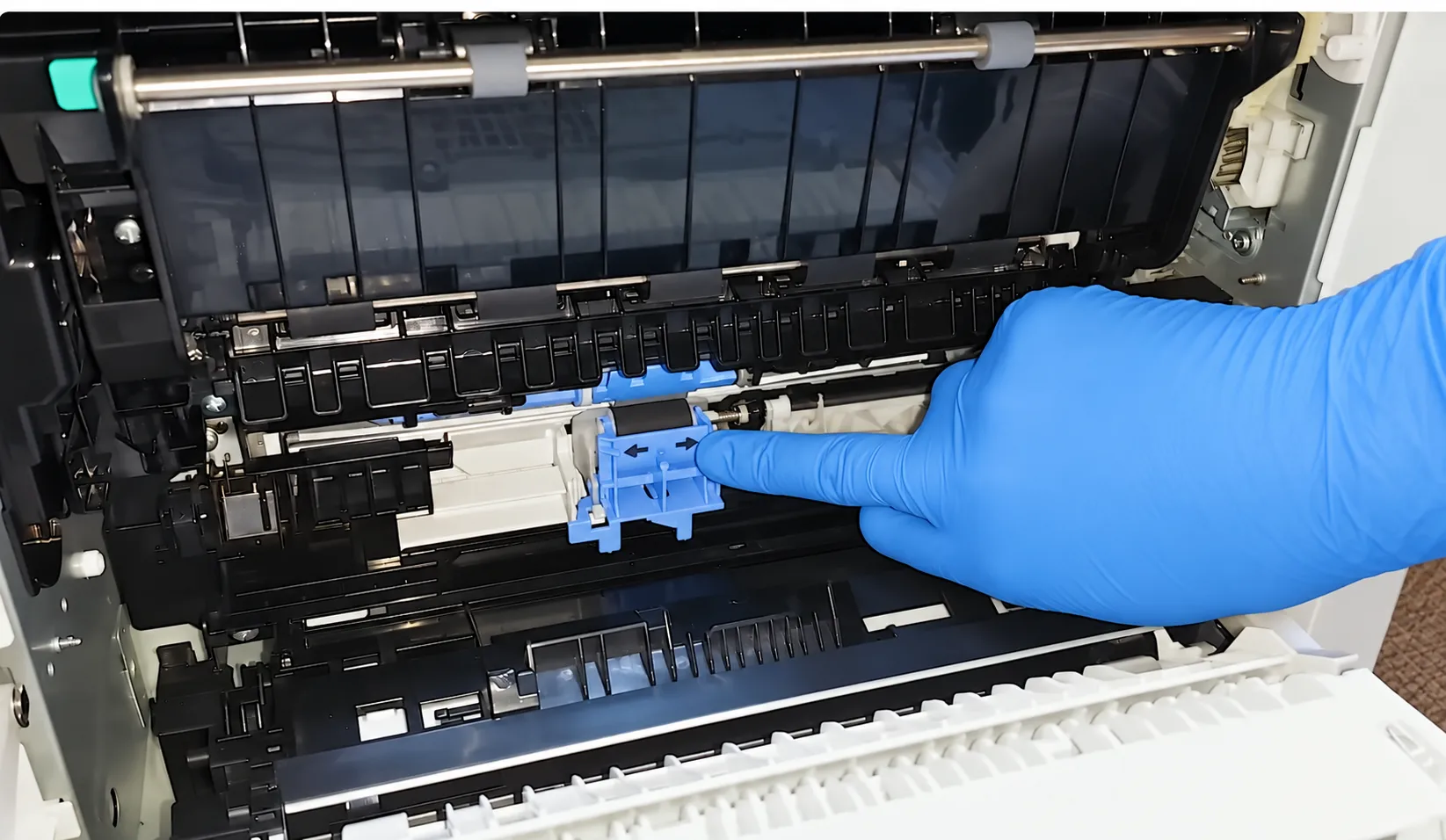
Diagnosis. The tray identity in the code is the first clue, because a defect isolated to one tray points at that tray’s feed components rather than at the shared path. We inspect the roller surfaces for glazing and flat spots, check the separation roller position through the access cover, and watch a test sheet travel to see where the timing slips.
Remedy and repair component. Most recurring feed faults on this platform resolve with roller service. HP LaserJet pickup roller replacement along with the matching feed and separation rollers restores grip; where sheets consistently arrive skewed or late to registration, the registration assembly comes into scope. Damaged tray components and worn guides are replaced as found.
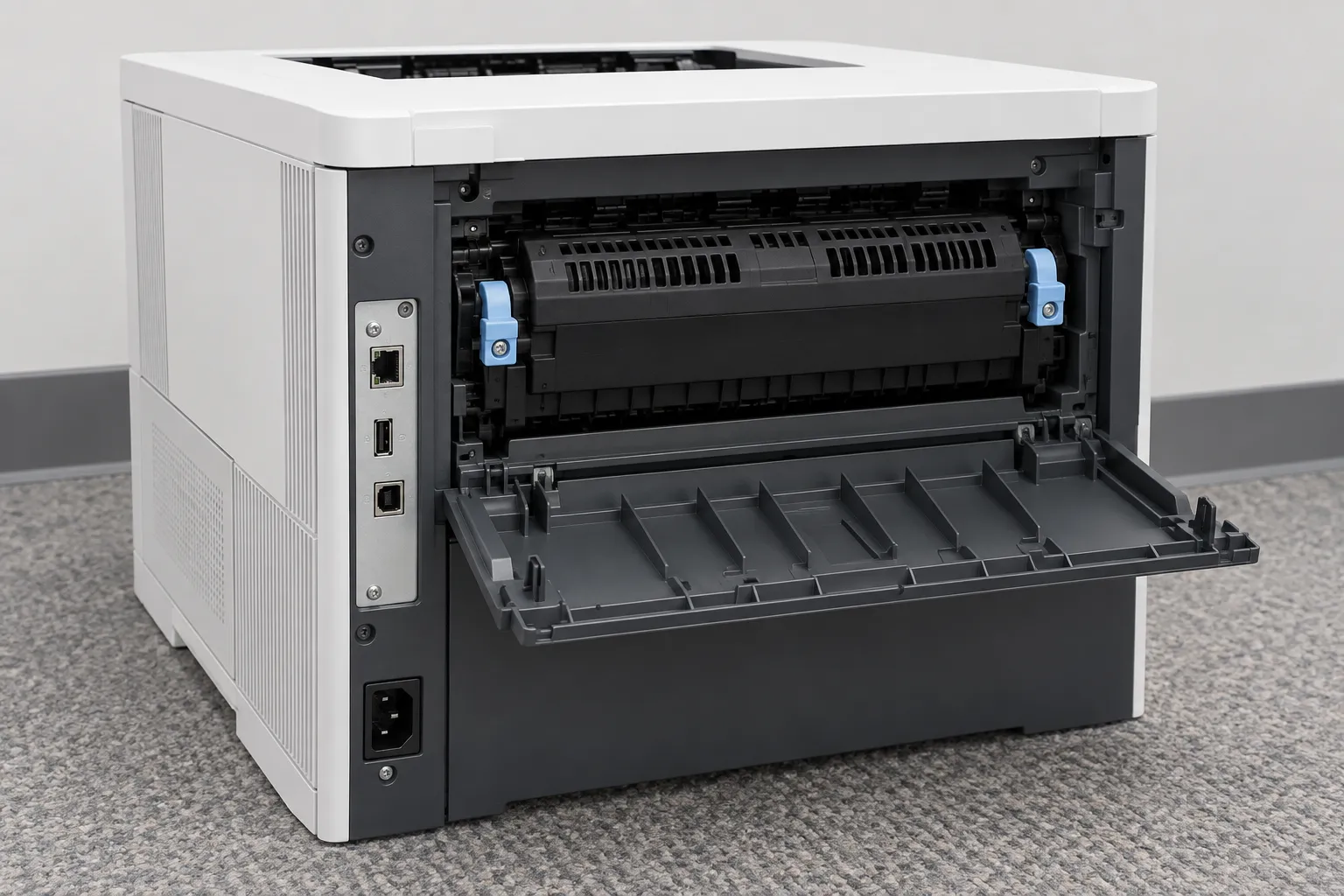
When we recommend service. Call us when the same tray jams repeatedly after clearing, when sheets feed in pairs, or when jams appear in the rear door area rather than at the tray. HP’s clearing procedure asks the operator to remove the fuser by its two side latches, and the assembly can be hot; that is a reasonable point to stop and let a technician continue.
Where useful, HP’s jam-clearing document for 13.B9, 13.B2, and 13.FF errors in the rear door and fuser area covers this exact model range and is worth keeping on file. Sites also running the Enterprise equivalents can compare against our HP LaserJet M610 M611 M612 paper jam repair page, which addresses the same paper path on the Enterprise side of the platform.
4. Fuser Errors, Including the 50.7F.00 Message
Fusing is where heat and pressure bond toner to the sheet. When that stage misbehaves, the failure is visible on the page and audible in the machine long before it becomes a hard stop.
Symptom. Toner rubs off a finished page. Output emerges creased or wrapped. The printer pauses at the start of jobs, or the panel posts an HP LaserJet 50.7F.00 fuser error and stops.
Root cause. The 50 family reports fusing faults broadly. HP publishes a support document specifically for the 50.7F.00 message that names the E60155, E60165, and E60175 alongside the Enterprise M607, M608, and M609 and several Managed MFPs, which reflects the shared engine rather than a coincidence.
Diagnosis. HP’s published sequence is deliberately unglamorous, and it exists because the fuser is not always at fault. Power the unit off and on, then confirm the power cord runs to a wall outlet rather than a power strip or surge protector.
The third check catches more units than most people expect. Confirm the printer is not sitting in a draft from a vent or window, where cool air can interfere with the fuser reaching temperature. A printer moved to a new spot near an air handler can start reporting fuser faults with nothing wrong inside it.
Remedy and repair component. When those conditions check out and the message returns, the fuser assembly is the component in scope. We do not rebuild fusers onsite; the applicable assembly is replaced, using HP Parts or High Quality Parts, and the printer is run through a print test before we leave.
When we recommend service. A 50.7F.00 that survives a power cycle and a corrected power source is a service call. So is any fuser message accompanied by burning smells, grinding, or visible damage. Our broader explanation of how to fix a fuser error on an HP printer covers the wider 50-series picture, and the HP LaserJet M610 M611 M612 fuser error repair page treats the Enterprise counterpart of this same assembly.
5. Maintenance Intervals and What This Platform Actually Displays
Administrators regularly search for the HP LaserJet Perform Maintenance message, and it is worth being precise about it. That exact wording belongs to older LaserJet generations. On the Managed E601xx platform, HP documents scheduled service through the fuser-kit family instead: 10.23.60 for Fuser Kit low, 10.23.70 for Replace Fuser Kit, and 10.23.15 for Install Fuser kit.
The intent is the same even though the wording changed. The printer counts pages since the last kit, and once the interval is reached it starts asking. Ignoring the message does not break anything immediately, which is exactly why it gets ignored until jams and print defects arrive together.
HP LaserJet maintenance kit replacement on this family covers the fuser and the feed components that wear on the same schedule. Installing the parts is only half the job; the maintenance counter has to be cleared afterward, or the printer keeps reporting an interval it has already passed. That single step is behind most calls where a customer says the message survived a kit install.
Two of our other resources are useful here. Our HP LaserJet printer maintenance kit page explains what these kits contain and how intervals differ between families, and do HP printers need regular maintenance makes the case for planned service on high-volume equipment. Sites tracking the Enterprise equivalent can also reference the HP LaserJet M610 M611 M612 Perform Maintenance message page.
One planning note specific to this group. Because the E60175dn runs at 75 ppm against the E60155dn’s 55 ppm, an office that moves the same monthly volume through both will reach the kit interval on the faster unit first. Scheduling by calendar rather than by page count is how fleets end up with one printer failing early and no obvious reason why.
A Fuser Message Is a Starting Point, Not a Verdict
Replacing a fuser because the panel said fuser is how a department pays for the same repair twice. We check the power source, the air moving around the unit, and the drive side before any assembly is condemned, then install HP Parts or High Quality Parts covered by our 6-month / 180-day warranty. Book a diagnosis at (888) 657-0021.
6. What a Defective Page Tells Us Before We Arrive
Print defects are the one category where the customer holds most of the evidence. A sample page kept aside is worth more than any description of it, and we ask for one whenever a call comes in about output rather than errors.
Symptom. Vertical lines or bands down the page. Faded or washed-out areas. Streaking, smearing, background haze, or a mark that repeats at a fixed spacing down the sheet.
Root cause. Cartridge condition accounts for a large share of it, particularly on units running low or on supplies that have been reinstalled repeatedly. Beyond the cartridge, contamination in the paper path, a worn transfer component, and fuser condition each produce their own signature on the page.
Diagnosis. Repetition spacing is the strongest signal available. A defect that recurs at a consistent interval down the sheet points to a rotating component of a matching circumference, which narrows the field quickly. Toner that smudges under a thumb after the page has cooled points toward fusing rather than imaging, and a defect that survives a cartridge swap has already excluded the most common cause.
Remedy and repair component. HP LaserJet print-quality repair on this platform usually resolves at the cartridge, the transfer component, the paper-path surfaces, or the fuser. We clean what should be cleaned and replace what has actually failed, rather than replacing a cartridge and hoping.
When we recommend service. Bring us in when a defect survives a known-good cartridge, when it repeats at a fixed interval, or when toner will not stay on the page. Those three conditions almost always indicate a component rather than a supply.
HP LaserJet Managed E60155 E60165 E60175 Print Quality Problems
Print quality on Managed units is worth treating as its own topic because these printers are usually shared by an entire department. A defect that one person tolerates becomes a reprint queue for everyone else, and reprints on a 75 ppm printer consume supplies quickly. Catching a print-quality complaint early is the cheapest intervention available on this platform.
7. Managed-Specific Behaviors That Surprise New Administrators
Some of what makes these three models distinct has nothing to do with speed. The Managed configuration introduces behaviors that look like faults to anyone whose experience is with the Enterprise versions.
The clearest example is the front door. On the E60155, E60165, and E60175, the cartridge door is locked, and HP documents that it unlocks when the cartridge reaches very low status. HP publishes a separate procedure for manually unlocking the front door on these three models specifically. An administrator who assumes the door is jammed and applies force is solving the wrong problem.
Supply messaging is the second example. HP’s firmware release notes for this series state that the firmware includes dynamic security measures, which may affect supplies using non-HP chips or circuitry. That is a documented characteristic of the platform, not a fault, and it explains most of the supply-status messages that reach us as suspected hardware failures.
Firmware behavior more broadly deserves a note. Configuration and firmware work sits outside the scope of the promotional onsite labor rate, and we say so plainly rather than letting it surface as a surprise. It is still work we can discuss when it is genuinely relevant to a hardware symptom.
HP LaserJet Managed E60155 E60165 E60175 Firmware and Configuration Support
Managed environments centralize firmware and configuration in ways that standalone deployments do not, which occasionally means a printer behaves differently after a fleet-wide change rather than after a hardware event. Establishing whether a symptom started with a configuration change or with a physical failure saves a wasted dispatch. We ask about it early for that reason.
Twenty Years of LaserJet Work, Parts Already on the Truck
We have spent more than 20 years in the office equipment industry, and the Managed E601xx platform is one our technicians stock parts for rather than order after the fact. Service and installed parts are covered for six months, and same-day service may be available depending on routing. Reach us at (888) 657-0021 or info@printer-repair-experts.net.
8. Judging Whether a High-Volume Managed Unit Is Worth Repairing
This question comes up more often on Managed equipment than anywhere else, usually because the page counter has climbed into six figures and someone assumes that number is a verdict. It is not, on its own. Most requests for HP LaserJet E60155 E60165 E60175 Printer Repair reach us well before replacement belongs on the table at all.
These printers were designed around sustained volume, and the parts that wear on them are the parts that were meant to be replaced. Fusers, pickup and feed rollers, separation rollers, transfer components, and registration assemblies are all serviceable in the field. A high page count on a chassis that is otherwise sound is an argument for scheduled service, not for disposal.
The picture changes when the failure sits in the chassis itself, when multiple unrelated assemblies fail in a short window, or when the parts and labor start approaching the cost of replacing the unit. We give a straight assessment when we see one of those, including when the honest answer is that repair no longer makes sense.
Fleet composition matters too. An office standardized on this platform gets more value from repairing than from introducing a fourth model into an environment already carrying spares and staff familiarity for three. Organizations running the Enterprise counterparts alongside these units frequently find the same reasoning applies there, which is why our HP LaserJet M607 M608 M609 printer repair and HP LaserJet M610 M611 M612 printer repair pages reach similar conclusions about their families.
Downtime belongs in the calculation as well. A department printer that stops mid-morning does not cost the price of a fuser; it costs whatever the queue behind it was worth. On a 65 or 75 ppm unit carrying a floor’s output, that number gets uncomfortable quickly.
9. Scheduling HP LaserJet E60155 E60165 E60175 Printer Repair in Orange County
Our work is done at your location. Technicians arrive with the parts that this platform commonly needs, and onsite printer repair means the printer stays on your floor rather than sitting in a queue at a depot for a week.
We cover Orange County, including Anaheim, Brea, Buena Park, Cypress, Fountain Valley, Fullerton, Garden Grove, Huntington Beach, Irvine, La Habra, La Palma, Los Alamitos, Orange, Placentia, Santa Ana, Seal Beach, Stanton, Tustin, and Westminster, along with approved portions of Los Angeles County. Same-day service may be available depending on routing and the parts a call requires.
The most useful thing you can do before calling is gather three things: the model, the exact control-panel code, and a sample page if the complaint involves output. Whether the request is HP LaserJet Managed E60155dn repair, HP LaserJet Managed E60165dn repair, or HP LaserJet Managed E60175dn repair, that information is what lets us load the right assembly before the truck leaves.
We have worked in the office equipment industry for more than 20 years, and HP LaserJet Managed printer service on this generation is routine work for us rather than an occasional exception. Service and installed parts carry a 6-month / 180-day warranty, and toner purchased through us is covered for one year.
Whether you need HP LaserJet E60155 service for a jam that will not stay cleared, HP LaserJet E60165 service for a fuser message that keeps returning, or HP LaserJet E60175 service for print defects across a shared department queue, the process is the same: tell us the model and the message, and we will tell you what it likely needs before we arrive. Call (888) 657-0021 or email info@printer-repair-experts.net to arrange onsite HP LaserJet repair for your Managed fleet.
FAQ's - HP LaserJet Managed E60155, E60165 and E60175 Repair
Yes. Many organizations hold a supplies or fleet agreement with one provider and still bring us in for hardware service, particularly when response on a specific unit has become a problem. We would suggest checking your agreement first, since some contracts restrict who may open the device. If yours does not, we can service the printer the same way we service any other unit.
The physical exchange is short. Most of a visit goes to confirming the fault is the fuser rather than the power source or the printer’s location, then clearing the counter and running test pages afterward. Because we carry parts for this platform, the work is usually finished in one trip rather than scheduled twice.
Often, yes, when the sites are reasonably close and the calls are booked together. Grouping units into a single visit is also the cheapest way to handle a fleet that is approaching its service interval, since a technician already onsite can inspect the other machines while parts are open. Tell us the addresses and unit count when you call and we will route it accordingly.
For most sites the answer is roller components and a fuser kit, because those are what the printer consumes on a schedule. Registration and transfer components fail less predictably and are usually better handled on demand. We can review your page volumes and suggest what makes sense to stock rather than guess at it.
We would rather you did not. A grinding or repeating mechanical noise usually means something in a drive or roller path is already damaged, and continuing to run the printer tends to turn a single part into several. Stop the unit, note when the noise occurs in the cycle, and let us look at it.
Service and installed parts carry a 6-month, 180-day warranty. If a covered condition returns inside that window, the follow-up visit is ours. Parts supplied by the customer are outside that coverage, and we do not install or warrant them.
We supply high-quality third-party toner backed by a 1-year, 365-day warranty. Worth knowing before you switch: HP’s firmware release notes for this series state that the firmware includes dynamic security measures, which can affect supplies using non-HP chips. We will tell you plainly what that means for your particular fleet before you commit to anything.
The printer needs to be powered down for most hardware work, so it will drop off the network for the duration. Nothing has to be removed from your domain or reconfigured, and the unit rejoins normally once it is powered back up. If a queue has to keep moving, the practical answer is to redirect it to another printer for the length of the visit.