
HP Laserjet M501 M506 M507 Paper Jam:
Where the Sheet Stops and Why It Repeats
An HP LaserJet M501 M506 M507 paper jam is easiest to solve when you start with two facts: where the sheet stopped, and whether it stops there again. The HP LaserJet Pro M501 and the HP LaserJet Enterprise M506 and M507 share the same basic access points, so Tray 2, the rear door, and the duplex pan are cleared in much the same way on all three.
What differs is the configuration. An M501n has no automatic duplexer, an M506x ships with a second 550-sheet tray, and HP lists different jam codes in its model-specific guidance. This page is written for office managers, administrative staff, and IT teams who need to know when a repeating HP LaserJet M501 M506 M507 paper jam has stopped being a paper problem.
Preview Snapshot
- Note the jam location first: Tray 1, Tray 2, an optional 550-sheet feeder, the area under the toner cartridge, the rear door, the output bin, or the duplex pan.
- Record the full panel message or Event Log entry, not just the first digits of the code.
- Jams from one tray point toward that tray; jams from every tray point farther along the shared paper path.
- Jams that occur only on two-sided jobs narrow the search to the duplex path on dn and x models.
- Let the fuser cool before opening the rear door, and stop at the user-access points HP documents.
Reading an HP LaserJet M501 M506 M507 Paper Jam by Where the Sheet Stopped
Before reading any code, look at the sheet. Its position shows which stage of the paper path failed to pass it along, and that matters more than how the message is worded. The table below maps each place an HP LaserJet M501 M506 M507 paper jam can stop to its likely cause and to the first check HP describes.
| Where the sheet is | What it usually indicates | Where HP has you look |
|---|---|---|
| Still mostly in Tray 1 | Pickup from the multipurpose tray started but did not finish | Pull the sheet out slowly, then check under the jam-access cover beneath the toner cartridge |
| In Tray 2 or the 550-sheet feeder, or never picked | Tray pickup, paper condition, or tray setup | Remove the tray, discard damaged sheets, check the rear guide and stack height |
| Under the jam-access cover below the toner cartridge | The sheet left the tray but did not get through the image area | Press the top-cover-release button, open the front door, remove the cartridge, lift the cover |
| Behind the rear door | The sheet reached the fuser or exit area and stopped | Let the fuser cool, open the rear door, remove the sheet |
| Partly in the output bin | The sheet was nearly out when it stopped | Grasp the leading edge and pull it free |
| In the duplex pan (dn and x models) | The sheet was returning for its second side | Remove Tray 2, pull the green tab to release the duplex pan, then check the rear door |
One stop point is a clue. The same stop point three times in a week is a pattern, and patterns are what separate a bad ream from a worn part. A recurring HP LaserJet M501 M506 M507 paper jam can usually be sorted by those two observations before anyone opens a cover HP does not list as a user-access point.
Confirm the Model and Installed Trays Before Trusting the Code
These three printers look alike on a desk, and that leads to misreads. The installed hardware decides which jam locations exist, so a technician will ask which model is jamming before diagnosing an HP LaserJet M501 M506 M507 paper jam.
| Model | Automatic duplexer | Standard trays | Expansion |
|---|---|---|---|
| HP LaserJet Pro M501n | No | Tray 1 (100 sheets), Tray 2 (550 sheets) | One optional 550-sheet feeder |
| HP LaserJet Pro M501dn | Yes | Tray 1, Tray 2 | One optional 550-sheet feeder |
| HP LaserJet Enterprise M506n / M506dn | dn only | Tray 1, Tray 2 | Optional 550-sheet feeders |
| HP LaserJet Enterprise M506x | Yes | Tray 1, Tray 2, Tray 3 | Optional 550-sheet feeders |
| HP LaserJet Enterprise M507n / M507dn / M507x | dn and x | Tray 1, Tray 2 (Tray 3 included on the x) | Up to three optional 550-sheet feeders |
The model name appears on the front of the printer and on the configuration page. If the label reads M527 or M528 and the unit has a scanner on top, it is a multifunction platform with different jam points; our guide to HP LaserJet M527 and M528 MFP paper jams covers those devices.
Next, capture the exact message. HP notes that on the M501 a jam code may be recorded in the Event Log, which can be viewed through the Embedded Web Server (EWS). The full entry, including the characters after the code’s first two segments, tells a technician far more than the word “jam.”
When an HP LaserJet M501 M506 M507 paper jam arrives alongside print defects or other error messages, the printer may have more than one fault. Our page on HP LaserJet M501, M506, and M507 printer repair covers the wider range of problems on these models.

Promotional Onsite Visit for M501, M506, and M507 Jams
Our $69.99 Onsite Printer Repair Promotion covers one HP LaserJet per visit, with parts quoted separately. Tell us where the HP LaserJet M501 M506 M507 paper jam stops and the code shown: call (888) 657-0021 or email info@printer-repair-experts.net. Limitations may apply.
Four Codes Behind an HP LaserJet M501 M506 M507 Paper Jam and What Each Narrows Down
HP’s model-specific support documents tie certain codes to specific places in the paper path. The suffix after the code varies by event, so write down the full entry each time an HP LaserJet M501 M506 M507 paper jam is reported.
M501 13.B2 and 13.A3: Tray 2 and Optional Feeder Jams
HP lists 13.B2 and 13.A3 in its M501 guidance for Tray 2 and the optional 550-sheet tray. That procedure starts at the tray and finishes under the jam-access cover beneath the toner cartridge, because a sheet can leave the tray and still stop short of the fuser.
13.A3 corresponds to the optional 550-sheet feeder in the third tray position. Service references describe 13.B2 events at the registration area, where the sheet is timed before the image is transferred. Repeated 13.A3 jams from the feeder alone point toward that feeder’s paper or pickup parts, while repeated 13.B2 events call for a check of feed and registration operation.
M506 and M507 13.D3: Duplex Path Jams
HP documents 13.D3 as a jam in the duplexer on both the M506 and the M507. An HP LaserJet M506 13.D3 duplex jam is cleared by removing Tray 2, pulling the green tab to release the duplex pan, then checking the rear door and the area under the toner cartridge, since a sheet returning for its second side can stop at any of those points.
If one-sided printing runs cleanly and only two-sided jobs fail, the duplex return path becomes the main suspect. If both fail, the duplex code may be the visible end of an earlier feed problem rather than the cause of the HP LaserJet M501 M506 M507 paper jam.
M507 13.B9: Fuser Area and Rear Door Jams
HP’s 13.B9 article for the M507 lists the event variants 13.B9.Az, 13.B9.Cz, 13.B9.Dz, and 13.B9.FF and sends users to the rear door. The fuser is hot while the printer is in use, so HP says to wait for it to cool before clearing. The same caution applies whenever an HP LaserJet jams in rear door areas on the M501 or M506, since HP’s rear door procedure is shared across these models.
An HP LaserJet M507 13.B9 fuser jam is a paper-transport event: a sheet reached the fuser area and did not leave on time. A 50.xx code is different: it reports a fuser fault the printer detected rather than an HP LaserJet M501 M506 M507 paper jam. Our page on HP LaserJet M501, M506, and M507 fuser errors explains that separate condition, and HP’s 13.B9 jam error in the fuser procedure for the M507 gives the official clearing steps.
One Tray or Every Tray, One Side or Both Sides
Two simple tests separate most causes of an HP LaserJet M501 M506 M507 paper jam. Print a few pages from each installed tray, then repeat the job with two-sided printing turned on if the model has a duplexer.
| What you see | Where it points |
|---|---|
| Jams from one tray only | That tray’s paper, guide settings, stack height, or pickup and separation rollers |
| Jams from every tray, including Tray 1 | A shared stage beyond the trays: feed, registration, or the fuser and exit area |
| Jams only on two-sided jobs | The duplex return path on dn and x models |
| No pickup; the tray seems ignored | Pickup roller grip, tray seating, or a paper setting mismatch |
| Two or more sheets feed together | Separation roller wear or sheets sticking to each other |
| Sheets arrive skewed or creased | Guide position, curled paper, or uneven roller wear |
| Same stop point every time, with any paper | A component at that point, including a sensor that is not reporting correctly |
An HP LaserJet Enterprise M507 Tray 2 jam that disappears when the same paper is fed from Tray 3 is a useful example. The paper has effectively been ruled out, and attention shifts to Tray 2’s own pickup and separation parts.
When an HP LaserJet Enterprise M506 keeps jamming from every source, changing paper is unlikely to fix it. That pattern moves the inspection past the trays, toward the registration area, the fuser exit, or a sensor flag that no longer moves freely. It is also the HP LaserJet M501 M506 M507 paper jam pattern that user-level steps are least able to resolve, because the likely causes sit beyond the user-access points.
A Jam Location Is a Clue, Not a Diagnosis
We trace the sheet’s last confirmed position, test the sensors at that point, and inspect pickup, feed, and separation parts before recommending a repair for a recurring HP LaserJet M501 M506 M507 paper jam. Call (888) 657-0021 to arrange an onsite visit.
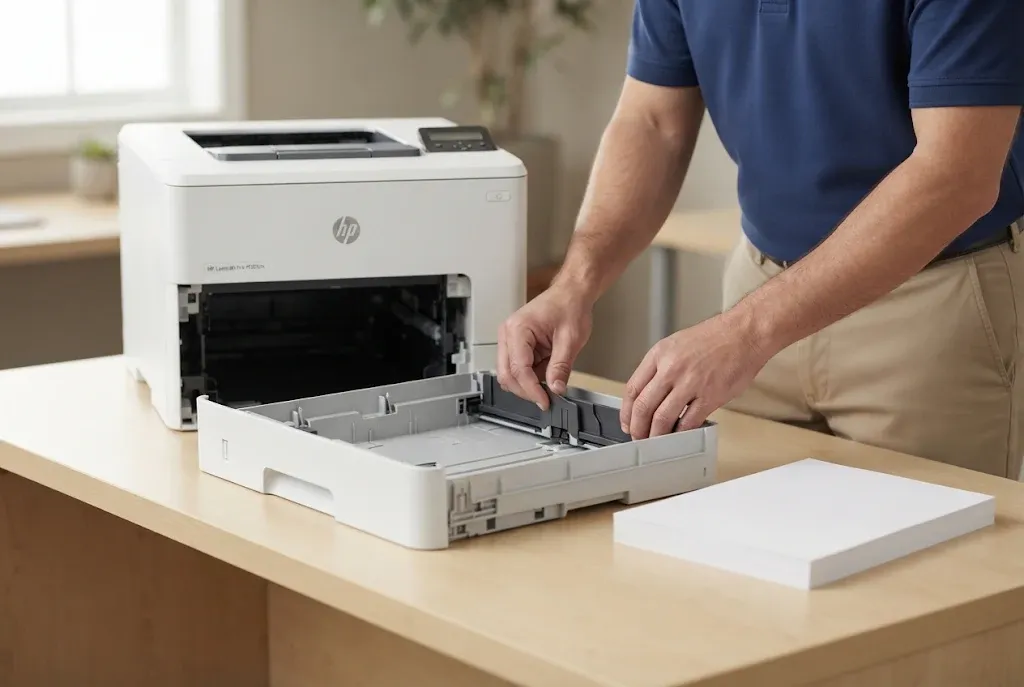
Paper, Tray Guides, and Settings Staff Can Check Safely
HP’s paper-handling guidance covers the checks that resolve many first-time jams, and they come first for any HP LaserJet M501 M506 M507 paper jam that appears without warning. None of them require tools or access beyond the trays and doors HP describes.
- Remove the stack, flex it into a U shape and back, then rotate and flip it. HP advises against fanning, which can build static.
- Set the rear guide to the indentation for the paper size so it clicks into place. Side guides should meet the stack without bending it.
- Load the stack flat at all four corners and below the maximum-height indicators.
- Confirm that the size and type configured for the tray match the paper actually loaded.
- In humid conditions, remove the top 5 to 10 sheets if they look wavy, and set aside wrinkled, folded, or damaged paper.
- Remove torn scraps from every user-access point before closing doors.
On the M501, HP’s recurring-jam steps add a power cycle with a 30-second wait and a cleaning page from the Service menu. If an HP LaserJet M501 M506 M507 paper jam continues after these checks, Why your printer keeps jamming gives the broader explanation of recurring feed problems.
When the Panel Reports a Jam and No Paper Is Visible
An HP LaserJet paper jam message with no visible paper usually means one of two things. Either a fragment is hidden where it is hard to see, or a paper-path sensor is reporting paper that is not there.
Hidden Scraps in User-Access Areas
Torn corners tend to settle under the jam-access cover beneath the toner cartridge, in the duplex pan on dn and x models, and behind the rear door. HP’s procedures reach all three, and a flashlight helps. Pull pieces out slowly so they do not tear again; a leftover corner is one reason an HP LaserJet M501 M506 M507 paper jam seems to return the moment the doors close.
Sensor Flags That Stick
Points along the path use small mechanical flags that the passing sheet pushes aside. If a flag sticks in the paper-present position, the printer can report an HP LaserJet M501 M506 M507 paper jam right after power-on or immediately after clearing. HP’s code list for the M507 includes 13.B9.FF, and service references describe 13.B2.FF on this platform as paper detected at power-on or after a jam is cleared.
Testing a sensor and its flag is technician work, because it involves diagnostic tests and access beyond the user doors. Onsite printer repair is the practical next step when the message keeps returning with nothing in the path, or when a scrap cannot be reached from a user-access point.
Where User Clearing Ends and Technician Diagnosis Begins
The boundary is HP’s published procedure. Staff can open the trays, front door, rear door, duplex pan, and the jam-access cover under the toner cartridge. Going further, by removing covers or reaching toward internal rollers, risks damage and makes an HP LaserJet M501 M506 M507 paper jam harder to trace.
An Onsite HP LaserJet paper jam diagnosis follows the symptom rather than a fixed parts list. Depending on where the HP LaserJet M501 M506 M507 paper jam stops, we:
- Inspect the pickup, feed, and separation rollers for the affected tray for glazing, wear, or contamination.
- Check registration operation and the movement of each sensor flag along the path.
- Examine the fuser entry and exit path when sheets stop behind the rear door.
- Inspect the duplex return path when only two-sided jobs fail.
- Retest with the same tray, the same media, and the same print mode that produced the jam.
Parts are replaced only after the failed component is confirmed. For a Tray 2 that misfeeds while other trays run cleanly, the likely work is HP LaserJet M501 M506 M507 Tray 2 Pickup Roller and Separation Roller Replacement. That is narrower than a full kit installation, and our page on HP LaserJet printer maintenance kits explains the difference; kit applicability should always be checked by model.
For HP LaserJet Pro M501 paper jam repair, as with the Enterprise models, repair versus replacement usually depends on whether the HP LaserJet M501 M506 M507 paper jam traces to one replaceable feed part or to several worn assemblies at once. Testing on the printer answers that question better than a description over the phone.
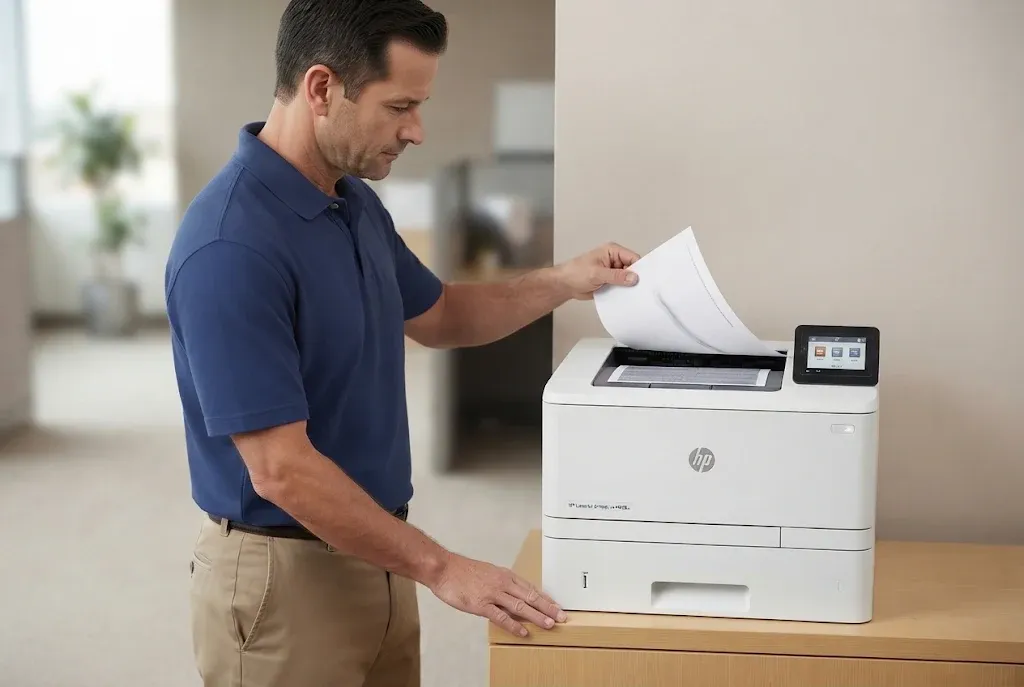
Feed Repairs Retested on the Tray That Failed
With more than 20 years in the office equipment industry, we install HP Parts, High Quality Parts, or Premium Parts and back service and installed parts with a 6-month / 180-day warranty. Same-day service may be available. Call (888) 657-0021 or email info@printer-repair-experts.net.
Preventing Repeat Jams on Shared M501, M506, and M507 Printers
Most prevention comes down to media and trays. Keep paper wrapped until it is loaded, store it away from humidity swings, and set each tray to the size and type it actually holds. A printer shared by a whole department sees more mixed paper, so its trays deserve a quick look whenever an HP LaserJet M501 M506 M507 paper jam returns.
Early roller wear is easy to miss: an occasional no-pick from one tray, pages arriving slightly skewed, or two sheets feeding together now and then. Our guide on When an HP LaserJet needs preventive maintenance explains how those signs fit into a service schedule, and they are the starting point for HP LaserJet M501 M506 M507 Preventive Maintenance planning, before a worn roller turns into a weekly HP LaserJet M501 M506 M507 paper jam.
Many offices run several HP LaserJet families alongside these models. Our HP LaserJet printer repair services cover HP LaserJet, HP Color LaserJet, and LaserJet MFP printers, so a feed problem on another family can be handled through the same contact as an HP LaserJet M501 M506 M507 paper jam.
Scheduling Onsite Service for a Recurring HP LaserJet M501 M506 M507 Paper Jam
Call us when an HP LaserJet M501 M506 M507 paper jam returns to the same location or code after HP’s clearing steps and the paper checks above, when a scrap cannot be reached from a user-access point, or when the panel reports a jam with an empty path. Another round of clearing is unlikely to resolve any of those three.
We diagnose a recurring HP LaserJet M501 M506 M507 paper jam onsite throughout Orange County, including Irvine, Santa Ana, Anaheim, Fullerton, Garden Grove, and Huntington Beach, and in approved portions of Los Angeles County. You can confirm coverage on our HP LaserJet repair in Los Angeles and HP LaserJet repair in Orange County pages.
Before the visit, note the model, the full message or Event Log entry, the tray in use, and whether the job was one-sided or two-sided. That record lets us start the diagnosis of an HP LaserJet M501 M506 M507 paper jam at the right point in the path instead of at the first tray.
Repairs use HP Parts, High Quality Parts, or Premium Parts, and our service and installed parts carry a 6-month / 180-day warranty. Same-day service may be available. Call (888) 657-0021 or email info@printer-repair-experts.net to arrange an onsite visit.
FAQ's - Frequently Asked Questions - HP Laserjet M501 M506 M507 Paper Jam
No. HP’s duplexer jam steps apply to the M501dn. On the M501n, HP directs you to the rear door and fuser area after the trays and the area under the toner cartridge.
Open the printer’s Embedded Web Server (EWS) from a browser and check the Event Log. HP notes that M501 jam codes may be recorded there, and the full entry helps narrow down an HP LaserJet M501 M506 M507 paper jam after the panel has cleared.
Start with Tray 3 itself: its paper, rear guide, stack height, and configured size and type. If Tray 2 feeds the same paper cleanly, the fault is likely in Tray 3’s own pickup or separation parts, which a technician should confirm.
Usually, from any tray that feeds cleanly. If only two-sided jobs fail, print one-sided until the duplex path is checked. Stop using the printer if the HP LaserJet M501 M506 M507 paper jam keeps stopping behind the rear door or a scrap remains out of reach.
Yes. It is part of HP’s own procedure: press the top-cover-release button, open the front door, remove the cartridge, then lift the cover. Pull paper out slowly so it does not tear, and go no further than that cover.
No. A 13.B9 code reports a sheet that stopped in the fuser area, a paper-transport event. A 50.xx code reports a fuser fault, which is a different diagnosis and often a different repair from an HP LaserJet M501 M506 M507 paper jam.
The exact model, the full code or Event Log entry, which tray was in use, whether the job was two-sided, and a sample of the paper. A note of how often the HP LaserJet M501 M506 M507 paper jam returns is also useful.
Our 6-month / 180-day warranty covers the service performed and the parts we install. We supply HP Parts, High Quality Parts, or Premium Parts and do not install customer-supplied parts.