
HP Laserjet P3005 M3027 M3035 Paper Jam:
Find the Stop Point Before You Pull
An HP LaserJet P3005 M3027 M3035 paper jam is rarely random: the control panel names a location, and that location tells you which part of the paper path to examine first. On these HP LaserJet models, the sheet usually stops in an input tray, the print-cartridge area, the duplex path, the output area or, on the M3027 and M3035 MFPs, the automatic document feeder.
This guide follows that logic from the outside in. We start with the exact model and the exact message, walk through safe removal at each access point, and then explain when a returning HP LaserJet P3005 M3027 M3035 paper jam needs onsite diagnosis rather than another round of pulling paper.
Preview Snapshot
- The P3005 is a single-function printer. The M3027 and M3035 MFPs add a scanner and a 50-sheet ADF, so original-document jams are a separate branch.
- HP jam messages on both families read 13.XX.YY followed by a location, such as JAM IN TRAY 2 or JAM INSIDE TOP COVER.
- Pull jammed media slowly and evenly. A torn corner left inside is one of the most common reasons the next sheet jams too.
- Failure to pick up, multiple-sheet feeding, skewed sheets and duplex-only jams point to different parts of the machine.
- A jam message with no visible paper, or the same tray failing every day, is where we recommend professional inspection.
Start With the Model, the Trays and the Paper Path in Front of You
These three model families look related at the base, but they do not behave as one machine. Before treating any HP LaserJet P3005 M3027 M3035 paper jam, confirm what is printed on the front label and what hardware is actually installed. The access doors, the touchscreen prompts and even the wording of the jam message differ between the P3005 and the two MFPs.
| Model family | Scanner and ADF | Standard input | Two-sided printing |
|---|---|---|---|
| HP LaserJet P3005, P3005n, P3005d, P3005dn, P3005x | None | 100-sheet Tray 1, 500-sheet Tray 2; the P3005x adds a 500-sheet Tray 3 | Duplexer on the P3005d, P3005dn and P3005x |
| HP LaserJet M3027 MFP and M3027x MFP | Flatbed scanner with 50-sheet ADF | 100-sheet Tray 1, 500-sheet Tray 2 | Depends on configuration |
| HP LaserJet M3035 MFP and M3035xs MFP | Flatbed scanner with 50-sheet ADF | 100-sheet Tray 1, 500-sheet Tray 2; the M3035xs adds a 500-sheet Tray 3 | Depends on configuration |
Check for a duplexer before chasing a two-sided jam, and check for Tray 3 before assuming a tray message refers to Tray 2. If the model label reads P3015 instead of P3005, you have a newer LaserJet with different access points; our HP LaserJet P3015 paper jam help covers that printer.
This page stays focused on paper handling. For other faults on the same hardware, our HP LaserJet P3005, M3027 and M3035 printer repair page covers the wider repair picture.
Reading the HP Laserjet P3005 M3027 M3035 Paper Jam Message Before You Open Anything
HP’s user guides for both families show jam messages as 13.XX.YY plus a location. The digits vary from event to event, and the guides do not publish a meaning for each digit combination, so we work from the location text. That text tells you which door to open first.
| Message as documented by HP | Model family | Where HP directs you |
|---|---|---|
| 13.XX.YY JAM IN TRAY 1 | P3005 and M3027/M3035 | Multipurpose tray; pull the media slowly out |
| 13.XX.YY JAM IN TRAY 2 or JAM IN TRAY X | P3005 and M3027/M3035 | Remove the named tray and clear the feed area |
| 13.XX.YY JAM INSIDE TOP COVER | P3005 | Registration area under the top cover, beneath the metal flap |
| 13.XX.YY FUSER JAM INSIDE TOP COVER | P3005 | Fuser area, reached through the top cover |
| 13.XX.YY JAM INSIDE REAR DOOR | P3005 | Duplex reversing area behind the rear door |
| 13.XX.YY JAM INSIDE DUPLEXER | P3005 and M3027/M3035 | Duplexer and duplex path |
| 13.XX.YY Jam inside front door | M3027/M3035 | Print-cartridge area |
| 13.XX.YY Jam inside rear bin | M3027/M3035 | Rear output bin |
| 13.XX.YY Paper wrapped around fuser | M3027/M3035 | Follow the onscreen dialog |
The P3005 manuals are available from HP’s official support page for the LaserJet P3005 printer series. M3027 and M3035 owners should use the MFP user guide, because its touchscreen prompts and front-door procedure differ from the P3005.
Write the HP LaserJet P3005 M3027 M3035 paper jam message down before clearing it. The exact wording, the tray in use and whether the job was one-sided or two-sided are the three details that shorten diagnosis the most. Both families also have a Jam Recovery setting that reprints pages involved in a jam, so a few duplicates after clearing are expected.
Clearing Sheets Safely From Each Access Point
Most HP LaserJet P3005 M3027 M3035 paper jam events clear without tools. Pull media slowly with both hands, stop when it resists, and never use a knife, screwdriver or other sharp object inside the printer. Let the machine cool before reaching toward the fuser area, because that assembly runs hot during printing. Do not defeat door switches or sensors, and do not remove internal assemblies to reach a sheet.
Input trays
For Tray 1, HP says to pull the jammed media slowly out of the printer. For Tray 2 and any added tray, slide the tray out and remove damaged paper. If the leading edge is visible in the feed area, ease it down and out; if nothing is visible, move to the top-cover area on the P3005 or the front-door area on the M3027/M3035.
Before reinserting the tray, confirm the stack lies flat at all four corners and sits below the guide tabs. On the P3005, HP also asks you to confirm that the guides and the paper-size dial match the loaded media.
Print-cartridge area
On the P3005, open the top cover, remove the print cartridge, clear visible media and lift the metal flap to reach anything left beneath it. On the M3027 and M3035, open the front door, remove the cartridge, open the plate and slowly draw the sheet out. Keep the cartridge out of light for no more than a few minutes.
Loose toner may fall during this step. Wipe it with a dry, lint-free cloth; print quality usually recovers after a few pages. Toner on clothing should be wiped dry and washed in cold water, since hot water sets it.
Duplex path
For the P3005 rear-door message, HP’s procedure is to pull the duplexer partway out, open the rear door, remove the duplexer, release the four tabs on the black paper guide inside the lower rear door, lower the door fully and remove the media. Close the door so the tabs reattach, then reinstall the duplexer.
Both user guides also describe a duplex access plate reached through the empty Tray 2 opening. On the M3027 and M3035, a green button at the top right front of that opening releases it. Push the plate back up until both sides click.
Output areas
On the M3027 and M3035, open the rear output bin and remove the sheet gently. If a page is caught in the top output area but most of it is still inside, HP directs you to remove it through the rear door instead of pulling it from the top bin. The P3005 also has a pull-open rear output bin at the back of the printer.
After clearing, close every door and tray. If the message stays on the display, HP’s guidance is plain: media is still inside, so check the other locations before printing again.

Same Tray Jamming Again? Book the Onsite Promo
The $69.99 Onsite Printer Repair Promotion covers the visit for one HP LaserJet P3005, M3027 or M3035; parts are separate. Call (888) 657-0021 or email info@printer-repair-experts.net. Limitations may apply.
Pickup Failures, Double Feeds and Skewed Sheets Are Not the Same Jam
Staff tend to report every feed problem the same way: “it jams.” The control panel may even show the same tray message for different failures. Separating the symptom first keeps an HP LaserJet P3005 M3027 M3035 paper jam from being treated with the wrong part.
| What you observe | What it usually indicates | First check |
|---|---|---|
| The sheet never leaves the tray | Pickup is not starting or is slipping | Paper weight, guide position, tray fully seated |
| Two or more sheets feed together | Separation is not holding back the next sheet | Sheets sticking together, paper condition |
| Sheets arrive skewed or creased | Guides too loose or too tight, overfilled tray, curled stock | Guide adjustment and stack height |
| A sheet stops partway through | Obstruction, leftover fragment or damaged guide in the transport path | Accessible areas for torn pieces |
Paper itself causes a large share of these complaints. HP lists media outside specification, reused printed sheets, rough edges, sheets binding together and paper stored outside its original packaging among the common causes. For stacks that stick, HP recommends flexing the stack, rotating it 180 degrees or flipping it over rather than fanning it.
Heavy stock deserves its own note, because it can trigger an HP LaserJet P3005 M3027 M3035 paper jam at the tray. The M3027/M3035 guide warns that media heavier than 120 g/m² (32 lb) may not be picked from the tray, and the P3005 guide suggests Tray 1 and the rear output bin for heavier media.
HP P3005 Tray 2 paper jam: symptom to repair component
Symptom: JAM IN TRAY 2 returns several times a day, while the same paper feeds normally from Tray 1. Sometimes the sheet barely moves; sometimes two sheets enter together.
Root cause: HP’s P3005 service documentation lists incorrect loading, guides set too tight or too loose, media outside specification, an incorrectly installed pickup roller or separation pad, and a pickup solenoid that is not energizing. Worn or glazed roller surfaces can also lose grip. We treat each of these as a possibility until testing narrows it down.
Diagnosis: We feed the same ream from Tray 1 and Tray 2 to isolate the tray, confirm the guides and size dial, inspect the roller and separation pad surfaces, and watch whether the pickup mechanism engages on each feed attempt.
Remedy: Correct loading or media problems first. When the hardware is at fault, the worn or failed part is replaced rather than cleaned repeatedly.
Repair component: The Tray 2 pickup roller and separation pad are the usual candidates; the pickup solenoid is replaced only when testing shows it is not operating.
When we recommend service: If the tray still jams after you have loaded fresh, in-specification paper with correctly set guides, the problem is mechanical, and continued clearing will not fix it.
Many of these cases fall under HP LaserJet paper pickup and separation problems, and the fix is often HP LaserJet paper feed roller replacement for the affected tray. When we quote HP LaserJet P3005 M3027 M3035 pickup and separation roller replacement, we name the tray and the parts involved.
Some feed parts are also bundled in HP LaserJet printer maintenance kits. The kit contents and whether a given printer needs one depend on the exact model and on what the diagnosis finds, so a kit is not an automatic answer to every HP LaserJet P3005 M3027 M3035 paper jam.
Why a Jam That Appears Only on Two-Sided Jobs Points to the Duplex Path
An HP P3005 duplex paper jam has a useful signature: one-sided jobs from the same tray run cleanly, and the failure shows up only when the printer turns the sheet. That narrows the search to the duplexer, the duplex reversing area behind the rear door and the duplex access plate under Tray 2.
Symptom: The display shows JAM INSIDE DUPLEXER or, on the P3005, JAM INSIDE REAR DOOR, and the jam appears on two-sided jobs only.
Root cause: Possibilities include a fragment left in the duplex path, a duplexer that is not fully seated, a damaged guide, or media that should not be duplexed. HP’s MFP guide warns against printing both sides of envelopes, transparencies, vellum or labels, and notes that removing a page before the second side finishes can itself cause a jam.
Diagnosis: We run the same job one-sided and two-sided from the same tray, check duplexer seating and inspect the reversing area and access plate for fragments or damaged guides.
Remedy and repair component: A reseated duplexer or a cleared fragment solves some cases. Where inspection finds a damaged duplexer or duplex-path part, that part or the duplexer assembly is replaced.
When we recommend service: If duplex-only jams continue after the duplexer is reseated and plain paper is used, schedule an inspection. We group these under HP LaserJet P3005 M3027 M3035 duplex paper-feed problems because the access points differ by model while the reasoning stays the same.
An HP LaserJet P3005 M3027 M3035 paper jam that appears only on two-sided jobs is also a good reason to print one-sided as a temporary workaround while you wait for service.
Message Won't Clear? We Trace the Stop Point
We match the jam message, tray and one-sided or two-sided behavior to the part causing it, whether that is a Tray 2 pickup roller, the duplexer or the M3027/M3035 ADF. Call (888) 657-0021 to schedule a diagnosis.
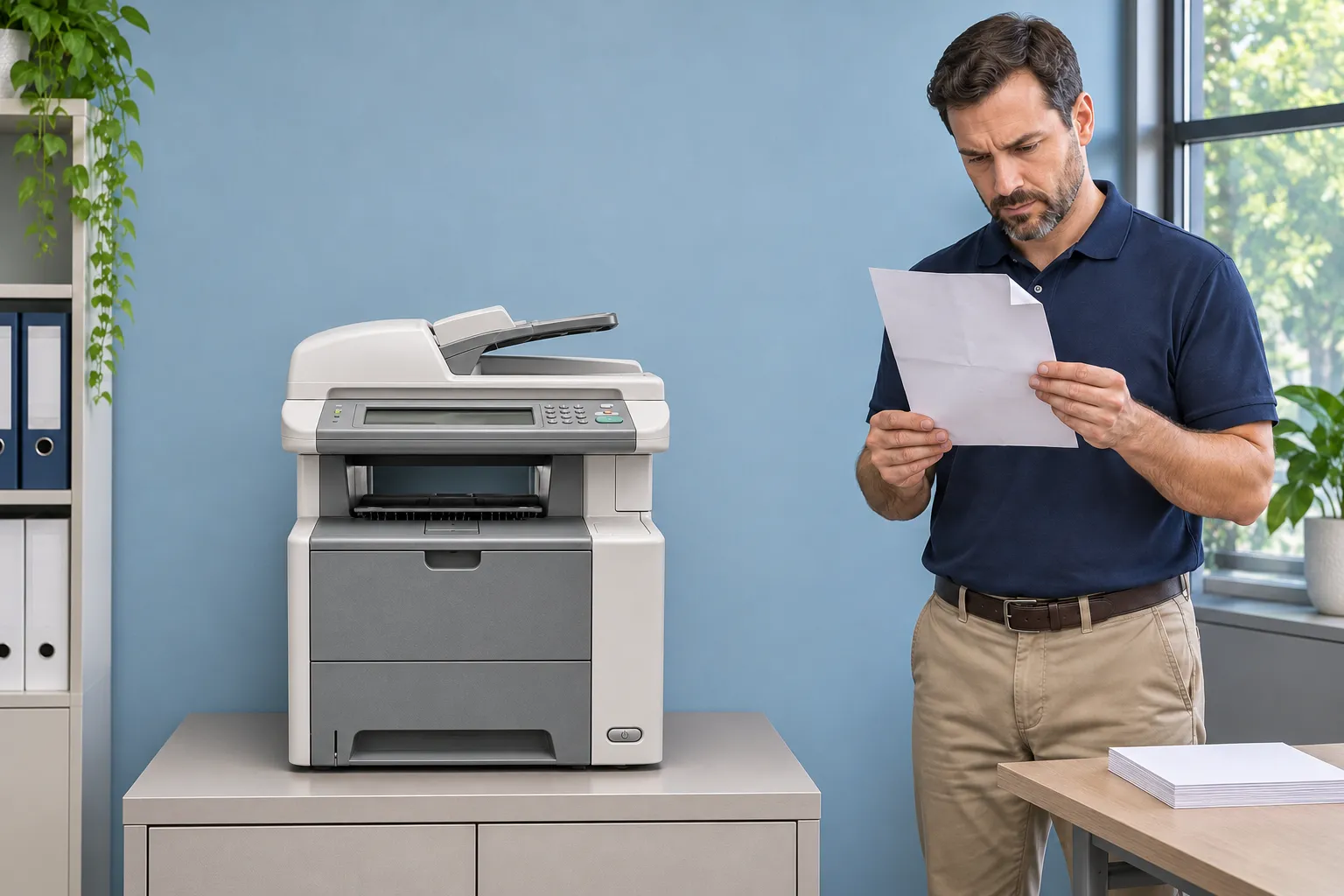
Paper Stopped Near the Fuser Is Not Automatically a Fuser Failure
A sheet caught at the back of the printer often gets blamed on the fuser. The P3005 guide includes a 13.XX.YY FUSER JAM INSIDE TOP COVER message, and the M3027/M3035 guide includes Paper wrapped around fuser. Both describe paper that physically stopped in that area. Neither is the same thing as a fuser heating error.
If the display reports a fuser error rather than a jam, that is a separate diagnostic path, covered on our P3005, M3027 and M3035 fuser error diagnosis page. Here we stay with paper that stopped moving.
Symptom: The sheet is caught at or after the fuser, sometimes partly printed, sometimes curled around a roller, or an HP LaserJet paper stuck in output path complaint where pages stop just short of the bin.
Root cause: The leading edge may have arrived late or skewed from upstream, the paper may be curled or damp, an output-area guide may be damaged, or the fuser’s paper-contact surfaces may be worn. A sheet that wraps once can leave residue that encourages the next wrap.
Diagnosis: We check where the leading edge stopped, whether toner on the stopped sheet is fused, whether the jam follows a particular paper type, and what the fuser’s contact surfaces look like after cooling.
Remedy and repair component: Transport problems upstream are corrected at their source. When inspection shows the fuser assembly itself is damaged, we replace the fuser assembly; Printer Repair Experts does not rebuild fusers onsite.
When we recommend service: Call us if paper wraps around the fuser more than once, or if a torn piece remains in the fuser area after the printer has cooled. Repeated pulling at a hot or wrapped sheet risks damage that turns an HP LaserJet P3005 M3027 M3035 paper jam into a larger repair.
Original Documents Jamming in the M3027 or M3035 Automatic Document Feeder
An HP M3027 M3035 document feeder jam involves the originals you are scanning or copying, not the paper the printer draws from its trays. The P3005 has no scanner or ADF, so this branch applies only to the MFPs.
An HP LaserJet M3027 MFP paper jam or HP LaserJet M3035 MFP paper jam in the ADF can occur while the print engine is perfectly healthy. Ask whether the stuck sheet was a printed page or an original before treating it as an HP LaserJet P3005 M3027 M3035 paper jam inside the engine.
HP’s clearing steps for the ADF are specific:
- Open the ADF cover.
- Lift the green lever and rotate the pick mechanism until it stays open.
- Gently try to remove the page without tearing it.
- If it resists, open the scanner lid and loosen the original with both hands, then pull it free.
- Close the scanner lid, lower the roller assembly and close the ADF cover.
- Check the ADF output area and remove any original you find there.
Symptom: Originals stop partway, pull in at an angle or feed two at a time, while flatbed copies and computer print jobs work normally.
Root cause: Common contributors are originals with staples, sticky notes, tears or heavy curl, stacks loaded beyond the feeder’s 50-sheet capacity, and a contaminated or worn ADF pickup roller assembly or separation pad.
Diagnosis: We compare a short stack of clean, flat originals with the problem documents, confirm flatbed scans are normal, and inspect the ADF rollers and separation pad.
Remedy: HP’s user guide recommends cleaning the ADF pickup roller assembly when the ADF has trouble feeding, with the device turned off and unplugged first. HP notes that liquid isopropyl alcohol is restricted as a cleaning agent in certain areas of California; in those areas a dry, lint-free cloth, lightly moistened with water if needed, is the substitute.
Repair component: HP’s service troubleshooting progresses from cleaning the ADF roller and separation pad, to replacing the ADF roller, to replacing the ADF assembly if the problem continues.
When we recommend service: If clean, flat originals still misfeed after cleaning, the feeder needs hands-on inspection. HP LaserJet M3027 M3035 document feeder jam repair is handled as its own job, and we test the ADF separately from the print engine.
Paper Path Repaired, Then Tested Tray by Tray
We bring more than 20 years in the office equipment industry, HP Parts and a 6-month / 180-day warranty on service and installed parts. Serving Orange County and approved portions of Los Angeles County; same-day service may be available. Email info@printer-repair-experts.net or call (888) 657-0021.
A Jam Message With No Visible Paper, or Jams That Keep Coming Back
An HP LaserJet jam message with no visible paper usually means something is still in the path that you cannot see from the door you opened. Check only the areas the user guide makes accessible: each tray cavity, under the metal flap or plate in the print-cartridge area, the rear output bin, the rear door and duplexer, and the duplex access plate. Look for small torn corners.
HP’s repeated-jam guidance adds three quick checks: trays and paper-handling accessories fully inserted, all covers and doors closed, and trays not overfilled. An open tray or door during a job can trigger a jam by itself.
Symptom: The message returns immediately after clearing, or the same HP LaserJet P3005 M3027 M3035 paper jam returns at the same location within a few pages.
Root cause: A hidden fragment, a sensor actuator that is stuck or damaged, or a connection problem can all hold a jam condition. HP’s P3005 service guidance, for example, directs technicians to verify a ribbon cable connection on the controller board when a top-cover jam message persists. That is a technician procedure, not a customer step.
Diagnosis: Our technician works from the affected tray, the reported location, one-sided versus two-sided behavior and how often it happens, then inspects the paper path and the sensing parts for that location.
Remedy and repair component: The fragment is removed, or the failed actuator, guide, feed part or assembly identified during inspection is replaced.
When we recommend service: Stop and call when the message persists with no paper in sight. Repeated door cycling and reaching deeper into the printer is how guides and actuators get broken. HP LaserJet recurring paper jams are worth tracking before the visit:
- The exact message, including the location text
- The tray in use and the paper type
- One-sided or two-sided job
- How far the sheet traveled before stopping
- How often it happens over a normal day
That record turns an onsite HP P3005 M3027 M3035 paper jam diagnosis into a focused visit. For jams that resist these checks, our professional onsite printer repair brings the inspection to your printer instead of moving the printer.
How We Diagnose, Repair and Verify the Paper Path at Your Location
Our approach to an HP LaserJet P3005 M3027 M3035 paper jam starts with your log. We reproduce the fault from the affected tray in the affected print mode, inspect the location named on the display, and replace the specific failed component or assembly when the evidence supports it. Those replacement parts are HP Parts or High Quality Parts appropriate to your exact model.
Verification matters as much as the part. After an HP LaserJet P3005 paper jam repair, we run pages from the tray that was failing, in one-sided mode and in two-sided mode when the printer has a duplexer. When the complaint involved originals, we test the ADF separately with a stack of documents.
Prevention that actually reduces jams
- Store paper in its original wrapping in a controlled environment, as HP recommends.
- Load below the maximum stack mark and set guides snug without bending the stack.
- Match the tray size and type settings to the paper actually loaded.
- Remove staples and sticky notes before loading originals in the ADF.
- Have worn pickup and separation parts inspected during scheduled service.
None of these steps prevents every HP LaserJet P3005 M3027 M3035 paper jam, and roller replacement does not cure jams caused by a damaged guide or a failing actuator. Paired with regular HP printer maintenance, they reduce how often the problem returns.
We provide onsite service throughout Orange County and in approved portions of Los Angeles County. Readers in our established coverage areas can review onsite HP LaserJet repair in Los Angeles or HP LaserJet repair in Orange County. Before booking, our printer repair cost and promotion details page explains how the visit is charged; replacement parts are separate.
This page is one part of our HP LaserJet printer repair services, backed by more than 20 years in the office equipment industry and a 6-month / 180-day warranty on service and installed parts. Call (888) 657-0021 or email info@printer-repair-experts.net with the jam message and tray. Same-day service may be available, depending on location and schedule.
FAQ's - Frequently Asked Questions - HP LaserJet P3005, M3027 & M3035 Paper Jams
That is the Jam Recovery setting at work. It reprints pages involved in a jam, and HP notes it may also reprint pages that finished just before it. Discard the duplicates. The setting can be turned off from the control panel, which saves memory but means jammed pages are not reprinted.
On the M3027 and M3035, HP says to open and close the front door and then touch OK. On the P3005, close the doors and use the control-panel prompt to exit; opening and closing the cartridge door also clears it. If the message returns, a sheet or fragment is still inside.
Yes. HP warns that media heavier than 120 g/m² (32 lb) may not feed from the M3027/M3035 trays and suggests Tray 1 for heavier media on the P3005. Labels, envelopes, transparencies and vellum should not be printed on both sides.
No. A kit replaces specific wear parts. It will not correct damaged guides, failed actuators, out-of-spec paper or ADF wear. We confirm the cause before recommending one.
Not necessarily. ADF jams involve the originals being scanned. If computer print jobs and flatbed copies run normally, the problem is usually limited to the feeder’s rollers, separation pad or the documents themselves.
Our service and installed parts carry a 6-month / 180-day warranty.
We do not install or guarantee customer-supplied parts. We supply HP Parts or High Quality Parts matched to your exact model and diagnosis.
We cover Orange County and approved portions of Los Angeles County. Call (888) 657-0021 with your address and we will confirm coverage before scheduling.