
HP LaserJet Printer Repair City of Industry CA
for Monochrome Business Printers
HP LaserJet Printer Repair City of Industry CA starts with one practical question: what exactly is the monochrome printer reporting, and where in the paper path does it happen? We answer that question onsite, at your business, for shared HP LaserJet, LaserJet Enterprise and LaserJet MFP equipment that prints invoices, packing slips and everyday office documents.
This page is written for the people who receive the “printer is down again” message: office managers, administrative staff and IT personnel. It explains what to note before calling, how paper-handling faults are separated from fuser and print-quality faults, when a maintenance kit makes sense, and how repair is weighed against replacement.
Anyone comparing options for HP LaserJet Printer Repair City of Industry CA should expect one thing from a technician: a diagnosis that comes before a parts order. The sections below show how we approach that on monochrome equipment.
Preview Snapshot
- Monochrome HP LaserJet, LaserJet Enterprise and LaserJet MFP repair at your City of Industry location, where the printer already works.
- Six details to record before calling: model, full message, tray, paper, frequency and print path.
- How pickup failures, multiple-sheet feeds and recurring jams are isolated without guessing at a part from a jam code.
- Why a 50-series fuser message or smeared toner calls for diagnosis before a fuser assembly is replaced.
- How MFP print-engine faults are separated from scanner and document-feeder faults.
- Maintenance-kit timing, counter resets and the repair-versus-replacement decision.
What HP LaserJet Printer Repair City of Industry CA Covers on This Page
This page is limited to monochrome HP LaserJet printer repair: black-and-white HP LaserJet, LaserJet Enterprise and LaserJet Enterprise MFP equipment shared by billing teams, front offices and shipping desks. For the family-wide picture without a city focus, see our HP LaserJet printer repair page.
Two related pages handle different needs. Our City of Industry printer repair overview covers the city’s service picture in general terms. If the machine in question prints in color, go straight to HP Color LaserJet repair in City of Industry, where color-specific imaging problems are covered.
City of Industry is largely commercial and industrial, so one shared LaserJet can sit in the middle of an entire billing or shipping routine. We do not operate a storefront or branch in the city. Every visit described here takes place at the customer’s own business location.
Which Monochrome HP LaserJet Families Does This Service Include?
Four HP families show the range of monochrome equipment involved. They are examples rather than a complete list, and they say nothing about what any particular business happens to run.
At the workgroup end are the HP LaserJet Pro M501 and the HP LaserJet Enterprise M506 and M507, compact single-function printers. When one of them starts misfeeding from a tray, leaving gray streaks or showing a fuser message, our HP LaserJet M501, M506 and M507 repair page covers that group in more depth.
The HP LaserJet Enterprise M607, M608 and M609 are built for high-volume document printing, and recurring paper-path problems on them deserve model-specific attention. Our HP LaserJet M607, M608 and M609 repair page goes further into those three models.
The HP LaserJet Enterprise M610, M611 and M612 fill a similar shared-printing role on a newer platform; see HP LaserJet M610, M611 and M612 repair. Any request for HP LaserJet Enterprise repair City of Industry businesses send us begins the same way, with the exact model and configuration confirmed before parts are discussed.
That confirmation matters because HP sells several configurations inside each family. HP’s data sheet lists automatic two-sided printing as unavailable on the M607n but standard on the M607dn, so a “duplex jam” report means something different on each.
What Should You Record Before Requesting Onsite Service?
Six details shorten diagnosis more than anything else. Collect them while the problem is still on the screen:
| What to record | Why it matters |
|---|---|
| Exact model and configuration from the printer label, such as M608dn | Parts, jam locations and procedures differ even inside one family. |
| The complete control-panel message, every character | A full code such as 13.A1.FF identifies a location and stage, and its meaning is model-specific. |
| The tray that was feeding | Tray 1 and Trays 2 and higher use different pickup and separation rollers. |
| Paper size, weight and type | Heavy stock, labels and curled paper behave differently from standard copy paper. |
| How often it happens | A weekly jam and a jam every few pages point toward different causes. |
| One-sided printing, two-sided printing, copying or scanning | This separates the duplex path and the document feeder from the main print path. |
Write the message down before switching the printer off. HP notes that a jam still present at power-on may not appear on the control panel at all and is listed in the printer’s event log instead.
With those notes, our onsite printer repair visit starts from evidence instead of guesswork. The technician reviews the event log, reproduces the fault with the tray and print path you described, and then explains what has failed. That is how business HP LaserJet printer repair should work, with the printer staying on your network in the spot where your team uses it.

Invoices Stuck Behind a Jammed LaserJet?
Ask about our $69.99 Onsite Printer Repair Promotion for one monochrome HP LaserJet per onsite visit; parts are not included. Call (888) 657-0021 or email info@printer-repair-experts.net. Limitations may apply.
Why Does a LaserJet Miss Pickups, Feed Two Sheets or Keep Jamming?
Paper-handling faults stop a print queue quickly, and they are easy to misdiagnose. A run of packing slips half-printed or an invoice batch stuck on page 40 is an obvious symptom, yet the cause can sit in the paper, the tray settings or a worn roller.
Pickup Failures From One Tray
The printer reports a jam at a tray, or the sheet never leaves it, while other trays print normally. Likely causes include paper guides set loosely, a tray size setting that does not match the loaded paper, or pickup, feed and separation rollers that have lost their grip.
We load fresh paper from a sealed ream, compare the tray configuration on the control panel, and run the same media from a different tray. If the fault follows the tray rather than the paper, the rollers for that tray are inspected for glazing and wear.
The remedy is either a settings and loading correction or replacement of that tray’s roller set. On the M607 through M612, HP documents the Tray 1 pickup roller, the Tray 1 separation roller and the Tray 2 and higher rollers as separate replaceable parts. We recommend service once correctly loaded, fresh paper still fails from the same tray.
HP LaserJet Picking Up Multiple Sheets
Two or more sheets travel together, which produces blank pages in the output or a jam just past the tray. Paper that has absorbed moisture, an overfilled tray or sheets that were never fanned can all cause it. So can a separation roller that no longer holds back the second sheet.
We first confirm the stack sits below the fill mark with guides snug, then test with fresh paper. If multiple-sheet feeds continue, the separation roller is the component under suspicion, and replacing it with its matching pickup roller is the usual correction. At that stage, HP LaserJet paper-feed repair is more useful than another ream of paper.
HP LaserJet Duplex Printing Jams
Jams that appear only on two-sided jobs point toward the duplex path. HP documents a 13.D3 jam in the duplexer for the M607 through M612 and for the MFP M631 through M637 family.
We print the same job one-sided and two-sided, check that the media weight fits the duplexer specification for that model, and inspect the duplex path for debris or damage. The component involved is identified only after that inspection, because curled or heavy paper can produce the same code as a mechanical fault.
When the Same Jam Message Keeps Returning
HP jam codes follow a 13.WX.YZ structure, and HP publishes location-specific documents for each family. On the M607 through M612, separate HP documents cover jams at the Tray 1 feed sensor (13.A1), in the rear door and fuser area, in the duplexer (13.D3) and in the output bin (13.E1).
A code shows where the sheet stopped, not which part failed. The same location code can come from curled paper, a worn roller upstream or a sensor that no longer reads correctly. For that reason we never assign a failed component to a jam code without testing.
Consider a hypothetical office printing invoices on an M608 that reports a rear-area jam every morning. Damp paper from an opened ream, a worn feed roller and a fuser-area fault could each produce that pattern. That is why recurring M607, M608 and M609 paper jams call for model-specific paper-path diagnosis rather than a reflexive parts swap.
What Do 50-Series Fuser Messages and Smeared Toner Mean?
The fuser bonds toner to paper with heat and pressure. When that stage misbehaves, the printer may stop with a 50-series fuser message, or it may keep printing pages that wrinkle, jam near the exit or shed toner when rubbed.
These messages are model-specific. For the M607 through M609 and the MFP M631 through M633, HP publishes a dedicated document for the 50.7F.00 Fuser error on HP LaserJet Enterprise M607–M609 and MFP M631–M633 printers. Other families use other codes, and each sub-code should be read against HP documentation for that exact model.
HP LaserJet Toner Smearing on Paper
Toner that smears under a fingertip or rubs off in a folder suggests the image was not fully bonded. Possible causes include a paper type setting that does not match heavy stock, damp paper, a toner cartridge problem or a fuser that is no longer performing.
A symptom alone does not prove fuser failure. We print on fresh standard paper with the correct type setting, check whether marks repeat at a fixed spacing, and review the event log for earlier 50-series entries. If the smearing survives correct media and settings, the fuser assembly becomes the likely component.
We replace failed fuser assemblies; we do not rebuild fusers onsite. HP LaserJet fuser replacement comes only after the media test, print samples and event log point to the fuser rather than the paper or cartridge. For background on how these messages are structured, read understanding HP printer fuser errors.
Please leave the fuser area to the technician. The fuser can be hot while the printer is in use, and pulling paper from that area or reaching in with tools can damage the assembly or cause burns.
Fuser, Rollers or Paper? Find Out First
A jam code or a smudged page rarely names the failed part. We confirm the cause on your monochrome HP LaserJet before recommending a fuser, roller set or maintenance kit. Call (888) 657-0021 with the model and full message.
How Are Streaks, Repeating Marks and Light Prints Diagnosed?
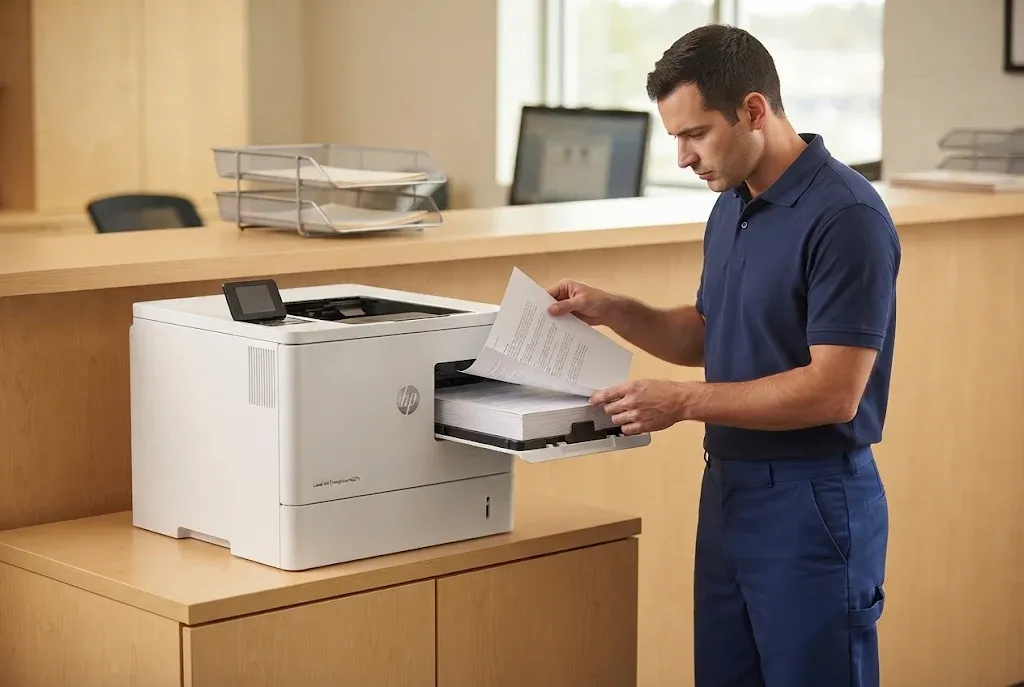
HP LaserJet print-quality diagnosis begins by working out which stage put the defect on the page. The image moves from the toner cartridge to the paper by way of the transfer roller, which HP’s service documents for these families call the secondary transfer roller. Then it passes through the fuser, and each stage leaves its own kind of mark.
HP LaserJet Printing Black Streaks
A vertical black line running down every page is a common complaint. If the streak changes or disappears when a known-good cartridge is installed, the cartridge is the cause and a replacement cartridge is the remedy. If it stays, we look further along the path, including contamination in the paper path and damage on the transfer roller or fuser.
Repeating Marks and Light Printing
Marks that repeat at a fixed spacing usually come from a rotating part. Measuring the distance between them helps match the defect to the cartridge, the transfer roller or the fuser before any part is ordered.
Light or faded output across the page has a wider list of causes: a low toner supply, density or economy settings, a transfer problem or paper that has absorbed moisture. We check supply status and settings first, then print on fresh paper before recommending a component.
| What you see | Where it often starts | How we check |
|---|---|---|
| Streak that changes with a different cartridge | Toner cartridge | Swap test with a known-good cartridge |
| Mark repeating at a fixed spacing | Cartridge, transfer roller or fuser | Measure the spacing between marks |
| Toner that smears or rubs off | Fuser or media settings | Media test and event log review |
| Light print across the whole page | Supply, settings, transfer or damp paper | Supply status, settings and fresh-paper test |
We supply high-quality third-party toner backed by a 1-year / 365-day warranty. When a defect traces to the cartridge rather than the printer, we say so before any printer parts are discussed.
On an MFP, Is the Fault in Printing, Copying or Document Feeding?
Multifunction equipment adds a scanner and an automatic document feeder (ADF) above the print engine. The first question for any HP LaserJet MFP repair City of Industry customers request is where the defect actually lives. Our HP LaserJet MFP M631, M632 and M633 repair page covers that platform specifically.
A quick comparison settles most cases. Print a page from a computer, then copy a clean original. A line or smudge on the printed page points to the print engine, while a defect that appears only on copies or scanned files points to the scanner glass or the ADF imaging path.
Feeding problems divide the same way. HP documents a 31.13 jam in the document feeder on the MFP M631 through M637 family, a separate subsystem from the 13-series print-engine jams in the trays, duplexer, or right door and fuser area. ADF misfeeds involve the feeder’s own roller set, for which HP lists a separate ADF roller replacement kit.
Scanner errors are different again; HP documents 30.01.41 and 30.03.45 scanner messages for the MFP M631 through M633. Sorting the fault into print, copy or feed before the visit narrows what the technician needs to inspect.
When Is a Maintenance Kit the Right Repair?
HP LaserJet maintenance kit installation replaces wear items as a set, and the kit must match the exact printer. HP lists the 110V L0H24A kit for the M607 through M609, and its MFP M631 data sheet lists the J8J88A 220V kit for up to 225,000 pages, with the J8J87A as the 110V version. Other families use different kits, contents and intervals.
Page count alone does not decide the question. We look at the maintenance-kit status the printer reports, roller wear and the symptoms you described. A printer near its interval with clean output may not need a kit yet, while one with recurring pickup faults and fuser-related marks may need it now. Our HP LaserJet maintenance kits page explains model-specific kits further.
Resetting the maintenance counter belongs at the end of the job. We reset it only after the corresponding parts are installed, using the procedure for that model, so the next reminder reflects real wear rather than a cleared warning.
For sites with several printers, office and warehouse LaserJet printer maintenance works best when kits follow each printer’s own counter rather than a single fleet-wide date. Dusty dock-side placement and damp paper storage can shorten roller life, so location and paper handling belong in that plan.
Monochrome LaserJet Service at Your Door
More than 20 years in office equipment, HP Parts, High Quality Parts or Premium Parts, and a 6-month / 180-day warranty on service and installed parts. Same-day service may be available. Email info@printer-repair-experts.net or call (888) 657-0021.
Repair or Replace, and What Happens After the Visit?
A recommendation depends on three things: the model, the diagnosed fault and the parts required. A worn roller set on an otherwise healthy M608 is a different decision from a printer with several failing assemblies serving a team that has outgrown it. We explain printer repair cost considerations in more depth, and we do not predict an outcome before inspection.
Business printing needs matter as much as the hardware. A printer that handles invoices for one department may justify a different choice than one carrying a warehouse’s entire packing-slip load, even with the same fault on the screen.
Before any work begins, we confirm the exact configuration and select parts to match, using HP Parts, High Quality Parts or Premium Parts as appropriate. Customer-supplied parts are not installed. Replacement is recommended only when the diagnosed condition makes repair the weaker choice for how the printer is actually used.
A repair is not finished when the part is installed. We verify it the way the printer is used: through the affected trays, through the duplex path where it applies, and with representative jobs such as the invoice or packing-slip run that failed in the first place.
We schedule each onsite HP LaserJet repair City of Industry request at the customer’s location, within a service area covering Orange County and approved portions of Los Angeles County. Same-day service may be available when appropriate, but it is never guaranteed. Service and installed parts carry a 6-month / 180-day warranty.
To begin, have the model, the full message, the tray and the paper details ready, then call (888) 657-0021 or email info@printer-repair-experts.net. With more than 20 years in the office equipment industry, we would rather spend the first minutes of that call understanding your monochrome LaserJet than guessing about it.
FAQ's - Frequently Asked Questions - Monochrome HP LaserJet Service in City of Industry
No. Leave it powered, connected to the network and in its normal location. Clearing a little space around the doors and trays helps the technician reach the paper path and reproduce the fault where it happens.
Often, yes, if the problem is limited to one tray and the other trays feed cleanly. Avoid repeatedly forcing jobs through the failing tray, since that can tear paper inside the path and add work to the repair.
No. The promotion applies to one printer per onsite visit and does not include parts. If two or more printers need service during the same visit, the Standard Flat Labor Rate applies instead. The promotional service charge still applies if you choose not to proceed after diagnosis, and a return visit to install approved parts carries no second labor charge.
No. We do not install or guarantee customer-supplied parts. Parts are selected after we confirm the exact printer configuration, which also lets the warranty cover the installed parts.
Our 6-month / 180-day warranty covers the service performed and the parts we install. High-quality third-party toner we supply carries its own 1-year / 365-day warranty.
Follow the jam-clearing animation on the control panel and pull paper gently from the areas it shows. Stay away from the fuser area while the printer is hot, and stop if paper tears deep inside the printer; reaching in with tools can damage parts or cause burns.
Not as a first step for a mechanical symptom. Jams and fuser messages are diagnosed as hardware faults first. Firmware, network or driver work is handled separately when it is specifically relevant and is not part of the $69.99 promotion.
Yes. HP LaserJet Printer Repair City of Industry CA is one part of a wider onsite service area covering Orange County and approved portions of Los Angeles County. Share the business address when you call or email, and we will confirm coverage before scheduling.