
HP Laserjet P4014 P4015 P4515 Paper Jam
: Safe Clearing and Recurring-Jam Diagnosis
An HP Laserjet P4014 P4015 P4515 Paper Jam is cleared safely by following the control-panel message to the named area, removing the sheet slowly without tearing it, and checking the top-cover area under the print cartridge when the location is not obvious. When the same HP Laserjet P4014 P4015 P4515 Paper Jam keeps returning, the cause is usually paper handling, a worn pickup or separation roller, or a sensor that needs inspection.
This guide is for the office managers, administrative staff, business owners, and IT personnel looking after P4014, P4015, and P4515 units in accounting and legal practices, warehouses, and shared work areas. It starts with what you can safely do right now, then explains what a repeating HP Laserjet P4014 P4015 P4515 Paper Jam says about the machine.
Preview Snapshot
- Where the stopped sheet from an HP Laserjet P4014 P4015 P4515 Paper Jam sits, and whether it is blank or printed, shows which stage of the paper path failed.
- HP documents six jam locations for this family, but trays, duplexers, and output accessories vary by model suffix.
- Tray 1 versus Tray 2 and one-sided versus two-sided comparisons narrow a recurring fault without opening the printer.
- A 13.xx message names a location; on its own, it does not identify a failed part.
- Resistance during removal, paper torn inside the fuser area, or a message that returns after the path is clear is the point to stop.
Before Clearing an HP Laserjet P4014 P4015 P4515 Paper Jam, Read the Stopped Sheet
The sheet that stopped is the best evidence available, and pulling it out destroys most of it. Take thirty seconds first. Note where the leading edge stopped, whether the page is blank or printed, and whether it is flat, creased, folded like an accordion, or angled across the path.
A blank sheet at the tray opening suggests pickup. A blank sheet under the print cartridge points to the area where paper waits before imaging. A printed sheet at the rear points to the fuser and output path, and a page printed on one side during a two-sided job was probably passing through the duplexer.
Details to write down for every HP Laserjet P4014 P4015 P4515 Paper Jam
- The exact model and suffix, such as P4014n, P4015tn, or P4515x.
- The complete control-panel message, including every digit of any 13.xx code and the location it names.
- The tray selected for the job, plus the paper size and type loaded in it.
- Whether the job was one-sided or two-sided.
- Installed accessories, such as extra trays, a duplexer, an envelope feeder, or an output accessory.
- Whether it happens on every sheet, every few jobs, or only with one kind of paper.
We ask for the same list when an office calls us. It separates a one-time misfeed from a pattern, and it keeps anyone from treating every HP Laserjet P4014 P4015 P4515 Paper Jam as the same problem.
Five Problems That Get Reported as a Jam
People say “jam” for at least five different conditions, and each leads somewhere different. Sorting an HP Laserjet P4014 P4015 P4515 Paper Jam into the right one is the first step in HP LaserJet P4014 paper jam troubleshooting, and the same sorting applies on the P4015 and P4515.
| What you see | What it usually means | Where to look first |
|---|---|---|
| A sheet physically stuck in the path | Paper stopped between two sensors | The area named on the control panel, then the top cover |
| Nothing feeds from a loaded tray | Failure to pick up | Paper condition, tray seating, pickup and separation rollers |
| Two or more sheets arrive together | Multiple-sheet feeding | Sheets sticking together, separation roller condition |
| A sheet enters at an angle and crumples | Skewed feeding | Guide positions, damaged paper edges, the feed path |
| The message stays after paper is removed | Hidden scrap, unseated assembly, or sensor problem | Every location HP lists, then professional diagnosis |
HP’s service documentation explains why the printer reacts the same way to all five. It reports a jam when a paper-path sensor detects unexpected paper, or when paper fails to reach or clear a sensor in time. The message reports that timing failure, not whether a roller, a scrap, or the paper caused it.
That distinction shapes the next decision. A stuck sheet gets cleared, a pickup failure or multi-feed is usually a paper or roller question, and an HP Laserjet P4014 P4015 P4515 Paper Jam message with no paper anywhere is a separate problem covered below.

Same Spot, Same Jam Again?
Our $69.99 Onsite Printer Repair Promotion applies to one HP LaserJet P4014, P4015, or P4515 per onsite visit, with parts additional when needed. Limitations may apply. Call (888) 657-0021 or email info@printer-repair-experts.net.
Which Paper-Path Areas Does Your P4014, P4015, or P4515 Have?
All three models share HP’s P4010/P4510-series documentation. HP’s user guide lists six jam locations: the top-cover and print-cartridge area, the optional envelope feeder, the tray areas, the optional duplexer, the fuser area, and the output areas. Not every printer has all of them, so confirm the hardware is installed before searching it for an HP Laserjet P4014 P4015 P4515 Paper Jam.
- Tray 1 is the 100-sheet multipurpose tray that folds down from the front on every model.
- Tray 2 is the standard 500-sheet drawer at the base of the printer.
- Tray 3, a second 500-sheet tray, ships with the P4015tn, P4015x, P4515tn, and P4515x; other units may have optional 500-sheet or 1,500-sheet trays added.
- The duplexer is standard on the P4014dn, P4015dn, P4015x, and P4515x, and it is an optional rear accessory on the other models.
- Output includes a top bin and a rear output bin; a stacker, stapler/stacker, or 5-bin mailbox exists only if added.
Configuration explains some confusing reports. An office with a P4015n may describe a “duplex jam” even though that printer has no duplexer unless one was added. In that case, the HP Laserjet P4014 P4015 P4515 Paper Jam happened somewhere else, and the message deserves a closer read.
Clearing Each Area Safely, From Tray to Output
Start where the control panel points when an HP Laserjet P4014 P4015 P4515 Paper Jam message appears. If the location is not obvious, HP directs users to look first in the top-cover area underneath the print cartridge. Work slowly, because a torn corner left behind often causes the next jam. If the message persists after an area is clear, a sheet is still somewhere else in the path.
The steps below summarize HP’s jam-clearing guide for the LaserJet P4010 and P4510 series, which shows each area with illustrations. Follow your printer’s control-panel instructions as well, since installed accessories change what you will see.
Top cover and print-cartridge area
Open the top cover and remove the print cartridge. HP cautions against exposing the cartridge to light for more than a few minutes, so cover it with a sheet of paper. Lift the paper-access plate by its green handle and slowly pull out the sheet from the HP Laserjet P4014 P4015 P4515 Paper Jam. HP also has users open Tray 1 and check behind the envelope accessory cover before reinstalling everything.
Tray 1
A Tray 1 HP Laserjet P4014 P4015 P4515 Paper Jam is cleared by pulling the sheet out slowly. If the paper has already been drawn further into the printer, clear it from the top-cover area instead. A tray that refuses to pick is a separate condition. When an HP LaserJet P4015 Tray 1 not feeding complaint involves heavy, perforated, or embossed stock, HP’s guidance is to feed those sheets one at a time from Tray 1.
Tray 2 and optional 500-sheet trays
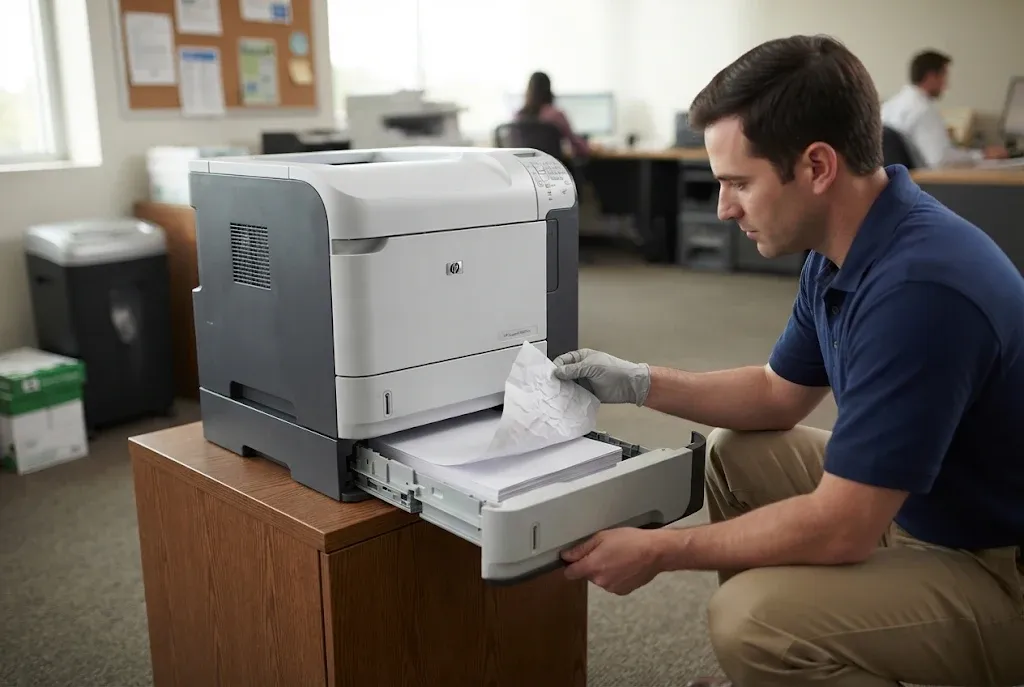
For an HP P4014 P4015 P4515 Tray 2 paper jam, slide the tray out, lift it slightly, and remove any damaged sheets. If the edge of the jammed sheet is visible in the feed area, pull it slowly down and out. HP specifically warns against pulling it straight out, which tears the paper. Before closing the tray, confirm the stack lies flat at all four corners and sits below the maximum-height indicators, then press OK.
The optional duplexer
An HP LaserJet P4515 duplexer jam, or one on a duplex-equipped P4014 or P4015, is cleared from the rear. Lift the duplexer and pull it out, remove any paper on top of Tray 2, and gently draw out any sheet caught in the duplexer. Push it back in fully, since an unseated duplexer can trigger its own connection message.
A single caught sheet is different from repeated duplex-only failures. Those fall under HP LaserJet P4014 P4015 P4515 optional duplexer problems, which call for diagnosis rather than repeated clearing.
Rear output bin and fuser area
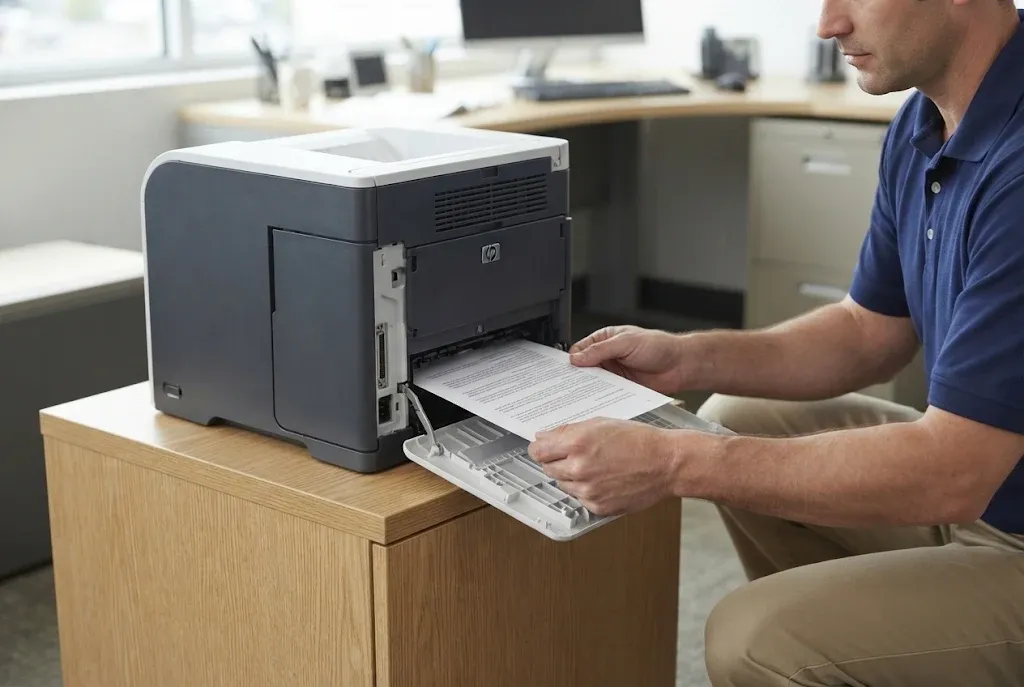
For an HP P4014 P4015 P4515 rear output jam, open the rear output bin, grasp both sides of the sheet, and pull it out slowly. If most of the page is still inside the printer, HP suggests removing it through the top-cover area. Opening the top cover fully releases pressure on a sheet that resists. Handle the page carefully, since loose toner on it can spill.
Paper torn inside the fuser, or wrapped around it, is where we suggest most offices stop. HP warns that the fuser is very hot, and its procedure requires turning the printer off, unplugging it, and waiting 30 minutes before removing the fuser. HP also cautions against sharp or metal objects in that area. If no one on site is comfortable with those steps, leave that HP Laserjet P4014 P4015 P4515 Paper Jam to a technician.
Envelope feeder and output accessories, when installed
The envelope feeder, stacker, stapler/stacker, and 5-bin mailbox have their own HP procedures, which apply only when the accessory is attached. A message that persists after an envelope is removed means another is still inside. Repeating trouble inside a stacker or mailbox belongs under HP LaserJet P4014 P4015 P4515 output accessory jams, since it involves that accessory’s own path.
Find the Roller or Sensor Behind It
A 13.xx message names a location, not a part. We trace an HP Laserjet P4014 P4015 P4515 Paper Jam to the roller, sensor flag, or path problem behind it before recommending any repair. Call (888) 657-0021 with the full message from the display.
Paper and Settings Problems That Look Like Mechanical Jams
HP’s list of common jam causes is mostly about paper: stock outside HP specifications, overloaded trays, misadjusted guides, sheets sticking together, damaged or reused paper, and poor storage, with worn supplies near the end. Checking these first costs nothing and rules out the most frequent source of an HP Laserjet P4014 P4015 P4515 Paper Jam.
- Use paper inside the weight range HP lists for each tray. HP’s P4515 specifications, for example, list 16 to 53 lb for Tray 1 and 16 to 32 lb for Tray 2, the optional 500-sheet trays, and the duplexer.
- Load dry, flat, undamaged stock, and store reams wrapped in a controlled environment.
- Set the guides so they hold the stack snugly without bending it.
- Keep the stack below the maximum-height marks, since an overfilled tray is a classic cause of an HP Laserjet P4014 P4015 P4515 Paper Jam.
- If sheets cling, flex the stack, rotate it 180 degrees, or flip it over. HP advises against fanning, which can build static.
- Do not reload paper that has already been printed or copied on.
- Let each page settle in the output bin before taking it, including the second side of a two-sided job.
Settings must agree as well: the loaded paper, the tray’s size and type setting, and the job’s paper size should match. When they do not, this family typically shows SIZE MISMATCH IN TRAY XX or 41.3 UNEXPECTED SIZE IN TRAY rather than a 13.xx jam.
Those size messages are handled under HP LaserJet P4014 P4015 P4515 paper-size mismatch troubleshooting, and tray messages such as INSERT OR CLOSE TRAY XX are not jams at all. Broader pickup questions fit HP LaserJet P4014 P4015 P4515 paper-feed troubleshooting. Keeping those topics separate prevents an office from replacing rollers to fix a settings problem that only resembles an HP Laserjet P4014 P4015 P4515 Paper Jam.
Three Comparisons That Narrow Down a Recurring HP Laserjet P4014 P4015 P4515 Paper Jam
Once paper and settings are ruled out, controlled comparisons show which part of the path is behind a recurring HP Laserjet P4014 P4015 P4515 Paper Jam. None of them require tools or removed covers. They do not prove that a particular component has failed, but they tell a technician where to look first.
- Tray 1 against Tray 2. Send the same short job from each tray. Jams from only one tray point to that tray’s pickup area, while jams from both suggest the shared path beyond the trays.
- One-sided against two-sided. On a printer with a duplexer, run the same job both ways. A fault that appears only in two-sided mode shifts attention to the duplexer path.
- An internal page against the original job. Print a configuration page from the printer’s Information menu, then the original document. If the internal page feeds cleanly and the job does not, review the job’s size, type, and tray settings.
Record the results alongside the original message. An HP Laserjet P4014 P4015 P4515 Paper Jam that follows one tray, one paper type, or two-sided mode only is far easier to diagnose than one described as “it keeps jamming.”
What 13.xx Messages Mean on the P4014, P4015, and P4515
Read the code exactly as displayed whenever an HP Laserjet P4014 P4015 P4515 Paper Jam message appears, and check it against documentation for this family. HP P4014 P4015 P4515 13.xx paper jam errors follow the P4010/P4510-series message set. Jam codes written for newer HP LaserJet Enterprise printers use a different scheme, so do not apply those meanings here.
| Message | HP’s description | What HP’s steps point to |
|---|---|---|
| 13.01.00 JAM IN TRAY 1 | A jam at Tray 1 | Tray 1 pickup and roller installation; service steps end with the Tray 1 solenoid (SL102) |
| 13.03.00 JAM IN TRAY 2 | An obstruction or a Tray 2 solenoid that is not working | The paper path, roller installation, and the Tray 2 pickup solenoid (SL101) |
| 13.03.00 JAM IN TRAY X | Paper cannot move from the named tray into the paper path | Obstructions, overfilled or misloaded trays, tray stacking, roller installation, and the feed roller clutch (CL101) |
| 13.20.00 JAM INSIDE <LOCATION> | Paper has not moved past a certain sensor at TRAY 2, TOP COVER, REAR DOOR, or DUPLEXER | Sensors PS102, PS103, PS106, PS108, and PS700, or the duplexer itself |
| 13.JJ.NT JAM IN or JAM INSIDE <LOCATION> | A jam at the specified location | Clear the location; if the message persists, a sensor might be stuck or broken |
| 13.JJ.NT PAPER JAM OPEN INPUT TRAYS | A jam in an input tray | Open the top cover, remove the cartridge and any paper, reinstall, and close all trays |
| PAPER WRAPPED AROUND FUSER | Paper has wrapped around the fuser | HP’s fuser-area procedure, with power off and a cool-down period |
HP’s steps repeatedly begin with clearing the path and confirming rollers were reinstalled correctly after maintenance. The code narrows the location of an HP Laserjet P4014 P4015 P4515 Paper Jam; inspection identifies the cause.
The message stays, but no paper is visible
An HP LaserJet paper jam with no paper visible usually means a small scrap in an accessible area, a sheet in a location not yet checked, a door, tray, cartridge, or duplexer that is not fully seated, or a sensor or mechanical fault. Check every location HP lists, including under the print cartridge, and reseat each removable item. For OPEN INPUT TRAYS, complete HP’s full sequence first.
If the HP Laserjet P4014 P4015 P4515 Paper Jam message returns after all of that, HP’s documentation states that a sensor might be stuck or broken. That is a service condition. Repeatedly opening and closing doors will not repair a sensor flag, and forcing one can damage it.
Jams versus fuser, maintenance, and tray messages
A 50.X FUSER ERROR is a fuser fault rather than an HP Laserjet P4014 P4015 P4515 Paper Jam, even when it appears after paper was cleared from the rear. Those codes are covered in our P4014, P4015, and P4515 fuser error troubleshooting. The P4014, P4015, and P4515 Perform Printer Maintenance message is a scheduled reminder. It can appear alongside repeated feeding problems, but it does not identify the cause of any individual HP Laserjet P4014 P4015 P4515 Paper Jam.
Tested on the Tray That Failed
After an HP Laserjet P4014 P4015 P4515 Paper Jam repair, we feed repeatedly from the affected tray and test two-sided printing when a duplexer is installed. Service and installed parts carry our 6-month / 180-day warranty, backed by more than 20 years in office equipment. Same-day service may be available; email info@printer-repair-experts.net to request a visit.
Recurring Jams: The Causes That Need Inspection
When the same HP Laserjet P4014 P4015 P4515 Paper Jam returns after paper, settings, and the accessible areas check out, the cause is usually mechanical. The patterns below are possibilities, not conclusions, and each needs inspection before any part is replaced.
Pickup, feed, and separation wear
Symptom: sheets fail to pick, arrive late, or come through two at a time from one tray. Possible cause: HP LaserJet pickup and separation roller problems, such as worn rollers, rollers reinstalled incorrectly after earlier service, or a pickup drive that is not engaging.
Diagnosis: we compare trays, inspect roller surfaces and installation, and use HP’s service-level component tests. For 13.03.00 JAM IN TRAY X, HP’s steps include testing the feed roller clutch (CL101); if the tray pickup motor turns but the drive gears beneath it do not, HP calls for replacing the feed roller assembly.
Remedy and repair component: depending on findings, the Tray 1 rollers, the Tray 2 pickup, feed, and separation rollers, the Tray 2 pickup solenoid (SL101), the Tray 1 solenoid (SL102), or the feed roller assembly. When we recommend service: HP LaserJet paper skew and multiple-sheet feeding that continues on fresh, correctly loaded paper, a pattern that marks a mechanical HP Laserjet P4014 P4015 P4515 Paper Jam.
Sensor flags, guides, and obstructions
Symptom: a 13.20.00 JAM INSIDE or 13.JJ.NT message that keeps returning at one location, sometimes with no paper present. Possible cause: a scrap or object in the path, a damaged guide, or a sticking or damaged sensor flag.
Diagnosis: HP pairs each 13.20.00 location with a sensor. TRAY 2 uses the pre-feed sensor (PS102), TOP COVER uses the top-of-page sensor (PS103) and media-width sensors (PS106 and PS108), and REAR DOOR uses the fuser delivery sensor (PS700). A technician confirms each flag with HP’s manual sensor test.
Remedy: remove the obstruction, or correct the flag, guide, or sensor the test identifies. When we recommend service: whenever an HP Laserjet P4014 P4015 P4515 Paper Jam message survives a full, careful clearing. Never bend, tape, or bypass a sensor flag; that hides the symptom and can cause damage further along the path.
Fuser, output, and duplex path
Symptom: in this form of HP Laserjet P4014 P4015 P4515 Paper Jam, printed sheets stop at the rear, wrinkle, or wrap. Possible cause: an obstruction near the fusing assembly, a fuser-area or output-path problem, or, for DUPLEXER locations, the duplexer. Diagnosis and component: HP’s REAR DOOR steps check both sides of the fusing assembly and the PS700 sensor, and its DUPLEXER steps call for replacing the duplexer if the message persists once the path is clear.
Wear-related feeding problems can be part of a larger maintenance picture. After diagnosis, some printers are better served by HP LaserJet printer maintenance kits than by one roller at a time, and the habits covered under regular HP printer maintenance reduce interruptions in between.
When to stop troubleshooting
Stop working on an HP Laserjet P4014 P4015 P4515 Paper Jam yourself when any of the following applies.
- The sheet resists, or something moves that should not.
- Paper is torn inside the fuser or wrapped around a mechanism you cannot reach.
- The jam returns at the same point after careful clearing and fresh paper.
- A guide, door, latch, or tray is cracked or will not seat.
- The printer makes grinding, clicking, or other unusual noises.
- The message returns after every safe check on this page.
Any of these signals that further attempts may cause damage, and it is where HP LaserJet P4015 recurring paper jams become a repair question. If you are deciding who should handle it, our notes on where to get a printer fixed cover the options.
Onsite HP Laserjet P4014 P4015 P4515 Paper Jam Diagnosis, Verified Repair, and Next Steps
When safe checks do not resolve an HP Laserjet P4014 P4015 P4515 Paper Jam, the next step is onsite printer repair by a technician familiar with this family. Our onsite HP P4014 P4015 P4515 paper jam diagnosis starts with the details from the first section, the comparisons, the stopped sheet, and HP’s documented tests. Repair follows diagnosis.
HP LaserJet P4515 paper jam repair, like work on the P4014 and P4015, is not finished when the jam clears once. We feed repeatedly from the affected tray, test two-sided printing when a duplexer is installed, run pages through the output path that failed, and confirm the original HP Laserjet P4014 P4015 P4515 Paper Jam does not return. Service and installed parts carry our 6-month / 180-day warranty.
Repair or replace?
Whether a repair after an HP Laserjet P4014 P4015 P4515 Paper Jam makes sense depends on the diagnosis and the printer’s overall condition, not on the jam itself. A roller or sensor correction on a healthy P4015 is a different decision from a unit with several worn assemblies, and our overview of printer repair cost considerations explains the factors.
Service area and related pages
We provide onsite service throughout Orange County and approved portions of Los Angeles County. Offices can read more about HP LaserJet printer repair in Orange County or HP LaserJet printer repair in Los Angeles, and organizations managing several models can review our broader HP LaserJet printer repair service. Faults beyond the paper path on this family are covered under HP LaserJet P4014, P4015, and P4515 printer repair.
If an HP Laserjet P4014 P4015 P4515 Paper Jam keeps returning in your office, call (888) 657-0021 or email info@printer-repair-experts.net with the model, the full message, and the tray involved. Same-day service may be available, depending on schedule and location, and we bring more than 20 years in the office equipment industry to every call.
FAQ's - Frequently Asked Questions - HP LaserJet P4014, P4015, and P4515 Paper Jams
Not for most areas. HP’s tray, top-cover, duplexer, and rear-bin procedures do not call for powering off, and pressing OK afterward shows whether the message clears. The fuser area is the exception: HP says to turn the printer off, unplug it, and wait 30 minutes before working there.
That depends on the Jam Recovery setting. AUTO, the default, lets the printer choose; ON reprints pages after a jam is cleared; OFF does not reprint them. Check the last pages of any important job, such as invoices or legal filings, after an HP Laserjet P4014 P4015 P4515 Paper Jam is cleared.
Loose toner can remain inside the printer after an HP Laserjet P4014 P4015 P4515 Paper Jam. HP notes that these temporary print-quality problems should clear within a few pages. Smudging that continues well beyond that is worth mentioning when you request service.
It can. HP’s list of jam causes includes supplies near the end of their life and components that are not seated correctly. Check the control panel for supply messages, and reseat the cartridge firmly whenever it has been removed to clear an HP Laserjet P4014 P4015 P4515 Paper Jam.
We advise against it. HP specifically cautions against sharp or metal objects in the fuser area, and tools can tear paper into scraps that cause the next jam. If the sheet from an HP Laserjet P4014 P4015 P4515 Paper Jam cannot be removed by hand with gentle pressure, stop and schedule service.
Often, yes. If the jams follow only one tray, sending jobs to another tray loaded with the same paper can keep work moving. If the HP Laserjet P4014 P4015 P4515 Paper Jam follows the jobs to the second tray, the shared path is involved, so stop and wait for the technician.
Consistency helps most. Keep reams wrapped until they are loaded, set each tray’s size and type to match what is actually in it, avoid mixing partial reams, and keep heavy or special stock in Tray 1. Regular inspection of the paper path also catches wear before it turns into a daily HP Laserjet P4014 P4015 P4515 Paper Jam.
Call or email us with the model, the message, and the tray involved. Service and installed parts carry our 6-month / 180-day warranty, and we will review the repair against the original symptom. Describing what changed since the visit helps us confirm whether it is the same HP Laserjet P4014 P4015 P4515 Paper Jam or a new fault.