
HP Color LaserJet M552, M553, M554 Paper Jam:
Clear It Safely, Then Find Out Why It Keeps Coming Back
An HP Color LaserJet M552, M553, M554 Paper Jam is cleared by following the location the control panel names, removing only the paper you can reach, and then working out why the sheet stopped. When the same message comes back, the cause usually sits in the feed path behind that location, and that is where an inspection starts to pay off.
This guide is for the office managers, administrators, and IT staff who look after these Enterprise single-function printers. It starts with the notes worth taking before any door opens and ends where handing an HP Color LaserJet M552, M553, M554 paper jam to a technician makes more sense than another attempt.
Preview Snapshot
- Five details to record the moment an HP Color LaserJet M552, M553, M554 paper jam message appears.
- HP’s documented jam families for Tray 1, Tray 2, optional feeders, and the right door and fuser area.
- Why a message can stay on screen after the visible paper is gone.
- A pattern table that separates one-tray, every-tray, first-sheet, and two-sided jams.
- Where safe clearing stops and onsite HP Color LaserJet paper jam diagnosis begins.
What an HP Color LaserJet M552, M553, M554 Paper Jam Message Is Telling You
A jam message reports where the printer lost track of a sheet, not which part failed. The display names a location such as Tray 2 or the right door, and a control-panel animation walks you through the doors involved. That guidance is the right starting point.
For these models HP groups the 13.xx codes by location: 13.B2.A1 and 13.B2.D1 for Tray 1, 13.B2.A2 and 13.B2.D2 for Tray 2, the 13.A3, 13.A4, and 13.A5 families for optional 550-sheet trays, and the 13.B2, 13.B4, and 13.B9 families for the right door and fuser area.
The code cannot say whether the sheet stopped because of the paper, the loading, a worn feed part, or something hidden in the path. An HP Color LaserJet M552, M553, M554 paper jam that happens once is often a media or loading event. An HP Color LaserJet M552, M553, M554 paper jam that keeps returning from the same place is a pattern, and patterns are what diagnosis is built on.
Five Details to Write Down Before You Open a Door
Most of the evidence disappears once the sheet is pulled out, so take thirty seconds for these notes first.
- The model and suffix, such as M552dn, M553n, M553x, or M554dn.
- The full control-panel message, every character of the 13.xx code.
- The tray that was feeding when the jam occurred.
- The paper size and type loaded, and what the tray is set to.
- How the job printed: one-sided, automatic two-sided, or from one particular file.
Also note whether the jam hit the first page or came partway through a long job, and where the leading edge of the stuck sheet ended up. Those notes turn HP Color LaserJet M552 paper jam troubleshooting into a short process of elimination, and they make each HP Color LaserJet M552, M553, M554 paper jam easier to compare with the last one.
Why the Model Suffix and Installed Trays Change the Steps
The three models look alike but are not configured identically. HP lists automatic two-sided printing on the M553dn and M553x but not the M553n, and the M554dn prints two-sided by default. A duplex step for an HP Color LaserJet M552, M553, M554 paper jam means nothing on a unit without an automatic duplexer.
Control panels differ too: a 4-line color display with keypad on the M552dn, M553n, and M553dn, a tilting 4.3-inch touchscreen on the M553x, and a 2.7-inch color display with keypad on the M554dn. Each points to the same doors.
Every model has a 100-sheet multipurpose Tray 1 and a 550-sheet Tray 2. The M553x adds a third 550-sheet tray, and the others accept optional 550-sheet feeders. These are print-only machines, so document-feeder jam procedures do not apply. For faults other than an HP Color LaserJet M552, M553, M554 paper jam, see our page on HP Color LaserJet M552, M553, and M554 printer repair.
Same Jam Again? Have It Checked Onsite
Our $69.99 Onsite Printer Repair Promotion brings a technician to inspect one HP Color LaserJet M552, M553, or M554 at your location; parts are not included. Limitations may apply. Call (888) 657-0021 or email info@printer-repair-experts.net.
Tray 1 and Tray 2: Jams Where the Sheet Starts Its Trip
HP Color LaserJet Enterprise Tray 1 Paper Jam
An HP Color LaserJet Enterprise Tray 1 paper jam normally appears as 13.B2.A1 or 13.B2.D1. HP’s guidance is to remove a visibly jammed sheet from Tray 1 first. If paper stays stuck, or none is visible, HP directs you to take out the remaining paper, close Tray 1, and open the right door.
Tray 1 jams often come from loading: an overfilled stack, loose guides, or heavy stock fed on a plain-paper setting. Reload a small, squared stack, slide the guides to the edges, and confirm the Tray 1 size and type settings. If that HP Color LaserJet M552, M553, M554 paper jam returns with correct media and settings, the Tray 1 pickup area needs inspection, not more reloading.
Tray 2 and Why the Right Door Comes First
HP’s Tray 2 procedure starts at the right door rather than the drawer, because a sheet picked from Tray 2 travels up into that area. So an HP M553 13.B2.A2 jam error or an HP M554 13.B2.D2 jam error can leave paper behind the right door even though the message names the tray. HP documents both codes for all three models.
Next, pull Tray 2 out and look for torn sheets, an overfilled stack, and guides set to the wrong size. An HP M553 Tray 2 paper jam that follows an overfilled tray or a loose guide is often solved by loading correctly. Reach in only for paper you can see and grip.
When Tray 2 keeps jamming with fresh paper and correct guides, suspicion moves to the rollers that feed it. Two symptoms point that way, the ones people describe as HP Color LaserJet paper feeding crooked and HP Color LaserJet picking up multiple sheets. HP documents replacement of the Tray 2-X pickup and separation roller assemblies on these models, and that is where we look first.
The same wear sits behind many HP Color LaserJet M552 M553 M554 paper pickup problems, where a tray reports a jam before the sheet reaches the right door. We recommend service when an HP Color LaserJet M552, M553, M554 paper jam keeps coming from Tray 2 after correct loading, or when sheets arrive scuffed or skewed.
Optional Feeders, the Right Door, and the Fuser Area
Optional 550-Sheet Trays
HP Color LaserJet optional paper tray jams apply only when a 550-sheet feeder is installed. HP documents the 13.A3, 13.A4, and 13.A5 families for these trays, including 13.A3.D3, 13.A3.FF, 13.A4.D4, 13.A4.FF, 13.A5.D5, and 13.A5.FF. Confirm which trays your printer actually has first.
HP’s procedure begins at the lower-right door: free any paper at the feed rollers by pulling it left and then forward, close the door, check and reinsert the tray, then open the right door and clear the pickup area. A feeder that keeps producing an HP Color LaserJet M552, M553, M554 paper jam with good paper points to its own pickup components or how it sits under the printer, which we inspect onsite.
The Right Door and the Fuser Area
The 13.B2, 13.B4, and 13.B9 families cover jams behind the right door and around the fuser. HP’s list includes 13.B4.FF, the 13.B9.Az and 13.B9.Bz fuser jams, and 13.B9.Cz, which HP labels a fuser wrap jam. HP warns that the fuser can be hot during use, so let it cool before clearing an HP Color LaserJet M552, M553, M554 paper jam there.
To clear an HP M552 M553 M554 jam in right door, lift the latch, open the door, and follow the animation, pulling paper gently in its normal direction of travel. Searches for HP Color LaserJet paper stuck in fuser area usually describe a sheet gripped at the fuser itself. If it resists a gentle pull, stop.
A sheet stopped near the fuser does not prove the fuser failed; curl, damp stock, or a problem earlier in the path can stall it there. A fuser jam also differs from a 50.xx fuser error, which reports a temperature or operating fault; our page on M552, M553, and M554 fuser errors covers those.
When an HP Color LaserJet M552, M553, M554 paper jam keeps returning to the right door with good media, the paper-path and fuser assemblies HP documents for this family become candidates, and confirming which one takes inspection. For the full sequence of checks, see HP’s right-door and fuser-area jam procedure for these printers.
Jams That Only Happen on Two-Sided Jobs
On duplex-equipped models, an HP Color LaserJet duplex paper jam is cleared from the same right door; HP’s procedure ends by checking the duplex path inside it. If an HP Color LaserJet M552, M553, M554 paper jam appears only on two-sided jobs, print the same job one-sided from the same tray. If one-sided pages run and two-sided pages jam, the duplex path needs inspection; if both jam, look earlier in the path.
Find Out Why the Sheet Keeps Stopping
A repeating tray or right-door code usually traces to the rollers, guides, or paper path behind it. We confirm the cause on your printer before recommending any repair. Call (888) 657-0021 to arrange an inspection.
When the Display Says Jam but No Paper Is Visible
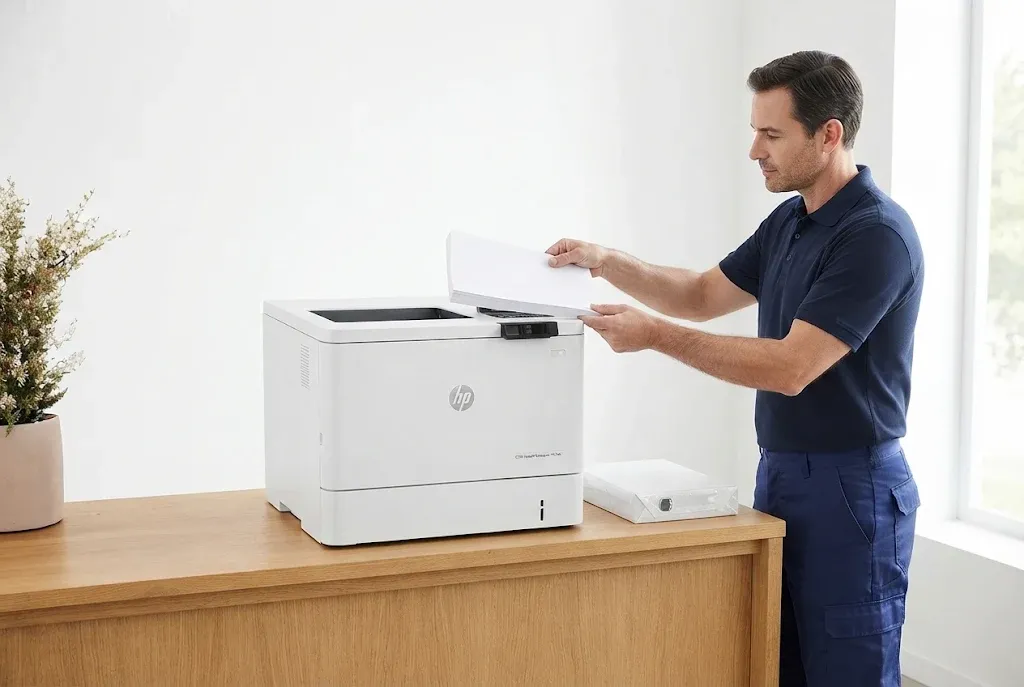
An HP Color LaserJet paper jam with no paper visible is one of the most common reasons people call us. The message stays, or returns after a restart, though every door has been opened. That alone does not establish the cause; it only says the printer still believes something is in the path.
A torn scrap can sit just past a roller, or a sheet can lodge where the path is not user-accessible. A paper-path detection problem or a feed malfunction can also produce this kind of HP Color LaserJet M552, M553, M554 paper jam.
Check each door the animation names once, with a flashlight if it helps. Close every door and let the printer finish starting up. If the HP Color LaserJet M552, M553, M554 paper jam message is still there, further searching tends to tear paper or bend parts. Our guide on where to get a printer fixed explains when repeated jams call for professional repair instead.
Reading the Pattern Across Several Jams
One HP Color LaserJet M552, M553, M554 paper jam tells you little. Three or four, written down with the details above, narrow the search a great deal. Treat the table as diagnostic clues, not verdicts on a particular part.
| Pattern | Points toward | How it is confirmed | Remedy and assembly involved | When we recommend service |
|---|---|---|---|---|
| One tray jams; others feed normally | That tray’s paper, guides, or rollers | Same paper from another tray; inspect rollers and guides | Correct loading; Tray 2-X pickup and separation roller assemblies if worn | Repeats after correct loading |
| Every tray jams | A shared section such as the right-door path or fuser area | Note where the leading edge stops each time | Path or fuser assembly, confirmed by inspection | Any repeat across trays |
| First sheet fails, rest prints | Stack condition, tray seating, or pickup | Fresh paper, reseated tray, retest | Media correction or pickup-area service | Persists with fresh paper |
| Fails partway through long jobs | Path or fuser area during continuous printing | Longer test job, stopping point noted | Right-door path and fuser-area inspection | Repeats on long jobs |
| One paper type only | Tray setting mismatch or unsupported media | Match setting; test supported stock | Corrected settings or media | Repeats with correct settings |
| Two-sided jobs only | Duplex path on equipped models | Same job one-sided and two-sided | Duplex-path inspection | Duplex-only jams persist |
The pattern is what separates HP Color LaserJet M553 recurring paper jams from a bad ream. When the same tray, code, and stopping point line up, inspect the parts there; when jams wander, suspect paper and environment first.
Keep a simple log beside the printer: date, code, tray, and paper. It makes any HP Color LaserJet M552, M553, M554 paper jam visit faster, because the technician starts with evidence instead of rebuilding it.
Every Tray Tested Before We Leave
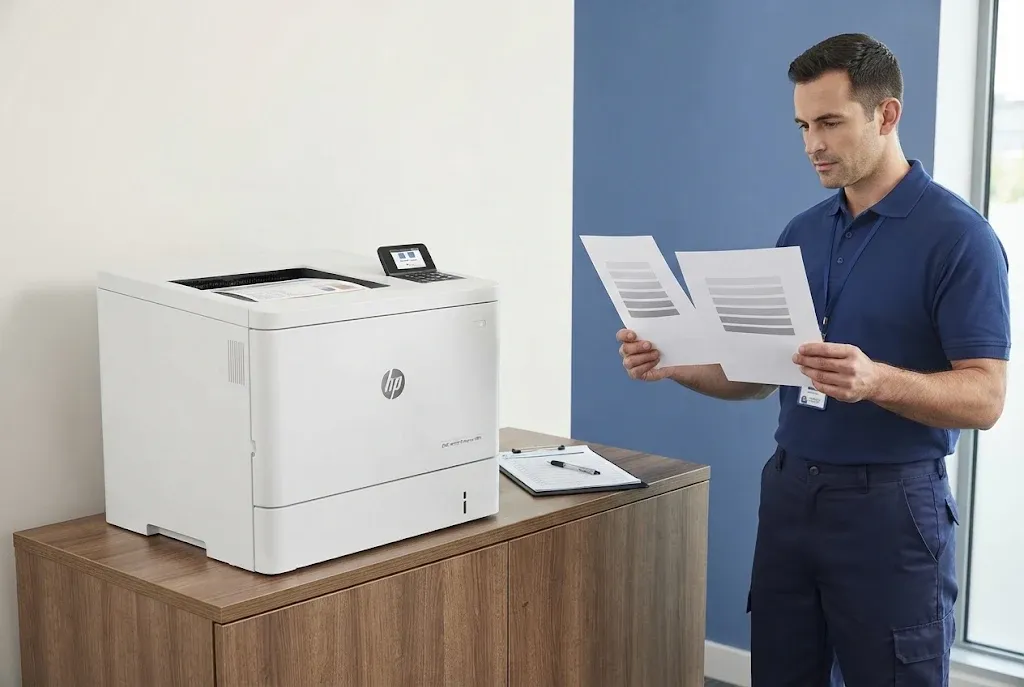
We finish each jam visit by feeding the affected tray and, on duplex models, two-sided pages. More than 20 years in office equipment, a 6-month / 180-day service warranty, and onsite visits across Orange County and approved areas of Los Angeles County. Same-day service may be available. Email info@printer-repair-experts.net.
Where Safe Clearing Ends on an HP Color LaserJet M552, M553, M554 Paper Jam
Follow HP’s instructions for your exact model and the displayed location, let the fuser cool, and remove only paper you can reach and pull gently. Stop when paper resists, when reaching it would mean removing anything, or when the same message returns.
Never push tools into the paper path, tape over or bypass anything to silence a message, or force a caught sheet. Those shortcuts can turn an HP Color LaserJet M552, M553, M554 paper jam into a damaged-roller or damaged-fuser repair.
For a recurring HP Color LaserJet M552, M553, M554 paper jam, inaccessible paper, damaged media, or a message that will not clear, Printer Repair Experts provides onsite printer repair at your location. Onsite HP Color LaserJet paper jam diagnosis lets us watch the fault happen on your paper and in your room. Our HP Color LaserJet printer repair page covers related HP Color LaserJet families.
Diagnosis decides the scope: a loading problem may need only correction and a test, while worn rollers involve more. Our overview of printer repair cost considerations explains how scope is set, and why no promotional price should be read as the total for every repair.
We work onsite throughout Orange County and approved portions of Los Angeles County, without a walk-in branch. Orange County offices can read about HP LaserJet printer repair in Orange County, and Los Angeles-area businesses can check coverage on our page about HP LaserJet printer repair in Los Angeles.
Before we close a visit, the affected tray must feed reliably and, on duplex models, two-sided pages must run cleanly. That test is part of every HP Color LaserJet M554 paper jam repair we perform, and the M552 and M553 get the same check.
Keeping the Paper Path Clear After the Fix
Preventing a repeat HP Color LaserJet M552, M553, M554 paper jam is mostly paper handling. Use fresh, dry paper HP supports for the tray, keep reams wrapped until needed, and discard curled or damaged sheets. Stay below the fill limits, set the guides to the loaded size, and match the tray settings and print job to the paper loaded.
HP Color LaserJet M552 M553 M554 preventive maintenance is most useful when it responds to early signs: occasional skew, scuffed sheets, or a tray that jams weekly instead of never. Our article on regular HP printer maintenance explains why catching a developing feed problem early costs less.
Jams and print defects are separate faults. If pages also show streaks or smears, treat those HP Color LaserJet M552 M553 M554 print quality problems as their own diagnosis rather than a side effect of the jam.
When an HP Color LaserJet M552, M553, M554 paper jam keeps returning despite careful clearing and good paper, your jam log is the best thing to hand us. Call (888) 657-0021 or email info@printer-repair-experts.net to arrange an onsite visit, and we will start where your notes leave off.
FAQ's - Frequently Asked Questions - HP Color LaserJet M552, M553, M554 Paper Jam
Usually, yes, as a stopgap. Sending jobs to a tray that feeds reliably keeps work moving, and it also confirms the HP Color LaserJet M552, M553, M554 paper jam belongs to the original tray. Keep a note of that tray’s code so the cause can be confirmed later.
HP warns that the fuser can be hot during use and says to let it cool before handling it, but its jam procedure does not give a fixed time. Allow it time to cool and keep hands away from the fuser itself until it has.
The usual reason is a tray type setting that does not match the media, or stock outside what that tray supports. Set the tray type to match and confirm the stock is supported for that tray and model. If an HP Color LaserJet M552, M553, M554 paper jam still follows that stock with correct settings, inspection is the next step.
No. A 13.B9 code reports where the sheet stopped, not that the fuser failed. Paper condition or a problem earlier in the path can stop a sheet there. Replacement is considered only after inspection points to the fuser, and we replace fuser assemblies rather than rebuilding them onsite.
A restart can clear a message after the paper is out, but it never removes paper. If the HP Color LaserJet M552, M553, M554 paper jam message returns after a restart and a careful check of every door the animation shows, treat it as something to inspect rather than restarting again and again.
Your jam notes, the exact model and suffix, a sample of the paper in use, and any sheets that came out torn or crumpled. Those let us reproduce the fault quickly and see where the paper is being damaged.
Yes. Our service and the parts we install carry a 6-month / 180-day warranty. We do not install or guarantee customer-supplied parts.
Only as a test. If the HP Color LaserJet M552, M553, M554 paper jam stops when the same job prints one-sided, the duplex path is the likely area, which is useful to know. Leaving two-sided printing off permanently hides the fault without fixing it.