
HP Laserjet P3015 Paper Jam:
Complete 13.XX Error Code Repair Guide
An HP Laserjet P3015 Paper Jam almost never happens at a convenient time, and the 13.xx code on the control panel tells you exactly where the sheet stopped. This guide explains what every HP LaserJet P3015 paper jam code means, what causes it, and how to clear it safely. It also covers why a jam that keeps returning usually points to a worn component rather than bad luck, and when to bring in a technician instead of replacing the printer.
What this guide covers:
- The real mechanical causes behind P3015 jams and misfeeds
- Every 13.xx error code — 13.00, 13.01, 13.02, 13.03, 13.05, 13.20, 13.21, 13.31, and 13.98 — with the cause and a step-by-step fix
- Safe jam removal from the trays, rear door, and fuser
- Why the printer keeps jamming after the path looks clear
- Repair-vs-replace math for office fleets, plus warranty and same-day service options
Tired of Constant HP LaserJet P3015 Paper Jams?
What Causes an HP Laserjet P3015 Paper Jam?
Nearly every HP LaserJet P3015 paper jam comes down to one of four things: worn rubber, a blocked or failing sensor, damaged paper-path components, or the paper itself. The P3015 moves each sheet past a series of flags and photosensors, and the DC controller watches the clock. If a sheet arrives late at a sensor or never leaves one, the printer declares a jam and reports the zone in the error code.
Worn rollers are the most common culprit we find in the field. The Tray 2 pickup roller and separation pad lose their grip with age, which produces an HP LaserJet P3015 Paper Feed Problem long before anything actually tears inside the machine. A glazed pickup roller causes mispicks, while a worn separation pad lets two or three sheets through at once.
Sensor problems are the sneakier cause. A torn corner of paper resting on an HP LaserJet P3015 Paper Path Sensor flag will throw jam codes even when the path looks empty. Toner dust and debris along the HP LaserJet P3015 Paper Path do the same thing over time, which is why a thorough cleaning is part of any proper jam repair.
Paper condition matters more than most offices expect. Humid paper stored near an exterior wall, mixed weights loaded in one tray, or tray guides set a few millimeters too wide will all trigger an HP P3015 Paper Jam on a printer that is mechanically healthy. Our technicians check paper handling first on every service call, because it is the cheapest fix on the list.
What Do the HP LaserJet P3015 13.XX Error Codes Mean?
Every HP LaserJet P3015 13.XX Paper Jam code follows the same logic: 13 means a jam, and the digits after it identify where the sheet stopped or which sensor timed out. Below is each code the P3015 series reports, the cause behind it, and the fix, based on HP’s service documentation and what we see during onsite calls.
13.00.00 — Jam in an Unknown Location
An HP LaserJet P3015 13.00.00 Paper Jam is the generic code. The printer knows a sheet is stuck but cannot pinpoint the zone, which usually means residual paper is sitting somewhere in the path. To clear it:
- Power the printer off.
- Open Tray 2, the top cover, and the rear door, and remove every scrap of paper — including torn corners.
- Reseat the toner cartridge, close everything, and power back on.
- If the code returns with a clear path, run the sensor test described in Section 7.
13.01.00 — Paper Never Left the Tray
The HP LaserJet P3015 13.01.00 Paper Jam means the sheet did not reach the pre-feed sensor (PS102) in time — a classic mispick. This is the most frequent HP LaserJet P3015 paper jam we encounter in offices, and it is often a “phantom” jam with no visible paper at all. To fix it:
- Remove the tray, square the paper stack, and set the guides snugly against it.
- Clean the pickup roller and separation pad with a damp lint-free cloth.
- If the roller is shiny or cracked, replace it (HP part RM1-6323-000CN) along with the separation pad (RM1-6303-000CN).
- For trays that flex and misalign the stack, HP offers a tray spacer kit (CF116-67927).
13.02.00 — Jam Inside the Top Cover
A 13.02.00 code means the sheet stopped in the registration area under the top cover, before or during image transfer. Common causes are debris on the registration rollers, a damaged transfer roller, or a sheet that picked late and stalled. To clear it:
- Open the top cover and remove the toner cartridge.
- Pull any jammed paper out in the direction of travel.
- Inspect the registration rollers for debris and the transfer roller for damage.
- Reinstall the cartridge, close the cover, and test.
13.03.00 — Sheet Missed the Top-of-Page Sensor
An HP LaserJet P3015 13.03.00 Paper Jam means the sheet left the tray but never arrived at the top-of-page sensor (PS103) on schedule, so it is usually stalled between the tray and registration. This code shares causes with 13.01.00: worn feed rollers or a sticking sensor flag. To fix it:
- Open the tray and the top cover, and clear the path completely.
- Clean the feed rollers and verify the sensor flag moves freely.
- If 13.03.00 keeps recurring, replace the worn feed rollers — that is the durable fix.
13.05.00 — Jam in the Fuser Area
An HP LaserJet P3015 13.05.00 Paper Jam points to the fuser: the sheet did not pass through the fuser exit on time. Sheets frequently accordion-fold or wrap around the fuser rollers here. To clear it safely:
- Power off and let the fuser cool for at least ten minutes — it runs hot enough to burn.
- Open the rear door to its full 90-degree position.
- Remove the sheet slowly in the direction of travel so it does not tear inside the fuser.
- If fuser jams repeat, the fuser sleeve or pressure roller is typically worn; fuser or maintenance kit replacement is the lasting remedy.
13.20.00 — Jam Inside the Rear Door (or a Phantom Jam)
The HP LaserJet P3015 13.20.00 Paper Jam reports paper inside the rear door area — but on this model it is also the classic phantom code that appears at power-up with a seemingly empty path. The cause is either a sheet in the rear output area or a jam sensor that believes paper is present: a stuck flag, a torn scrap, or debris. To fix it:
- Open the rear door fully and remove any visible paper.
- Gently check that each sensor flag in the opening swings freely.
- Power cycle the printer with the path verified clear.
- If the code survives, have the sensors and paper input unit professionally diagnosed.
13.21.00 — Rear Door Opened During Printing
The HP LaserJet P3015 13.21.00 Paper Jam also maps to the rear door area. We most often see it when the rear door was opened mid-job or did not latch after a previous jam, stopping the sheet in transit. To clear it:
- Open the rear door to its full 90-degree position.
- Remove the stopped sheet with slow, even tension.
- Close the door until it latches with a positive click, then resume the job.
- If 13.21.00 appears without anyone touching the door, test the door switch and sensor.
13.31.00 — Sheet Stopped in the Fuser
A 13.31.00 code is the fuser’s “paper stopped” companion to 13.05.00: the sheet reached the fuser and never cleared it. Heavy stock, labels, and envelopes run through the straight-through rear path cause many of these. To clear it:
- Power off and allow the fuser a genuine cool-down.
- Open the rear door and remove the sheet slowly and evenly.
- Check the fuser exit rollers and delivery area for torn paper.
- If 13.31.00 repeats on plain paper, plan on fuser replacement — that is a strong end-of-life sign.
13.98.00 — Residual Paper, Open the Input Trays
A 13.98.00 code tells you paper remains in the path near the input trays after a jam event. The offending piece is often a small torn strip rather than a full sheet. To clear it:
- Pull each tray fully out and inspect the feed cavity with a flashlight.
- Remove every fragment, however small.
- Open and close the top cover so the printer re-checks jam detection.
- If 13.98.00 persists with a clean path, have the input-path sensors tested rather than guessing.
How Do You Remove a Jam From the Trays Without Causing Damage?
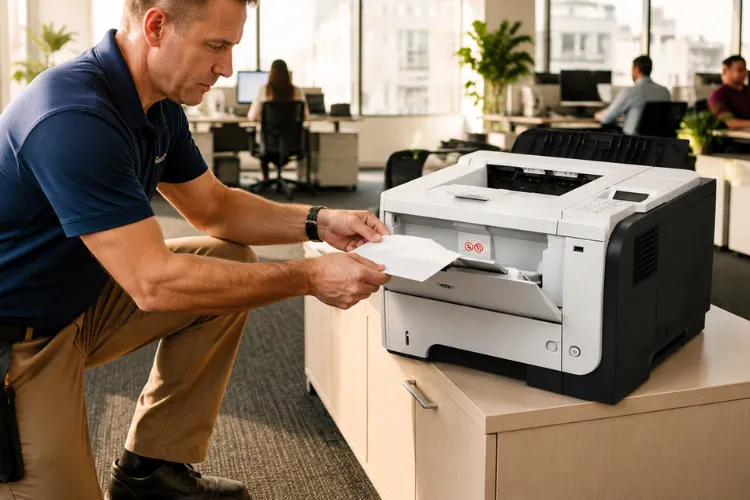
The safe way to handle an HP LaserJet P3015 Jam in Tray 1 or Tray 2 is to work with the paper path, never against it. Pull jammed sheets in the direction the paper normally travels, using both hands and steady pressure. Yanking a sheet backward through the separation pad can tear it, and the leftover strip becomes your next phantom jam.
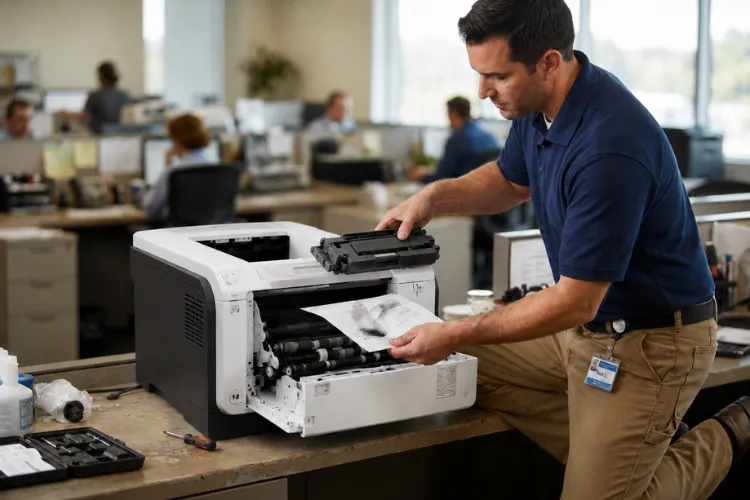
For a full HP LaserJet P3015 Remove Jam procedure, start by powering the printer off. Remove Tray 2 completely, clear any crumpled sheets, and inspect the feed cavity above the tray opening. Then press the top-cover release, remove the toner cartridge, and clear the registration area. HP Customer Support (support.hp.com)
Two habits make every HP LaserJet P3015 Clear Paper Jam attempt more reliable. First, account for the whole sheet — if the page in your hand is missing a corner, that corner is still inside the printer. Second, open and close the top cover after clearing so the printer re-checks its sensors and drops the jam message. The P3015 also offers a jam recovery setting that reprints jammed pages automatically when memory allows.
How Do You Clear Jams at the Rear Door and Fuser Safely?
An HP LaserJet P3015 Jam in Rear Door is cleared through the rear panel, which opens two ways: 45 degrees for the rear output bin and a full 90 degrees for jam access. Always open it fully when clearing paper. Remove the sheet with slow, even tension, then inspect the rollers and sensor flags inside the opening before closing up.
An HP LaserJet P3015 Jam in Fuser demands one extra precaution: heat. The fuser bonds toner at temperatures that will burn skin, so power the printer off and give it a real cool-down before reaching in. Never use tools or force — a scratched fuser sleeve turns a five-minute jam into a print-quality defect on every page that follows.
Printer Repair Experts routinely finds that “fuser jams” reported by an office are actually sensor or roller problems upstream, which is why we test the complete path rather than swapping the most expensive part first. Before replacing a fuser, our technicians verify the actual failure with the printer’s built-in diagnostics. That habit has saved our clients real parts money over twenty years in the field.
Get Your HP LaserJet P3015 Feeding Paper Like New Again
Why Does the HP LaserJet P3015 Keep Jamming After You Clear It?
When an HP LaserJet P3015 Keeps Jamming with a visibly clear path, a component is worn — it is almost never a fluke. Rubber rollers harden and glaze with age and page count. The printer then mispicks, picks late, or feeds crooked, and each event produces another 13.xx code. Clearing the jam treats the symptom; the worn part guarantees a repeat.
HP LaserJet P3015 Multiple Sheets Feeding is the signature of a worn separation pad. The pad’s job is to hold back every sheet except the top one, and once its friction surface wears smooth, doubles and triples slip through. Those extra sheets collide in the registration area and stop the job.
Frequent HP LaserJet P3015 Misfeeds — sheets picked crooked, late, or not at all — point to the pickup roller, the feed rollers, or in stubborn cases the paper input unit. Environmental factors pile on: humid paper swells and drags, and overfilled trays exceed the stack height the pickup system was designed for. A technician who replaces the worn rubber, cleans the path, and corrects paper handling resolves the pattern in one visit.
What Does the Maintenance Message on the P3015 Mean for Jams?
When a prompt appears to Perform Maintenance HP LaserJet P3015 owners often ignore it while print quality still looks fine — and that is usually when chronic jamming begins. The printer tracks page count against the expected service life of its fuser and feed components. The maintenance reminder means those parts have reached the wear point where jam rates climb sharply.
Acting on the reminder is genuine preventative maintenance, not upselling. Installing the maintenance components — fuser and fresh rollers — restores the feed system to factory grip and timing, and jam frequency typically drops to near zero afterward. For busy offices, scheduling that work proactively is far cheaper than absorbing the downtime of a printer that stops mid-payroll.
Printer Repair Experts stocks fusers and maintenance kits for many HP LaserJet and HP Color LaserJet models, which is what makes same-day maintenance service possible. We use HP Parts, High Quality Parts, and Premium Parts, and we back the work with a 6-month warranty on service and installed parts.
How Do HP LaserJet P3015 Diagnostics Confirm the Real Cause?
Effective HP LaserJet P3015 Troubleshooting ends with verification, not guesswork. The P3015 includes built-in HP LaserJet P3015 Diagnostics that take the mystery out of jam repair: a paper-path test that feeds sheets from any tray while reporting progress, and sensor tests that display each paper sensor’s state in real time. If a sensor shows paper present with an empty path, you have found your phantom jam.
This is the step that separates professional HP LaserJet P3015 Printer Repair from parts roulette. A technician who runs the path and sensor tests can tell a worn roller from a failed sensor from a bad paper input unit before ordering anything. The repair is then a single targeted fix instead of a sequence of expensive guesses.
It is also how a repair gets proven before the technician leaves. After replacing rollers or a fuser, we run the paper path from every tray and through both output paths until the HP LaserJet P3015 paper jam is verifiably resolved — not just cleared for the moment.
Fast Onsite HP LaserJet P3015 Paper Jam Repair
Should You Repair the P3015 or Replace It?
For most offices, repairing a jamming P3015 wins the math. The machine is a durable workhorse, consumables are economical, and the components that cause jams — rollers, separation pad, fuser — are all serviceable. A roller and maintenance repair costs a fraction of a comparable new unit, and it avoids the IT time of driver changes, network reconfiguration, and user retraining.
Replacement makes sense in narrower cases: repeated board-level failures, frame or paper-input-unit damage on a very high-mileage unit, or a fleet standardization project already in motion. Honest HP Printer Repair includes telling you when a printer is not worth fixing — and we do.
Downtime is the hidden cost either way. A jammed printer stalls invoices, shipping labels, and payroll runs, which is why Same Day Printer Repair exists as a service category. Toner reliability matters here too: bargain cartridges with poorly sealed hoppers shed toner into the paper path and onto sensors, quietly raising jam rates. We supply high-quality toner backed by a 1-year warranty for exactly that reason.
The same repair logic covers the P3015’s successors. We provide HP LaserJet Printer Repair across the monochrome enterprise line, and we service HP LaserJet M601, M602, and M603 printers alongside newer models — including HP Laserjet M602 Printer Repair, HP Laserjet M605 Printer Repair, HP Laserjet M608 Printer Repair, and HP Laserjet M611 Printer Repair. Whatever generation of HP Laserjet Printer your fleet runs, the jam mechanics and the repair discipline are the same.
Where Can You Get Onsite Repair for a Jamming P3015?
If your office runs on deadlines, Onsite Printer Repair beats boxing up a 40-pound printer every time. Printer Repair Experts provides onsite service throughout Orange County and much of Los Angeles County, with same-day appointments available for many HP LaserJet issues. One visit covers diagnosis with the printer’s own test modes, the mechanical repair, path cleaning, and verification printing from every tray.
Businesses searching for Commercial Printer Repair, Office Printer Repair, Business Printer Repair, or Enterprise Printer Repair are usually describing the same need: a technician who can fix a workgroup HP LaserJet at their location, quickly. The searches people actually type — HP Printer Repair Near Me, Laser Printer Repair Near Me, Orange County Printer Repair Near Me, and HP Laserjet Printer Repair Near Me — all lead to that same service.
Whether the request comes in as HP Laserjet Printer Repair or as a specific city search like Printer Repair Santa Ana CA, Printer Repair Pico Rivera CA, or Printer Repair South El Monte CA, the work is done at your site by an experienced HP LaserJet technician. Beyond jams, we remedy fuser errors, all error codes, software and firmware upgrades, network connectivity, splotchy prints, lines in scanned pages, and every other print-quality complaint the HP LaserJet family produces.
New clients qualify for our $69.99 onsite repair promotion, which is subject to limitations. Every repair carries our 180-day warranty on service and installed parts. Call (888) 657-0021 or email info@printer-repair-experts.net to schedule.
The Bottom Line on P3015 Jams
A 13.xx code is not a mystery — it is a map. Read the code, clear the zone it names, and remove every scrap of paper, and most jams end there. When the same code keeps returning, stop clearing and start repairing: worn rollers, a tired separation pad, or an end-of-life fuser is telling you it wants replacing.
And when the jam pattern is costing your office real productivity, an onsite technician with the right parts on the truck resolves in one visit what weeks of jam-clearing never will. That is the repair philosophy we have built twenty years on — fix the cause, verify with diagnostics, and stand behind the work.
FAQ's - Frequently Asked Questions - HP Laserjet P3015 Paper Jam
Roller life depends on page volume and paper quality more than calendar time. In a busy office printing heavy monthly volume, pickup and feed rollers commonly wear enough to cause mispicks within a few years. The reliable signals are rising jam frequency and a shiny, glazed roller surface — when you see either, replacement is due.
Occasional jams from bad paper handling are harmless, but a jam pattern that repeats on the same error code means a component is wearing. Continuing to run it usually accelerates the wear and can leave torn scraps on sensors, so the printer eventually stops mid-job. Addressing it early is the cheaper path.
Yes. Poorly manufactured cartridges can leak toner into the paper path, coat sensors, and interfere with the cartridge-area paper route, all of which raise jam rates. Quality toner with well-sealed hoppers avoids this, which is why we back the toner we supply with a 1-year warranty.
Three things speed everything up: the exact model, the error code from the display (for example, 13.01.00), and what the printer was doing when it stopped. With that information we can arrive with the right rollers, pads, or fuser on the truck, which is what makes a one-visit repair possible.
The promotion is a flat labor rate for one qualifying HP LaserJet or HP Color LaserJet repair visit for new customers; parts are quoted separately before any work begins. The promotion is subject to limitations and excludes OfficeJet, DeskJet, Envy, Smart Tank, DesignJet, and non-HP LaserJet models.
They can. Forcing jammed sheets out backward, scratching the fuser sleeve, or leaving debris on sensors turns a simple roller problem into fuser or sensor damage. The printer itself is rarely ruined by the jam — it is the aggressive clearing that does the harm, which is why technique matters.
Yes. Service and installed parts carry our 180-day warranty, and we verify every jam repair with the printer’s built-in paper-path and sensor tests before we leave, so the fix is proven rather than assumed.